Google Merchant Center is the free Google account where your store sends its product list, so that Google can show your products in Shopping results: free in what Google calls free listings, and paid in Shopping ads. Free clicks are real, but few. Competition is huge even for niche products, and it pushes most stores to the second or third page of results. The real reason to set up Merchant Center is that Shopping ads cannot run without it, and the account stays healthy only when every fact in it matches your store, country by country.
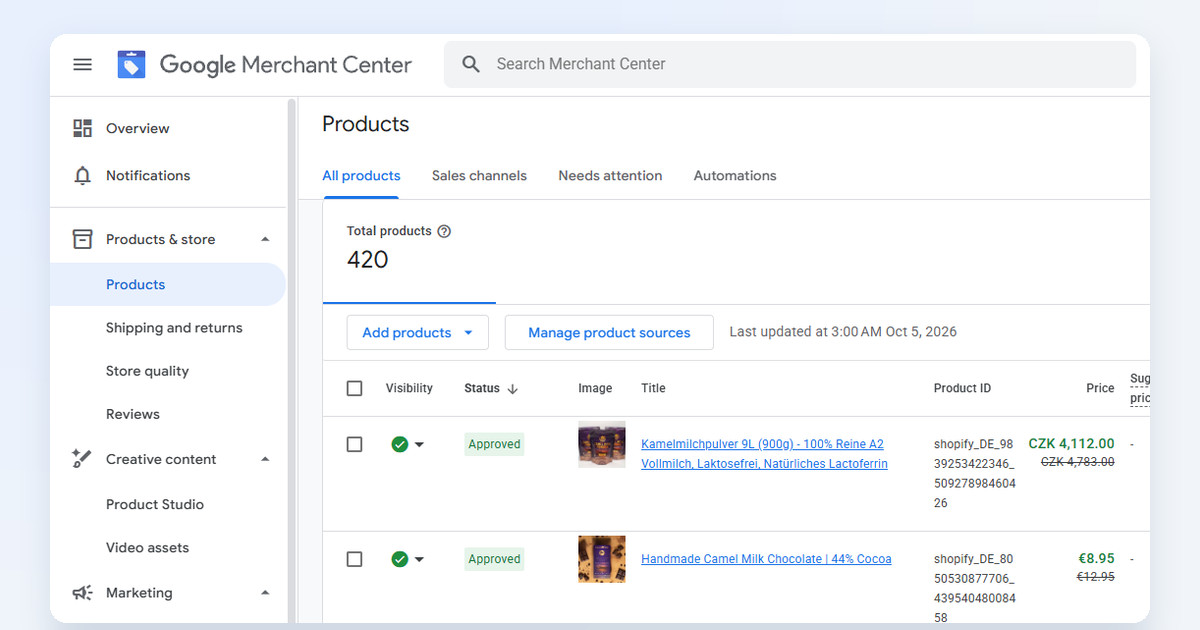
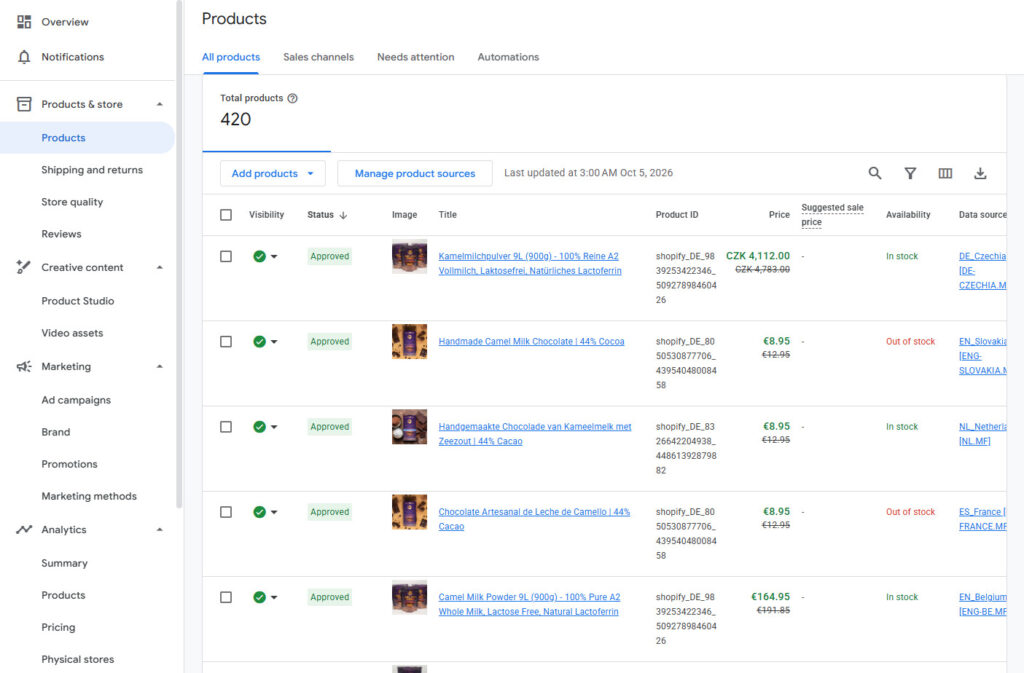
I have run Google Shopping for online stores for years. camelway.eu, a store I built and ran, sends 420 products to Merchant Center in separate lists for each country and language, each in the shopper's own currency.
What is Google Merchant Center?
Merchant Center holds your product feed, the list of everything you sell with its title, photo, price, availability and shipping. Google reads it, checks it against your website and decides where each product may appear. It costs nothing. You pay only for the ads you run from Google Ads, which reads the same feed, so one problem in Merchant Center stops your free listings and your Shopping ads at the same time.
How to set up Google Merchant Center, step by step
- Create the account at merchants.google.com, with the Google account you will also use for Google Ads.
- Add your business information: the business name, address and phone number, exactly as they appear on your store's contact page. Verify the phone number with the code Google sends by text message or call. Until your business details are verified, Google can keep your products and ads from running.
- Verify and claim your website. The Shopify and WooCommerce connections do it for you.
- Set shipping and returns under Products & store, then Shipping and returns, for every country you ship to: the costs, the delivery times and the return policy, written the same way as on your store.
- Connect your products. On Shopify, install the free Google & YouTube app. On WooCommerce, install the free Google for WooCommerce plugin. Both send your products and keep them updated.
- Check the Needs attention tab under Products, and fix every product it lists before you spend anything on ads.
- Turn on free listings under Marketing, then Marketing methods.
What has to match your store in every country?
Google compares what your feed says with what a shopper sees on your website, and it does that for every country you sell to. Each country you ship to needs its own shipping rates, its own return policy and prices in its own currency, and all of it has to match the pages on your store. List the country on your store first. Then set up its shipping and returns in Merchant Center and send products in its language and currency. A crossed-out price must be a price you really charged. The contact details, the shipping costs and the return policy on your site must be the ones in Merchant Center, word for word if you can.
Merchant Center also reads your product pages. Its automations for price, sale price, availability and condition are on by default, and they quietly update your products from the structured data and the text on your store's pages whenever the two disagree. That helps when a feed is late, and it is one more reason the pages and the feed must agree.
Why are my products disapproved or limited?
Most disapprovals come from a mismatch or a missing detail: a price or availability that differs between the feed and the page, a missing product identifier such as the GTIN barcode number, a photo with text or a watermark on it, or missing shipping costs. Needs attention names each issue. Fix it in your store, let the feed update, then ask for a review of that product.
Not every disapproval is your fault. Google's automated review sometimes disapproves products or marks them as limited by mistake, even in an account where everything was approved the day before, and the reasons it gives can be vague. When you are sure the product follows the rules, request a review and explain why. Keep a short record of what you changed and when, because the same question may come back.
How to avoid a misrepresentation suspension
Misrepresentation is the policy behind most account suspensions, and the one store owners search for in a panic. Google suspends an account under it when the store hides information a shopper needs or makes claims it cannot back up: missing contact details, total costs or fees the shopper only discovers at checkout, refund terms hidden after the purchase, prices set artificially low to lure shoppers, or unrealistic claims about what a product does. For the worst cases, such as fraud or dishonest pricing, Google suspends the account at once and permanently. For the rest it sends a warning email with 7 or 28 days to fix the problem. A review takes about 7 business days. The appeal forms are long and detailed, so prevention is far cheaper:
- Show who you are: the business name, address, phone number and email on a contact page and in the footer.
- Publish your policies: shipping, returns and refunds, linked from every page.
- Show the full cost early: shipping and taxes before the checkout, as Why shoppers abandon their carts explains.
- Keep discounts real and claims provable. A badge or seal you cannot back up counts against you; Do trust badges work? covers which ones are allowed.
Never advertise a product you do not have
This is the fastest way to lose an account. Google's misrepresentation policy lists false claims about availability among the things it does not allow, and in my experience a product that runs out of stock while its ads keep running can bring automatic disapprovals and even suspensions on both Merchant Center and Google Ads. Getting the account back means appeal forms and waiting. Keep the feed in sync, so availability changes the moment stock runs out. The Shopify and WooCommerce connections update on their own, and a separate feed app should refresh at least daily; camelway.eu's feeds were last refreshed at 3:00 AM on the day of the screenshot. Pause ads for anything out of stock.
How to get star ratings under your products
Stars under a product in Shopping come from Google's product ratings program, and you need at least 50 reviews across all your products to join it. Google takes reviews from approved review platforms, from its own free Google Customer Reviews program, or from a feed you send yourself. I recommend REVIEWS.io. Its reviews come from verified purchases, it is an approved Google partner, and in my view it is the most sensible price for a small store. Store ratings, the stars next to your store's name in ads, are separate and generally need about 100 reviews per country from the last 12 months. The product page checklist shows where the same reviews belong on your own page.
Promotions and automated discounts
Two features in Merchant Center are worth turning on once the basics are clean. Promotions, under Marketing, show an offer such as 10% off or free shipping next to your products in Shopping. Automated discounts go further: Google lowers the price shown in your Shopping ads for shoppers it expects to buy, within limits you set, at least 5% and typically up to 20% below the regular price, and your store honors that price at checkout. They need working conversion tracking in Google Ads and your cost of goods in the feed, and they are supported on Shopify through the Google & YouTube app and on WooCommerce.
Free listings or Shopping ads?
Use both, but plan your sales around the ads. Free listings cost nothing and bring a trickle of clicks. Shopping ads are what puts your products in front of shoppers at the moment they search, and they need a product feed, which is why Merchant Center comes first. Start with Standard Shopping campaigns and nothing else. Google will push you toward Performance Max, a campaign type that spreads your budget across Shopping, YouTube, display banners and more on its own, and toward display ads. Skip both at the start.
Set up conversion tracking first. Google Ads needs to know which clicks became orders and what each order was worth, or it optimizes toward the wrong products. For a store in one language the Google & YouTube app or the Google for WooCommerce plugin is a fair start. A store with many products in several languages and countries usually needs more work than the default app does, so that every order is counted once and credited to the right product and country.
Which feed tool should you use?
Start with the free tools. On Shopify, the Google & YouTube app is enough at first, and stores that sell in several countries and languages often move to a paid feed app that builds a separate feed per market; camelway.eu uses Multifeed for that. On WooCommerce, the free Google for WooCommerce plugin is the starting point.
| Feed app on the Shopify App Store | Price | What the price covers |
|---|---|---|
| Multifeed Google Shopping Feed | Free, then $5.95, $15.95 or $25.95 a month | 10 products free; then 1,000, 3,000 or 10,000 products in 2, 4 or 6 feeds |
| DataFeedWatch | From $64 a month, or $639 a year | $5 for every extra 1,000 products |
| Channable | From $104 a month | Feeds and listings for many channels |
Prices on the Shopify App Store, October 5, 2026, before tax.
A feed app is one more monthly bill, and the price climbs with every product and every country you add. CartHacker's Product Feed Manager is in development for exactly this job: it manages and optimizes your product feeds for Google Shopping and fixes the errors that get products disapproved in Merchant Center. It comes included in CartHacker Premium, at $7.99 a month or $79 a year before tax, together with everything else Premium covers, at no extra cost. It is due in Q1 2027. My advice: if the free Google app covers your store today, stay on it and wait for the Product Feed Manager rather than starting a feed bill now.
Read every new guide 2 weeks early, with no ads
Premium also opens all 50 trust badges in 30 languages, keeps 180 days of your Core Web Vitals, removes the limit on PDF tools and tracks 200 QR codes.
See CartHacker PremiumGoogle Merchant Center checklist
- Business name, address and phone verified and identical to your contact page.
- Website verified and claimed.
- Shipping and returns set for every country you sell to, matching your store.
- Products connected through the Google & YouTube app, Google for WooCommerce or a feed app.
- Needs attention cleared before any ad runs.
- Policies and contact details visible on every page of the store.
- Feed in sync at least daily, and no ads for products out of stock.
- 50 reviews or more for product stars, from an approved platform.
- Conversion tracking tested, then Standard Shopping campaigns only.
Google Merchant Center questions store owners ask
Is Google Merchant Center free?
Yes. Merchant Center and free listings cost nothing. You pay only for Shopping ads, which run from Google Ads, read the same product feed and cost whatever you bid for each click, within a daily budget you set yourself.
Why is my Merchant Center account suspended for misrepresentation?
Usually because the store hides information shoppers need, such as contact details, the full cost or the return policy, or because a claim or price cannot be backed up. Fix every point on the store itself, then request a review in Merchant Center; it typically takes about 7 business days.
Why are my products limited in Merchant Center?
Limited means a product shows only in some places or countries, usually because an identifier such as the GTIN is missing, a detail does not match the website, or the product touches a restricted category. The Needs attention tab names the issue for each product.
How many reviews do I need for stars in Google Shopping?
At least 50 reviews across all your products for product ratings, sent through an approved review platform or Google Customer Reviews. Store ratings generally need about 100 reviews per country from the last 12 months.
Sources
- Google Merchant Center Help: Product ratings basics, Store ratings, Misrepresentation, Automations and product data optimizations, Return policies, Unverified phone number, Automated discounts and Promotions policies.
- Shopify App Store: Google & YouTube. WordPress.org: Google for WooCommerce.
- camelway.eu, Google Merchant Center, Products, October 5, 2026.