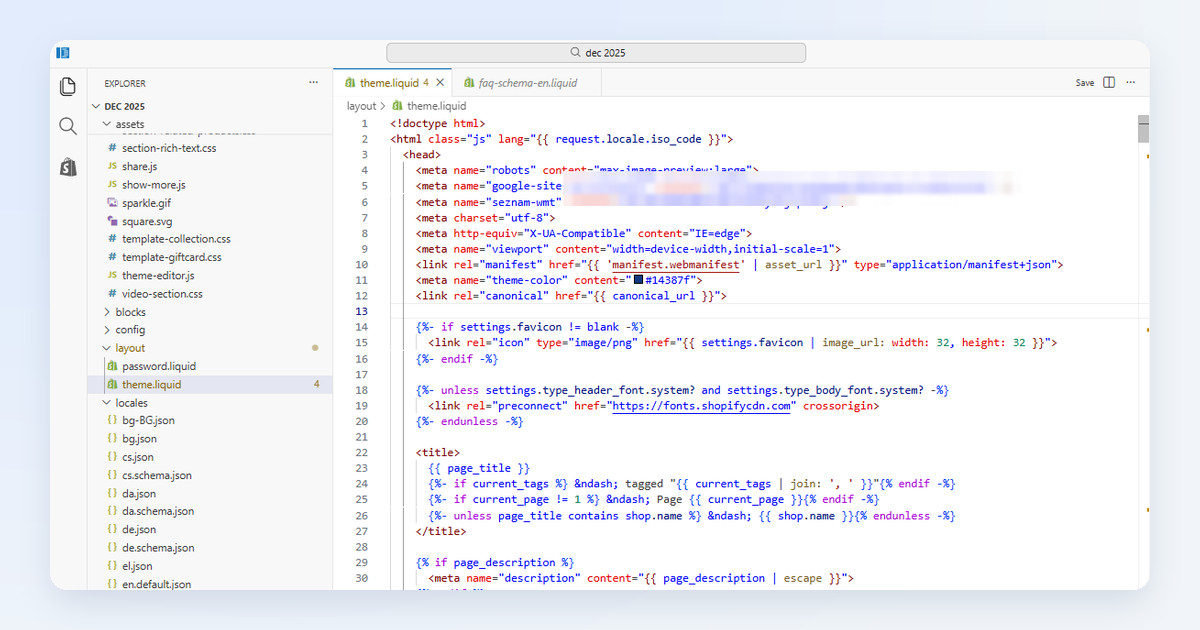
To edit a Shopify theme safely, duplicate it, make the change in the copy, preview it, and publish the copy only when it works. A single line from a tool you trust, such as a tracking or monitoring snippet, can go straight into the live theme, because Shopify keeps earlier versions of every file you save. Most changes need no code at all. This guide shows where each kind of change belongs, how to find theme.liquid, and how to undo a mistake.
I have built stores since 1998. On camelway.eu, a store I built and ran that sells a few niche products, I often edited the live theme directly. That is a risk a small store can take, and one I would not recommend to a store with more traffic, more products or more at stake.
Where does each kind of change belong?
Pick the lightest tool. The theme editor and Custom CSS survive theme updates far better than edited code, and they cannot break the page structure. Open the code only when nothing else reaches what you need, because every edited file is one more thing to carry over by hand when the theme updates.
| You want to | Use | Where |
|---|---|---|
| Change colors, fonts, sections and their order | Theme editor | Online Store, then Edit theme |
| Adjust the look of one section or the whole store | Custom CSS | Section settings, or Theme settings, then Custom CSS |
| Add a block of HTML to one page | Custom Liquid section or block | Theme editor, Add section or Add block, if your theme offers it |
| Add a snippet from a tool to every page | theme.liquid | Edit code, Layout folder, one line above the closing head tag |
| Change how a template works | Code editor | Edit code, on a duplicate of the theme |
Step 1: duplicate your theme
A duplicate is your safety net. In your Shopify admin, open Online Store, click the three-dot menu next to your current theme and choose Duplicate. The copy carries the theme's code and settings, while your products, collections, pages and images stay where they are, shared by every theme. A store on Basic, Grow or Advanced can hold up to 20 themes, and a Plus store up to 100, so delete old copies now and then before the library fills up.
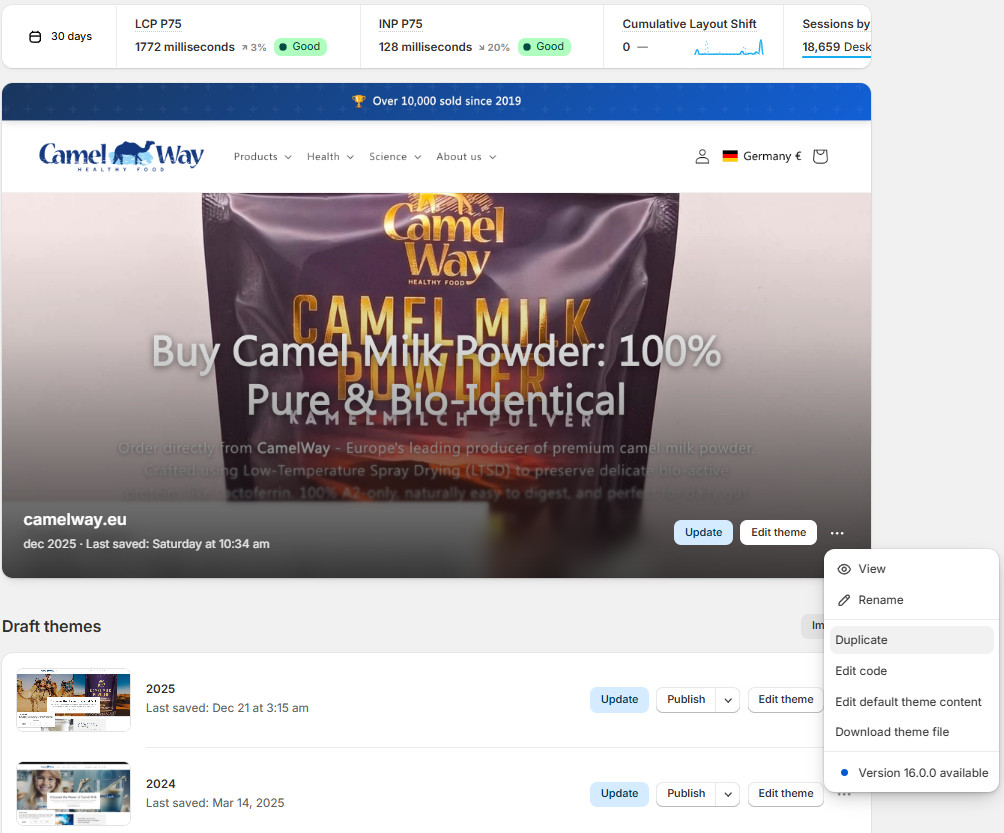
The same menu offers Download theme file, which emails you a copy of the theme. Keep that file as an offline backup before any larger change.
Step 2: open the code editor and find theme.liquid
From the same menu, choose Edit code. The editor opens with the theme's files on the left, sorted into folders. The one you will use most is theme.liquid in the Layout folder, the frame that wraps every page Shopify renders, so a line pasted there reaches the home page, the collections and every product page at once.
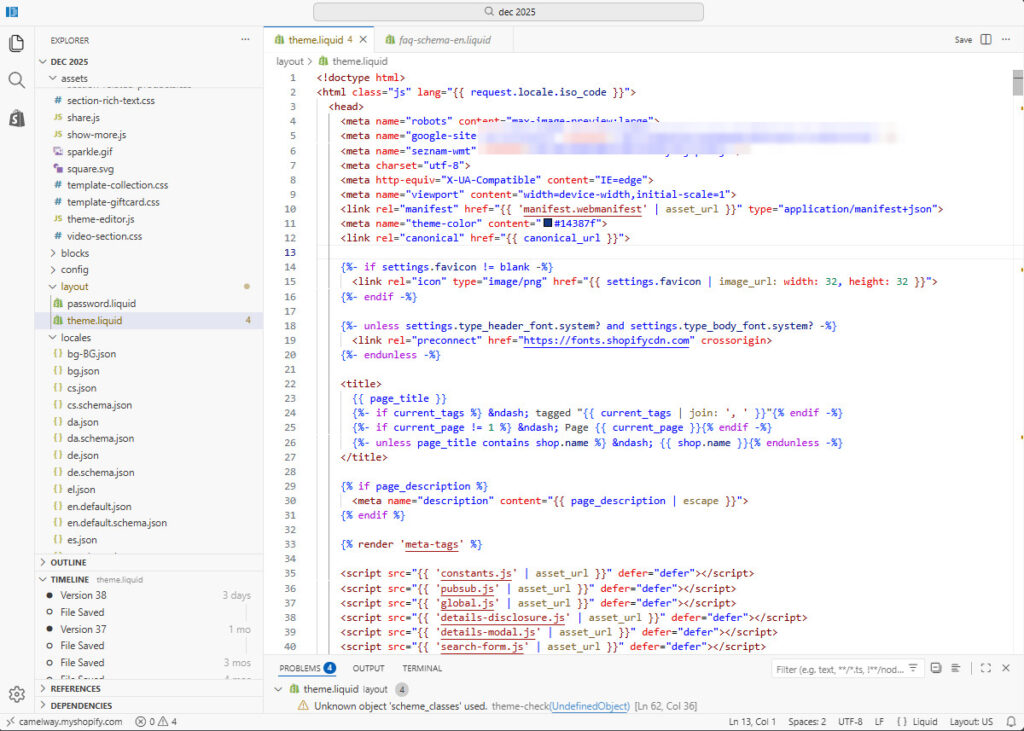
- Layout: theme.liquid, the frame around every page, and password.liquid for the password page.
- Templates and sections: the page types and the building blocks you arrange in the theme editor.
- Snippets: small pieces of code that other files include.
- Assets: the theme's own stylesheets, scripts and images.
- Config and locales: the theme's settings and its texts in every language.
The new editor helps. It searches one file or every file in the theme, and Theme Check underlines problems in red as you type, such as scripts that block the page from loading or texts missing from a translation file. The Timeline keeps earlier versions of each file you save; right-click an entry and choose Restore contents to bring one back. The history is finite, so older versions may not be there forever.
Step 3: paste a snippet in the right place
Most tools that ask you to paste code want it inside the head section of theme.liquid. Placement matters. Paste a script on its own line directly above the closing </head> tag, so it loads before the rest of the page and after Shopify's own head content. A site verification tag, such as the one Google Search Console gives you, goes right below the opening <head> tag instead.
  {{ content_for_header }}

  <!-- Pasted here: one line from a tool, above the closing head tag -->
  <script src="https://example.com/your-snippet.js" defer></script>
</head>
Liquid, Shopify's template language, uses two kinds of brackets. Double curly braces print something, such as a product title, and curly braces with percent signs run logic, such as a condition or a loop. Never paste inside either kind of bracket, and never in the middle of another tag; a clean line of its own between two existing lines is always the safe spot. Then click Save.
Both CartHacker snippets install this way. Core Web Vitals Monitoring and Trust Seals & Badges each ask for one line above the closing head tag in theme.liquid, and both load with the defer attribute, so the page never waits for them. What Google's speed scores mean for your store explains what the monitoring measures, and Do trust badges work? covers the badges.
Step 4: preview, test and publish
Preview the copy from its actions menu. Click through the pages your change touches on a real phone: a product page, a collection, the cart and the home page. When everything works, choose Publish on the copy; the old theme moves to your theme library, where one click publishes it again if something turns up later. Keep it there for a couple of weeks.
Change the look without code: Custom CSS
For style changes, Custom CSS is safer than editing the theme's stylesheet. Shopify offers it in two places. Theme settings, then Custom CSS, styles the whole store, up to 1,500 characters; the Custom CSS field at the bottom of a section's settings styles that section alone, up to 500 characters.
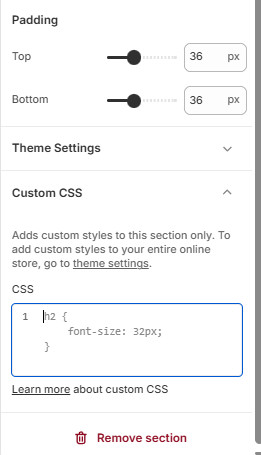
h2 {
  font-size: 32px;
}
A few things are not allowed there: @import, @charset and @namespace, the content property, and web addresses other than Shopify's own cdn.shopify.com. Custom CSS does not reach the checkout. It can also stop working after a theme update if the update renames the classes your rules target, so open the affected pages and check them after every update you install.
What happens to your edits when the theme updates?
When your theme maker releases a new version, Shopify shows an Update button next to the theme. Updating adds a new draft named Updated copy of your theme, and leaves the live one alone until you publish it. Theme editor settings come across. Code edits come across only when they do not conflict with the update; when they do, Shopify reports that the code edits could not be included, and you have to carry them over by hand.
That is the cost of code. Before updating, save a copy of every file you changed, or keep a list of your edits with the file and line. Apps built on Shopify's app embeds and app blocks avoid the problem entirely, because their code lives outside the theme files; how to find what is slowing down your Shopify store shows where those switches are.
How to undo a mistake
- One file went wrong: open it in the code editor, find the version you want in its Timeline, right-click and choose Restore contents.
- The whole change went wrong: publish the previous theme from your theme library.
- The theme itself is gone or broken: upload the theme file you downloaded as a backup.
GitHub and the Shopify CLI
Developers can connect a theme to a GitHub repository, so every change is versioned and reviewed, or work on a local copy with the Shopify command-line tool, the Shopify CLI, and push changes when they are ready. Few small stores use either. Most do not need to. For a store that edits code every week or has more than one person working on the theme, version control is worth the setup.
Monitor your store's Core Web Vitals every day, for free
One snippet in your theme measures real shoppers. A free account keeps 7 days of history, Premium keeps 180.
Create a free accountShopify theme editing checklist
- Theme editor or Custom CSS first, code only when nothing else reaches.
- Duplicate the theme before any change bigger than one pasted line.
- Download the theme file as an offline backup before larger edits.
- Scripts on their own line above the closing head tag in theme.liquid.
- Nothing pasted inside Liquid brackets or another tag.
- Preview on a real phone before you publish.
- A list of every code edit, ready for the next theme update.
Shopify theme code questions store owners ask
Is it safe to edit theme.liquid?
Yes, with care. Pasting one line on its own above the closing head tag is low risk, and the file's Timeline lets you restore an earlier version. For larger changes, work on a duplicate of the theme and publish it only after you have tested the product page, the cart and the home page on a phone.
Where do I paste a tracking or monitoring code on Shopify?
In theme.liquid, in the Layout folder of the code editor, on its own line directly above the closing head tag. A site verification tag goes right below the opening head tag instead.
Will editing code stop my theme from updating?
Not entirely. Shopify carries your code edits into the updated copy when they do not conflict with the new version; when they do, it says the edits could not be included and you redo them by hand. Settings made in the theme editor always come across.
How do I undo a change in my Shopify theme?
Restore the file from its Timeline in the code editor, or publish the previous theme from your theme library. A downloaded theme file is the last resort if both are gone.
Sources
- Shopify Help Center: Editing theme code, Adding custom CSS, Duplicating themes, Adding themes and Updating your theme.
- camelway.eu, Shopify admin, Online Store and code editor, October 5, 2026.