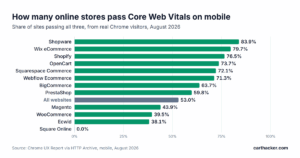
A slow WooCommerce store is usually slow before the shopper's browser has received a single byte. In August 2026 only 12.7% of WooCommerce sites gave phone visitors a good server response, 800 milliseconds or less, against 81.9% of Shopify stores, and the WooCommerce figure has barely moved in five years. Shopify runs its own servers. On WooCommerce the owner picks the server, the PHP settings and the cache, and that is where most of the time goes.
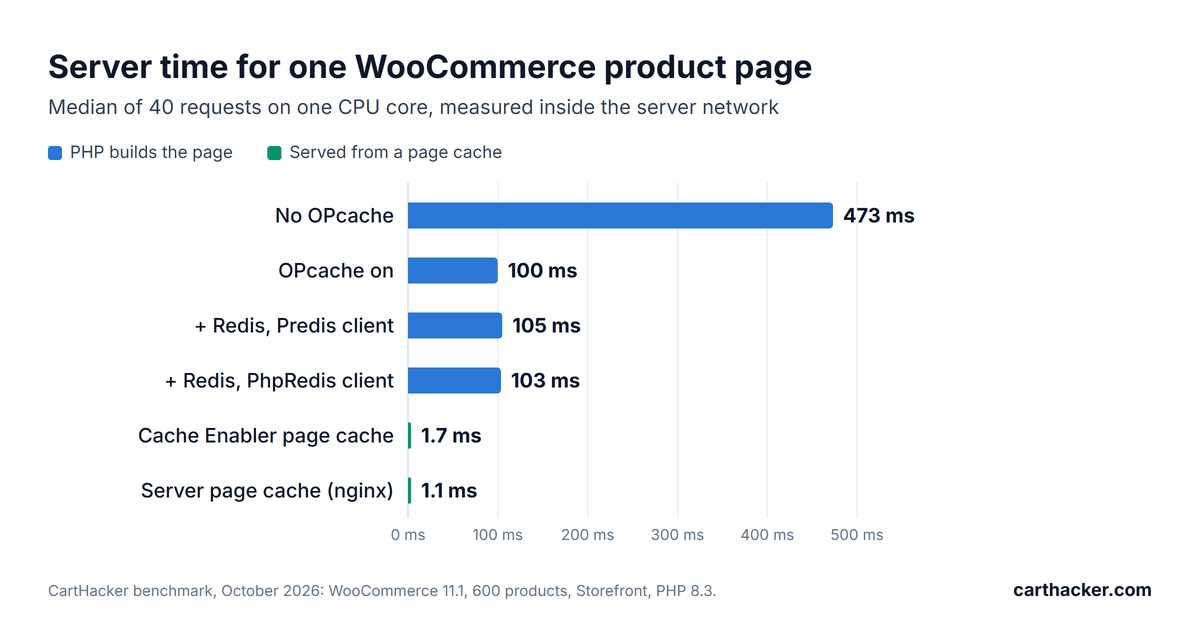
To find out which of those choices matters most, I built a test store and measured it one layer at a time, using WooCommerce 11.1 with 600 products, 1,200 variations and the free Storefront theme, on PHP 8.3, MariaDB 11.4 and nginx, in Docker on my own workstation. One product page took 473 milliseconds of server time without OPcache, 100 with it, and 1.1 from a page cache. Same page, same store. The order of the fixes matters more than their number, so this guide follows that order step by step and compares the results with two real WooCommerce stores.
Why is WooCommerce slow?
WooCommerce is slow when PHP has to build each page from the database while the shopper waits. Every request starts WordPress, WooCommerce, the theme and every active plugin, which on my test store meant loading 1,392 PHP files and running 90 database queries for one product page, and only then sends the first byte. A page cache skips all of it. Fast WooCommerce stores build pages rarely and let a cache answer everyone else, which is why the fixes in this guide start with caching and only then move to code.
Server response (Time to First Byte) counts everything before that first byte arrives: redirects, the DNS lookup, the connection and its encryption handshake, then the server's own work. Good is 800 milliseconds or less. It sits outside the three Core Web Vitals, yet Loading (Largest Contentful Paint) cannot begin until it ends, and only 43.7% of WooCommerce sites pass Loading on phones against 87.3% of Shopify stores. The speed data by platform has the full comparison, and the guide to Google's speed scores explains the three scores themselves.
Distance spends part of that budget. A phone on a mobile network can use a few hundred milliseconds reaching a distant server and agreeing on encryption before your server starts any work, which leaves the server itself well under 800 milliseconds. The benchmark measures only the server's own work, inside the same network, so read its numbers as the server's share of the wait.
Step 1: Measure the server, cached and uncached
Measure two numbers on a product page: the server response a shopper gets, and the time your server needs when it has to build the page itself. The first decides whether you pass. The second shows how much your cache is hiding, and it is close to what every cart, checkout and account page costs, because WooCommerce never lets those be cached.
- Run the Store Speed Test on a product page: paste the address of your best-selling product. The report shows the real-visitor scores Google holds for that page, and it raises "Your server takes a long time to answer" when the first byte took longer than 800 milliseconds in the lab run.
- Open the same page in Chrome DevTools: in an Incognito window press F12, open the Network tab and reload. The row whose Type reads document is the page itself, and its Time column is the whole request. Click it and open the Timing tab to split that time: "Waiting for server response" is the server's share.
- Repeat it with a made-up query string: add
?nocache=12345to the address and change the number on every try. Most page caches have never stored that address, so the wait you see now is PHP building the page from scratch. - Read the cache headers: on the same row, the Headers tab names the cache that answered.
cf-cache-status: HITis Cloudflare,x-litespeed-cache: hitis LiteSpeed Cache, and anx-cacheheader reading HIT usually comes from your host's own cache.
From a terminal, curl gives the same two numbers. The address is a placeholder for your own product page, and the first command is worth running twice, because the first request may only fill the cache.
# What a shopper gets: the cached page
curl -o /dev/null -s -w 'first byte: %{time_starttransfer}s\n' https://shop.example.com/product/blue-mug/

# What PHP needs: an address no cache has stored yet
curl -o /dev/null -s -w 'first byte: %{time_starttransfer}s\n' "https://shop.example.com/product/blue-mug/?nocache=$RANDOM"Check your store's Core Web Vitals for free
Paste a product page address. You get the three scores right away, and a free account names every slow app and the fix for your platform.
Test my storeWhat good looks like: two WooCommerce stores
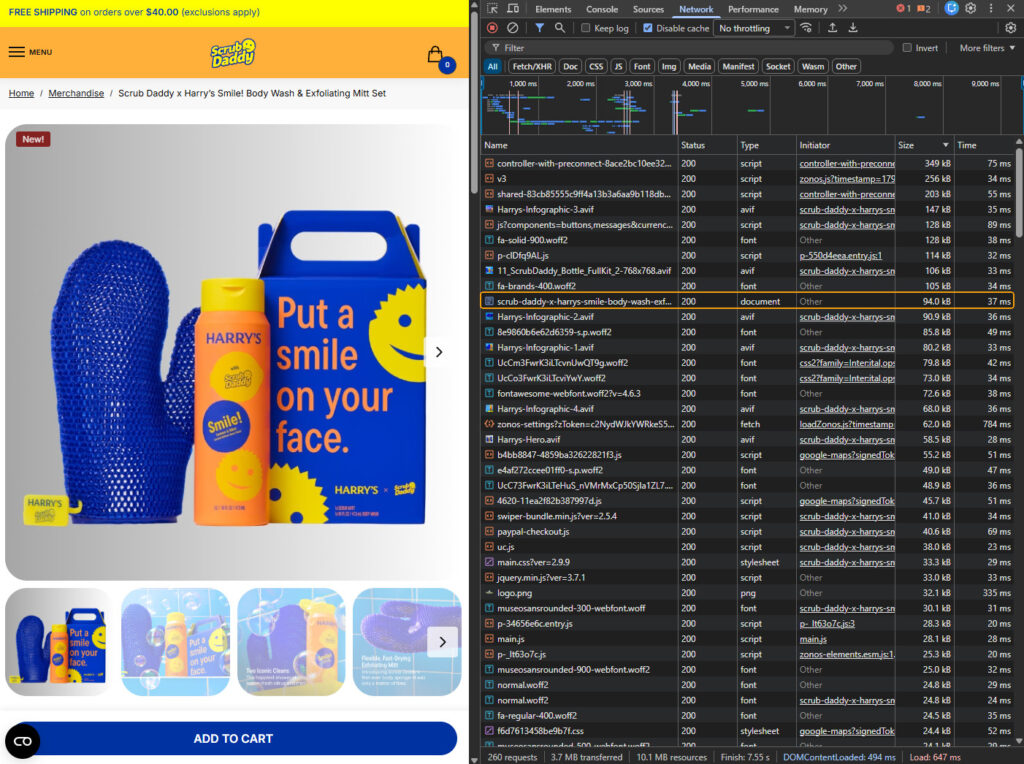
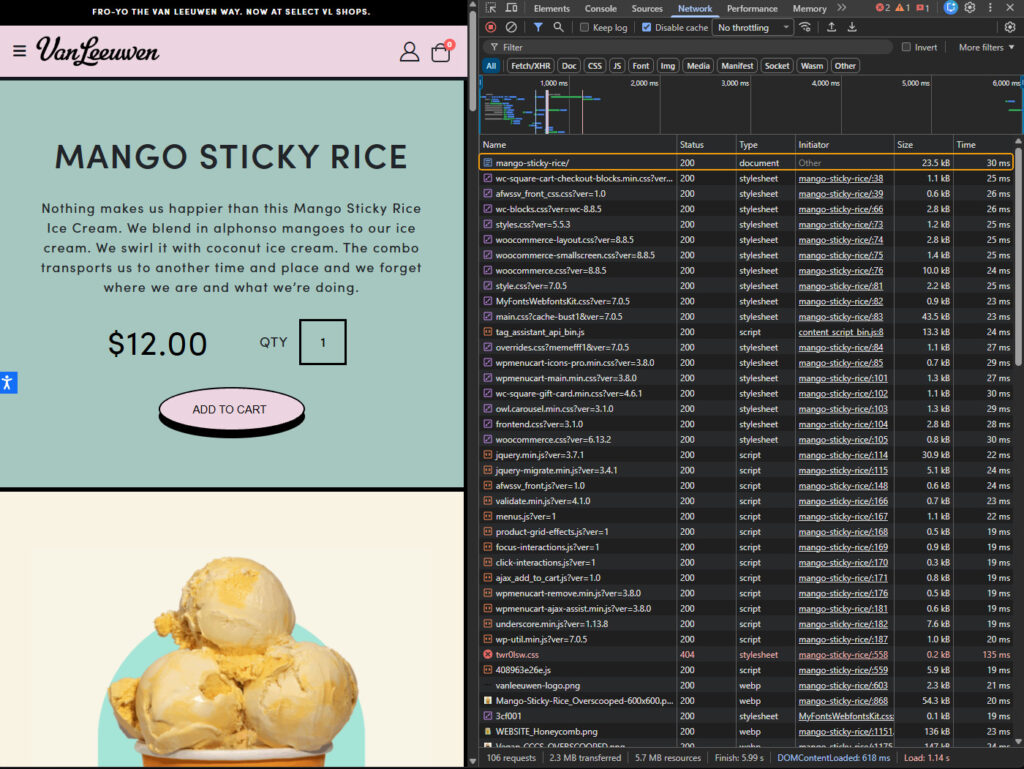
Scrub Daddy and Van Leeuwen Ice Cream both sell on WooCommerce, and both serve their product pages faster than most Shopify stores do. I measured one product page from each on October 4, 2026, from my own connection in Poland, three requests per test, with a script that takes the connection setup out of the server number, then opened both in Chrome DevTools.
| Product page | Scrub Daddy | Van Leeuwen Ice Cream |
|---|---|---|
| Cached page, server wait | 27 ms | 21 ms |
| Cached page in Chrome DevTools | 37 ms | 30 ms |
| Answered by | Cloudflare's cache | Cloudflare's cache, with a server cache behind it |
| Same page built by PHP | 924 ms | 646 ms |
| Ad click address (gclid, fbclid, utm_source) | 27 to 52 ms, still cached | 228 to 233 ms, past Cloudflare |
| Cart fragments on a first visit | Sent, answered in 767 ms | Not sent until the cart has an item |
| Braintree payment setup request | Refused with 403 after 0.5 to 0.8 s | Not on the page |
| HTML of the page | 407 KB, 150 script tags | 119 KB, 71 script tags |
| Theme | Shoptimizer | Their own |
| Plugins with files on the page | 15 | 10 |
Server wait is the time to the first byte minus the connection setup, the median of three requests; DevTools shows the whole request, download included, in its Time column. The cart fragments and Braintree rows come from a fresh Chrome profile with nothing in the cart. Step 5 covers cart fragments.
Neither store is fast at building pages. Scrub Daddy's server needs 924 milliseconds to build that product page from scratch, more than nine times what my one-core test store needs with OPcache, because the page carries a premium theme, 15 plugins with files on the page and 407 KB of HTML. Hardly any shopper pays for it. Cloudflare holds a copy of the page, and every request I made, including the ones from ad links, got that copy in under 60 milliseconds.
The long cache has a price. The copy of the product page Cloudflare handed me was 130,315 seconds old, about 36 hours, and the page carries a WordPress security token, a nonce, that the Braintree payment plugin sends back when it sets up the payment buttons. WordPress accepts a nonce for 24 hours at most. On every load I recorded, that request came back 403 Forbidden after 0.5 to 0.8 seconds of PHP, with the answer WordPress gives an expired or invalid nonce: Cookie check failed.
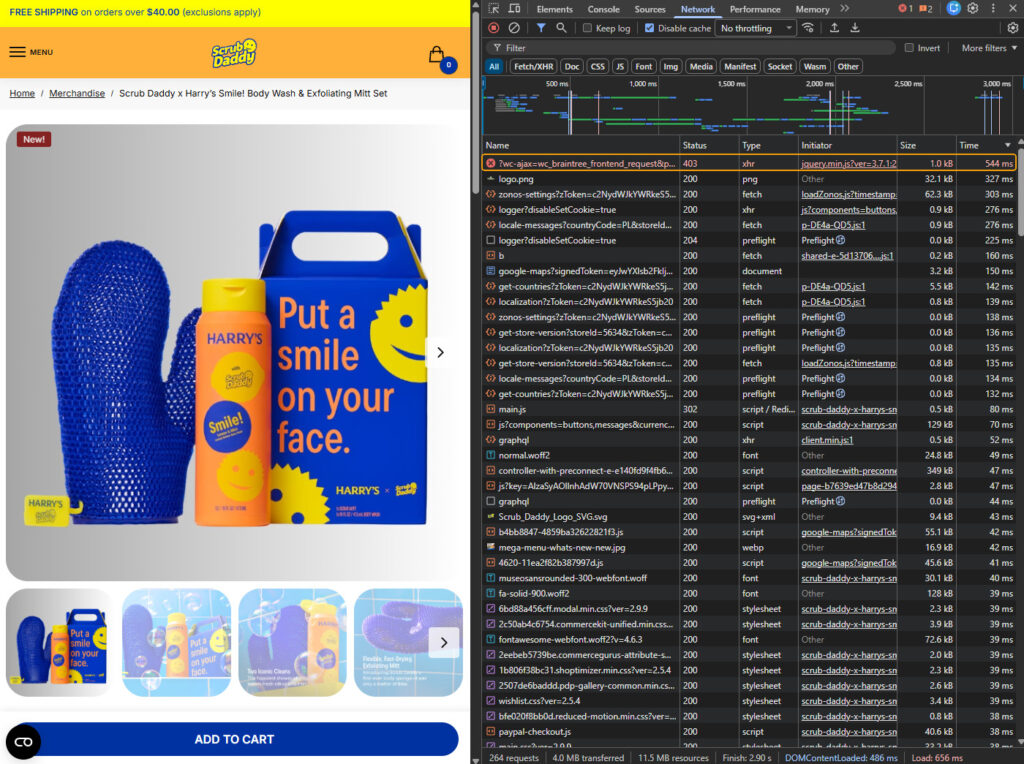
A page that carries a nonce should leave the cache within 12 hours, the shortest time WordPress guarantees a nonce stays valid, which is why WP Rocket's default cache lifespan is 10 hours. Scrub Daddy's Cloudflare rule keeps the page for a year, an s-maxage of 31,536,000 seconds. Fine for a page with no tokens. With one, the page needs a purge at least twice a day, or the plugin has to fetch its token from a request no cache stores. To see whether a page carries one, open its source with Ctrl+U and search for nonce.
Van Leeuwen uses the same idea and has a different weak spot, the one paid traffic hits. Its cached product page arrived in 21 milliseconds. An address carrying a gclid, an fbclid or a utm_source, which is what every Google Ads, Meta and newsletter click looks like, missed Cloudflare's cache each time and went on to the server cache behind it, about 230 milliseconds in all. Still fast, but ten times slower. The part of step 3 headed Ad clicks can skip the cache explains why, and how to check your own store.
Step 2: Turn on OPcache and run PHP 8.3 or newer
OPcache did more for PHP itself than any other setting in the test. PHP turns every file it runs into bytecode before executing it, and without OPcache it repeats that work on every request, for all 1,392 files a product page loads. With OPcache the compiled code stays in memory between requests. On one CPU core the product page dropped from 473 to 100 milliseconds, and the core served about 9 pages a second instead of 1.9. Check it first.
Most hosts switch OPcache on. Some cheap plans leave it off, and nothing in the WordPress dashboard tells you. In cPanel, open Select PHP Version and look for opcache among the ticked extensions. On other hosts ask support to confirm that opcache.enable is 1 for your site's PHP; the command line on the server usually has its own setting, so a check run there proves nothing about your pages.
The PHP version matters less for speed. PHP 8.3 built the same pages between 2% and 9% faster than PHP 7.4 on two cores, with the biggest gain on the variable product page, 123 against 135 milliseconds. The stronger reason to upgrade is security: PHP 7.4 has had no security fixes since November 2022 and PHP 8.1 none since December 2025, and PHP 8.2 gets its last ones in December 2026. Find yours under WooCommerce, Status. Move to 8.3 or 8.4 on a staging copy first, because an old plugin is the usual thing that breaks.
Step 3: Cache whole pages for shoppers who are not logged in
A page cache stores the finished HTML of a page and hands it to the next visitor without starting WordPress. It moves the number most. In the test, Cache Enabler, a small page cache plugin, answered the product page in 1.7 milliseconds, and the nginx cache in front of PHP answered it in 1.1, against 100 milliseconds for PHP with OPcache. Under load the gap becomes a wall: with 20 shoppers asking at once, the nginx cache on one CPU core delivered 9,973 pages a second, and PHP with OPcache about 9.
Where the cache lives matters. Cache Enabler, like WP Rocket on an nginx server, still starts PHP for every request and only skips WordPress. WP Rocket on Apache uses rewrite rules in .htaccess to send the stored file without PHP, LiteSpeed Cache is served by the LiteSpeed web server itself, and a host cache built on Varnish or nginx answers before PHP is involved at all. A CDN cache such as Cloudflare's goes one step further and answers from a data center near the shopper, which is how both example stores reach 21 and 27 milliseconds.
Only one page cache should run. Two plugins that both cache pages, or a cache plugin on top of a host cache that already does the job, mostly add ways for a stale page to survive a purge. If your host caches pages, use its plugin to clear the cache and skip WP Rocket's page caching.
What a page cache cannot answer
- The cart, checkout and My Account pages. WooCommerce marks them as never cacheable, and every cache respects that. In the test the cart page took 133 milliseconds even while the nginx cache served every product page in about 1 millisecond.
- Logged-in customers. Most caches hand them pages built by PHP, and many also skip shoppers who have something in the cart, so your best customers get the slow version.
- The cart fragments request. Step 5 covers it.
- The first visitor after a purge. Saving a product, a stock change or a plugin setting can empty part of the cache, and the next shopper on each of those pages waits for PHP again.
- Security tokens older than a day. WordPress nonces in a cached page expire after 12 to 24 hours, and every request that sends one back fails once the copy is older, as Scrub Daddy's payment setup call shows.
- Addresses the cache has never seen. Search results, filtered category pages and ad links with tracking parameters.
Those pages are why the server behind the cache still matters, and why steps 4 to 7 exist.
Ad clicks can skip the cache
Every ad click arrives with a unique tag on the address: gclid from Google Ads, fbclid from Meta, utm_source and its siblings from newsletters and campaigns. To a cache that stores pages by their full address, each tagged address is a new page, so the visitor you paid for is the one who waits for PHP. Paid traffic gets the slow page. WP Rocket ignores a long list of these parameters by default and serves the cached page. In LiteSpeed Cache, add them to Drop Query String on the Cache tab; fbclid, gclid and utm* cover the common ones. On Cloudflare, check what your cache rule does with query strings, because by default the full address, query string included, is the cache key, and the options to leave single parameters out depend on your plan.
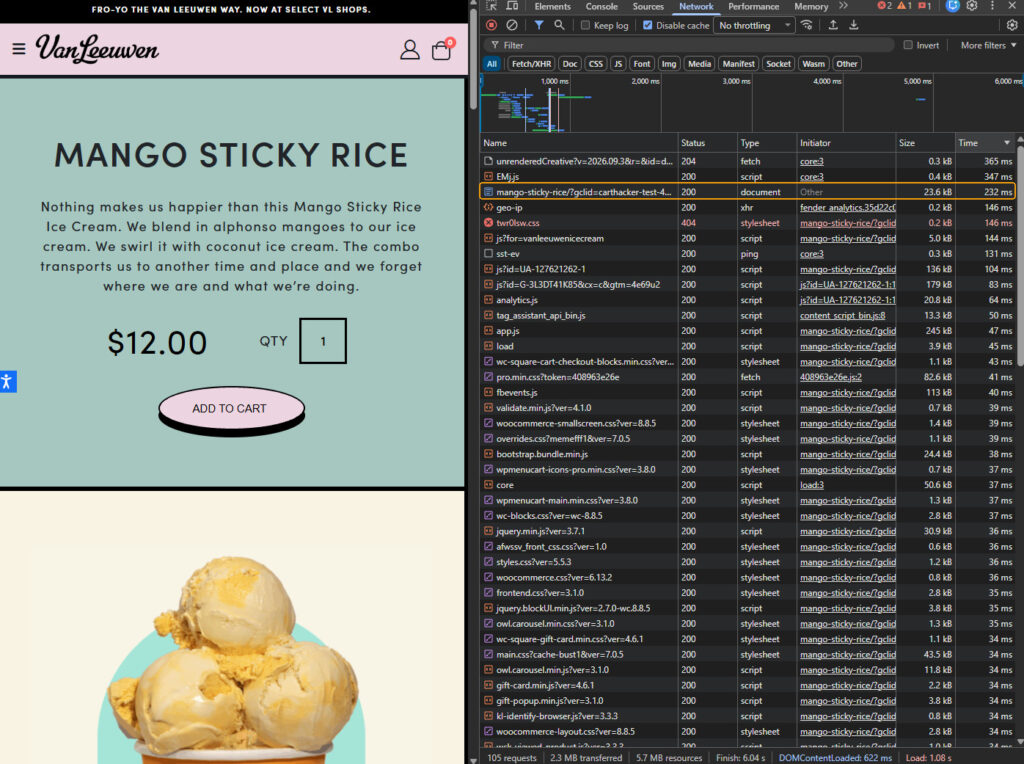
Van Leeuwen's numbers show the cost. With a fresh gclid the product page missed Cloudflare, and the document took 232 milliseconds in DevTools against 30 for the plain address; my measured server wait was about 230 against 21. A store without that second cache layer would have built the page in PHP, which for this page takes about 650 milliseconds. Scrub Daddy's Cloudflare cache ignores the parameters. Its ad visitors got the same 27 to 52 milliseconds as everyone else.
Step 4: Match PHP workers to CPU cores
A PHP worker builds one page. Managed WordPress plans sell them as PHP workers or PHP threads, and a store builds as many pages at once as it has workers with a free CPU core under them. When every worker is busy, the next request waits in a queue, and the queue is where an uncached page turns from slow into unusable.
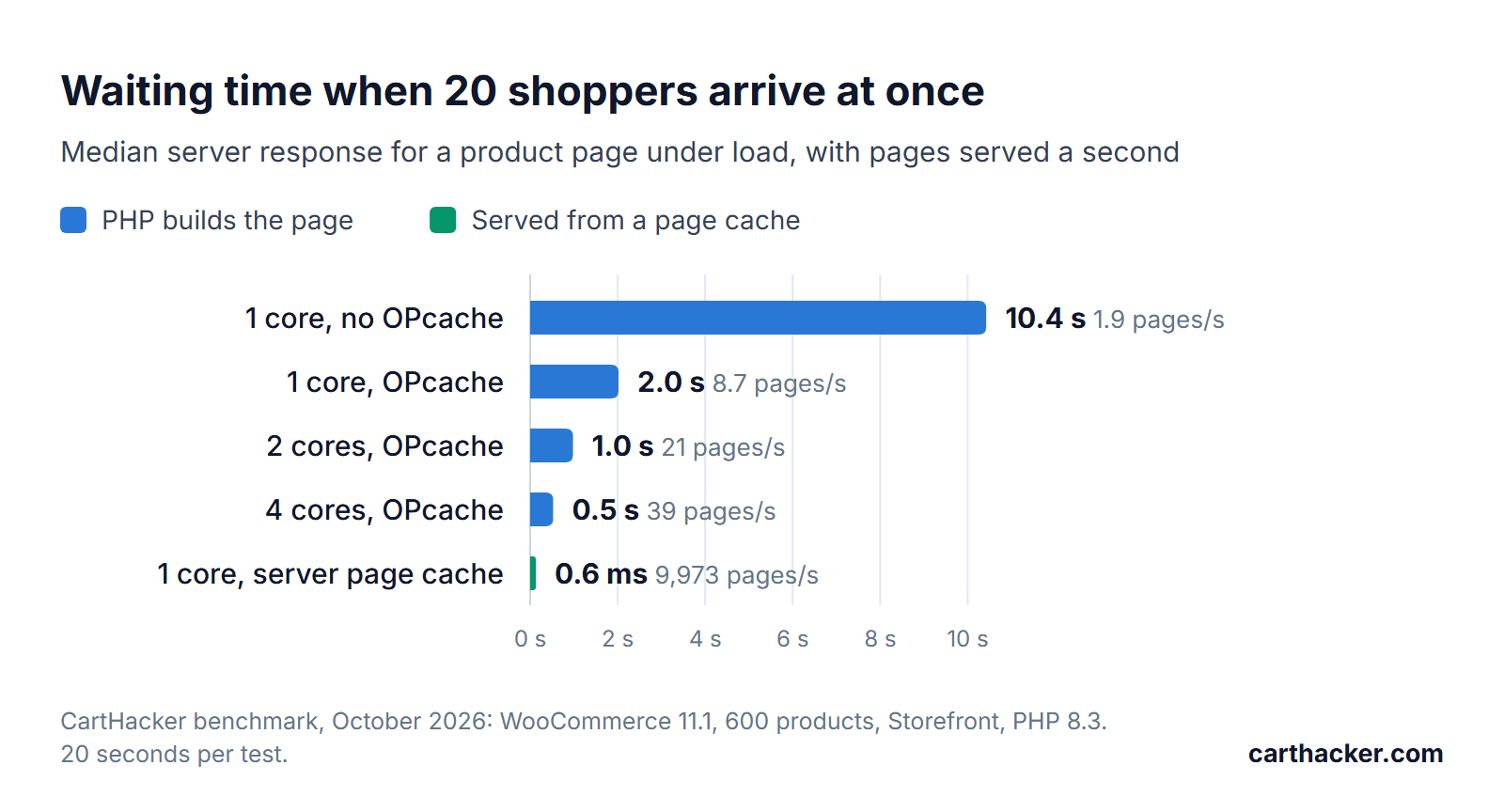
I sent 20 simultaneous shoppers at the uncached product page for 20 seconds per setup. On one core without OPcache the median shopper waited 10.4 seconds, because the core could finish only 1.9 pages a second. OPcache on the same core cut the wait to 2.0 seconds, two cores to 1.0 second and four cores to 0.5 seconds, as throughput rose from 9 to 21 and then 39 pages a second. From the nginx cache: 0.6 milliseconds.
More workers made it worse. In a second run on one core, 2 workers finished 10.3 pages a second with a median wait of 1.8 seconds, 8 workers managed 9.3 pages and 2.0 seconds, and 32 workers 7.1 pages and 2.6 seconds, while the memory the workers held grew from 93 MB to 467 MB. A worker without a free core only waits for one. The core then switches between more half-built pages, so each one finishes later.
Count before you buy. Pages a second is roughly the number of CPU cores divided by the server time of one page: 1 core and a 100 millisecond page make about 9 to 10 pages a second, and a page that grows to 232 milliseconds with 15 plugins cuts that by more than half. Workers beyond about twice the core count add memory and a longer queue, so a plan that sells many workers on a few cores is selling a bigger waiting room.
Step 5: Stop the cart fragments request where nothing needs it
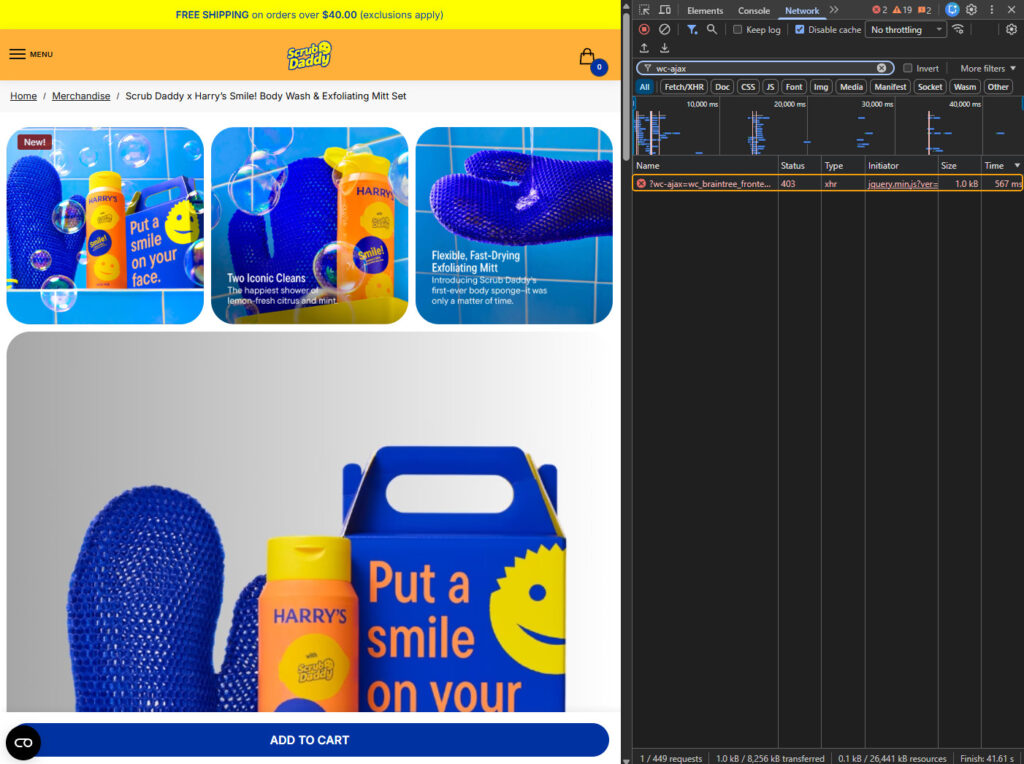
Cart fragments is the script that keeps the cart total in a store's header up to date. It sends a request to ?wc-ajax=get_refreshed_fragments, which no page cache answers, on the first page a shopper opens in each browser tab and again after every cart change. Since WooCommerce 7.8 the script loads only where the classic Cart widget is shown. Many themes still load it everywhere. Storefront 4.6.2, WooCommerce's own theme, loads it on every page, and so does Scrub Daddy, whose product page sent the request on a first visit in a fresh Chrome profile and waited 767 milliseconds for the answer. Van Leeuwen does not: its page loads the script only once the shopper has put something in the cart.
Each request is a full WordPress start. On the test store it took 40 milliseconds of server time, small on its own, but twenty at once on one core took 648 milliseconds each and the core topped out at 32 a second. The request does not hold up the first paint, because the browser sends it after the page has loaded. It spends the PHP workers that the cart and checkout need, at exactly the moment a campaign brings a crowd.
Three ways to stop it, from cleanest to quickest:
- Use the Mini-Cart block: WooCommerce's block version of the header cart reads the cart without cart fragments, and block themes offer it in the Site Editor.
- Switch it off in your optimization plugin: Perfmatters, for one, has a Disable Cart Fragmentation setting in its WooCommerce options.
- Hold it back with a snippet: the snippet keeps cart fragments on the page but withholds its address until the browser finds the woocommerce_cart_hash cookie, which WooCommerce sets when something goes into the cart. Add it with the free WPCode plugin or your child theme's functions.php.
// Load WooCommerce cart fragments only for shoppers who have something in the cart.
// The check runs in the browser, so it also works on pages served from a page cache.
add_filter( 'script_loader_tag', function ( $tag, $handle ) {
    if ( 'wc-cart-fragments' !== $handle || is_cart() || is_checkout() ) {
        return $tag;
    }
    $loader = <<<'LOADER'
<script>
(function () {
    function load() {
        var held = document.querySelector('script[data-cart-src]');
        if (!held || !/(^|;\s*)woocommerce_cart_hash=/.test(document.cookie)) return;
        var s = document.createElement('script');
        s.src = held.getAttribute('data-cart-src');
        held.removeAttribute('data-cart-src');
        document.head.appendChild(s);
    }
    if (document.readyState === 'loading') {
        document.addEventListener('DOMContentLoaded', load);
    } else {
        load();
    }
    document.addEventListener('click', function () { setTimeout(load, 1000); });
})();
</script>
LOADER;
    return str_replace( ' src=', ' data-cart-src=', $tag ) . $loader;
}, 10, 2 );
The decision happens in the shopper's browser, so it holds on pages served from any cache, and Van Leeuwen's own version does the same in a few lines. On the test store, Storefront as shipped sent the request on a first visit with an empty cart. With the snippet that visit sent nothing, Add to cart sent it once, and the header showed 1 item. Check it yourself. In a fresh Incognito window, type wc-ajax into the Network filter, open a product page and expect nothing, then add a product and expect one get_refreshed_fragments request.
Step 6: Add Redis object caching for the pages that cannot be cached
An object cache keeps the results of database queries in memory between requests, so the next page can skip them. WordPress has one built in that forgets everything when the request ends; Redis Object Cache, the most widely used plugin for a persistent one, stores the results in Redis, which your host has to run for you. On the test store it did what it promises and cut the database queries for a product page from 90 to 26. The page got no faster. It took 103 milliseconds with Redis against 100 without, and the cart 128 against 132, because a database on the same machine with every row in memory answers those 64 queries in a few milliseconds anyway.
Redis pays off on a slow database. With the 15-plugin stack the product page ran 292 queries, Redis cut them to 62, and the page went from 232 to 213 milliseconds, about 8% faster. The client made little difference: PhpRedis, the compiled extension, and Predis, the fallback written in PHP that the plugin uses when the server lacks the extension, finished within 2 milliseconds of each other on every page measured. When the database runs on another server, every query becomes a network round trip, and that is where an object cache earns its place.
Use it for the pages a page cache cannot answer: the cart, the checkout, My Account, logged-in customers and the admin, which are also the pages where a slow server stands between a shopper and the order. Install Redis Object Cache only if your host provides Redis, then open Settings, Redis to confirm the status reads Connected. A store that measured fast in step 1 gains little from it. Huge autoloaded options made it slower. Step 7 has the numbers.
Step 7: Keep autoloaded options and background jobs in check
Autoloaded options are the settings WordPress reads from the wp_options table on every request, in one query, whether the page uses them or not. Plugins add to them. Many leave their rows behind after they are deleted. WordPress 6.6 stopped autoloading options larger than 150 KB unless a plugin asks for it, and Site Health flags a site whose autoloaded options add up to more than 800 KB.
I measured what the bloat costs by adding junk options shaped like the logs and statistics caches plugins leave behind. Going from 68 KB to 1.1 MB of autoloaded data added 9 milliseconds to an uncached product page, 4.2 MB added 12, and 16.6 MB added 26 milliseconds plus 26 MB of memory in every PHP worker. With Redis on, the 16.6 MB case cost 53 milliseconds, twice as much, because the object cache moves the whole block between Redis and PHP on every request. It is a slow leak. Clean it before it grows, and expect a few milliseconds back, not a new store.
To see your own total and the largest rows, run this in phpMyAdmin, which most hosts include in cPanel. Replace wp_ with your table prefix if it differs.
-- Total autoloaded size in KB
SELECT ROUND(SUM(LENGTH(option_value)) / 1024) AS autoload_kb
FROM wp_options WHERE autoload IN ('yes', 'on', 'auto-on', 'auto');

-- The 20 largest autoloaded options
SELECT option_name, ROUND(LENGTH(option_value) / 1024) AS kb
FROM wp_options WHERE autoload IN ('yes', 'on', 'auto-on', 'auto')
ORDER BY LENGTH(option_value) DESC LIMIT 20;
An option named after a plugin you removed can usually go, after a database backup. One you do not recognize belongs to something still installed, and turning its autoload off is safer than deleting it.
WP-Cron and Action Scheduler
WordPress has no clock of its own. WP-Cron checks for due tasks on page loads, so on a store with a page cache it fires only when a request reaches PHP, and the background jobs WooCommerce queues in Action Scheduler wait for it: order emails, webhooks, stock syncs, subscription renewals. When it does fire, it takes a PHP worker for as long as the jobs run. The fix is a real schedule, set once:
- Disable the page-load trigger: add
define( 'DISABLE_WP_CRON', true );to wp-config.php, before the line that says to stop editing. - Run cron from the server every 5 minutes: in cPanel, Cron Jobs, add a job that calls wp-cron.php every 5 minutes at your own address, or ask your host to run it with WP-CLI.
- Check the queue: WooCommerce, Status, Scheduled Actions lists pending, past-due and failed jobs. A long past-due list means cron is not running often enough; thousands of failed jobs from one plugin point at the plugin.
# Every 5 minutes: run the due WP-Cron events and Action Scheduler jobs
*/5 * * * * wget -q -O /dev/null "https://shop.example.com/wp-cron.php?doing_wp_cron"
Which plugins slow down WooCommerce?
Plugins cost little one at a time and a lot together. I activated 16 popular plugins one by one on the test store, out of the box and not connected to their services, and measured the uncached product page with each. Wordfence Security added the most, 19 milliseconds, followed by Jetpack, YITH WooCommerce Wishlist and WooCommerce PayPal Payments at 11 to 12 each. Six stayed under 3 milliseconds.
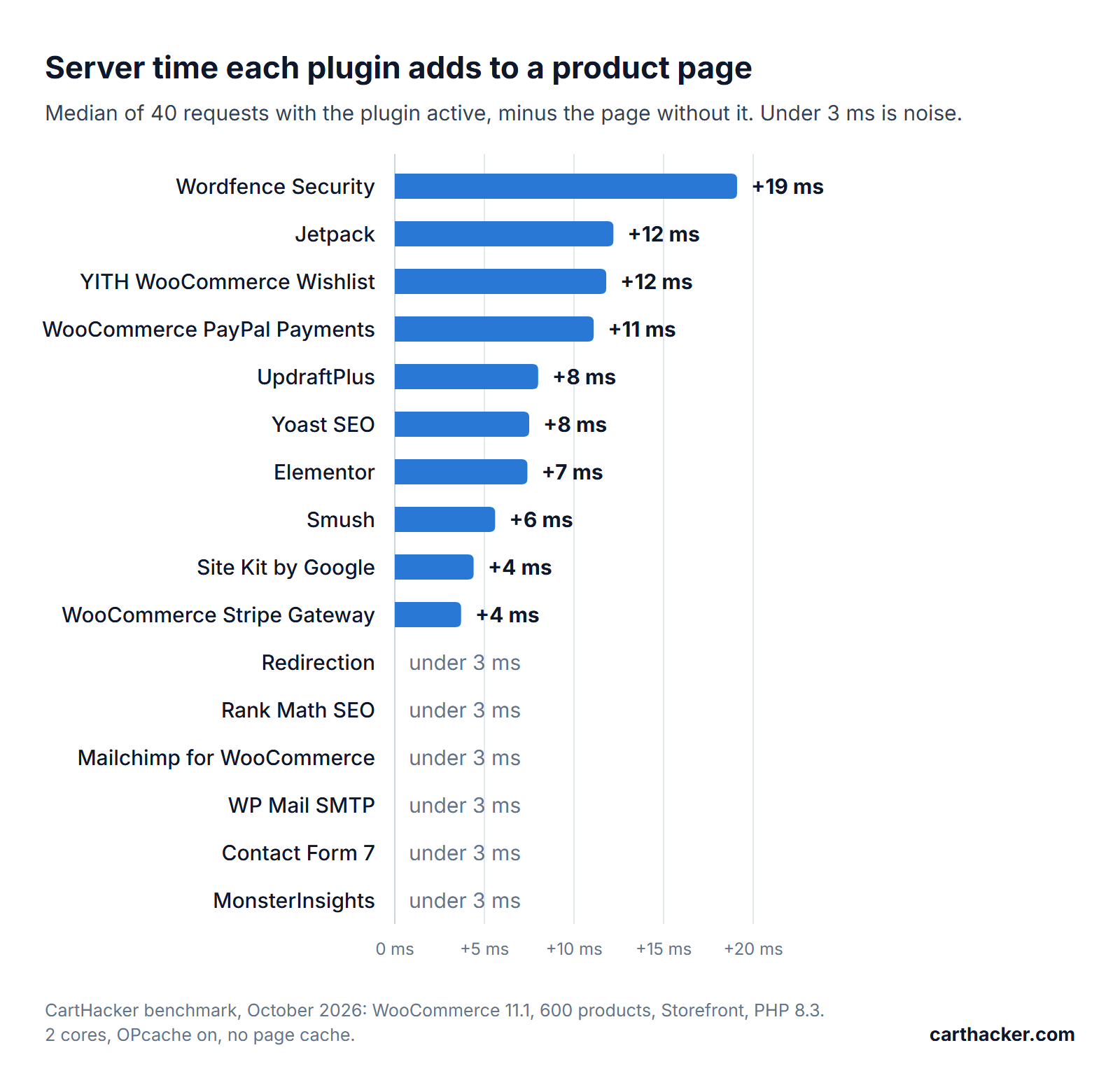
Then I switched 15 of them on together, the kind of stack a store collects over a few years. The product page went from 104 to 232 milliseconds, more than double, and those 128 milliseconds are more than the 91 the same plugins added one by one. PHP loaded 4,199 files instead of 1,392. It also ran 292 database queries instead of 90 for a single page. Plugins are paid for on every page the cache cannot answer, so the cart and the checkout feel a long plugin list long before a cached product page does.
The browser pays a separate bill. With the 15 plugins active, the product page carried 73 script tags instead of 31, 17 stylesheets instead of 8 and 97 KB of HTML instead of 74. None of that shows up in server time, and all of it is what the Store Speed Test measures on the shopper's side, so a plugin that is cheap on the server can still be the slowest thing on the page.
What WP Rocket and LiteSpeed Cache fix, and what they cannot
The HTTP Archive detects caching plugins and hosts on the sites it crawls each month, and the Chrome UX Report says how those sites perform for real visitors. Put together, they show how often each group gives phones a good server response and passes Loading. Read the caveat first. These rows count every site where the technology was detected, any platform, not only stores, because the data cannot be narrowed to sites that run WooCommerce and the plugin together.
| Technology | Sites | Pass all three | Good server response | Good Loading |
|---|---|---|---|---|
| WooCommerce, all sites | 557,369 | 39.5% | 12.7% | 43.7% |
| WordPress, all sites | 2,752,367 | 48.7% | 23.5% | 55.8% |
| WP Rocket | 272,660 | 51.3% | 30.0% | 61.8% |
| LiteSpeed Cache | 391,972 | 50.7% | 29.8% | 59.0% |
| W3 Total Cache | 81,968 | 44.5% | 21.7% | 51.3% |
| WP Fastest Cache | 41,670 | 55.8% | 42.2% | 64.2% |
| NitroPack | 11,320 | 56.5% | 23.5% | 69.3% |
| FlyingPress | 4,585 | 56.6% | 37.7% | 70.2% |
| Perfmatters | 17,195 | 53.7% | 29.8% | 65.5% |
| Autoptimize | 78,265 | 46.2% | 19.4% | 53.6% |
| WP-Optimize | 48,087 | 49.4% | 27.2% | 56.1% |
Share of sites with each technology detected, mobile, from real Chrome visitors, August 2026. Server response is good at 800 milliseconds or less, Loading at 2.5 seconds or less.
WP Rocket and LiteSpeed Cache sites beat WordPress as a whole on every column, W3 Total Cache and Autoptimize sites trail it, and still only about 3 in 10 WP Rocket and LiteSpeed Cache sites give phones a good server response. That is the limit of a plugin. A cache plugin can only make cached pages fast; it cannot shorten the distance to a server on another continent, answer the cart and checkout, catch ad clicks it was not told to ignore, or add CPU to a host that has none to spare. NitroPack shows the other side of the trade: one of the best Loading rates in the table, 69.3%, from heavy image and script work in the browser, with server response at 23.5%, level with WordPress overall.
Hosts tell the same story. The rows count every site on the host, any software, any country and any plan, so they describe the customers as much as the servers.
| Host or server | Sites | Pass all three | Good server response | Good Loading |
|---|---|---|---|---|
| Pantheon | 14,376 | 71.2% | 48.6% | 81.4% |
| WP Engine | 83,985 | 65.0% | 31.2% | 75.1% |
| Kinsta | 31,012 | 58.6% | 21.3% | 66.6% |
| SiteGround | 112,334 | 52.4% | 21.6% | 59.6% |
| Hostinger | 349,478 | 46.6% | 30.4% | 56.1% |
| Bluehost | 36,414 | 43.1% | 21.6% | 50.7% |
| Varnish (any host) | 152,229 | 60.8% | 59.7% | 80.6% |
| Cloudflare (any host) | 3,979,838 | 50.7% | 47.3% | 64.8% |
| LiteSpeed web server | 558,939 | 50.0% | 31.2% | 58.3% |
| Nginx | 2,094,351 | 56.0% | 42.2% | 68.3% |
Same source and date. Varnish and Cloudflare rows count every site that sends their headers, whoever the host is.
No host on the list gives even half of its sites a good server response; Pantheon comes closest at 48.6%. Sites that send Varnish headers, a cache that sits in front of the web server, beat every host at 59.7%, which matches the benchmark: the layer that answers before PHP decides the number. Kinsta, SiteGround and Bluehost sit near 21%, worse than WordPress as a whole. A host row mixes every plan, country and cache setup its customers chose, so it is their result as much as the host's. The host sets the ceiling. The cache setup and the plugins decide how close a store gets to it.
How the benchmark was run
- Hardware: my workstation, an AMD Ryzen 9 3900X, with the PHP container limited to 1, 2 or 4 cores. One core with two PHP workers stands in for a budget shared plan; four cores with eight workers for a small dedicated server.
- Software: WordPress 7.1, WooCommerce 11.1.2 with High-Performance Order Storage on, Storefront 4.6.2, PHP 8.3 in the official WordPress PHP-FPM image (plus the PhpRedis extension), MariaDB 11.4 with a 1 GB buffer pool, Redis 7 and nginx 1.27, all in Docker.
- Catalog: 600 products in 12 categories, every third one a variable product with 6 variations, long descriptions, a featured image and three gallery images, built by a seeded generator so every run builds the same store.
- Measurement: time to the first byte, taken by a client inside the same Docker network, so the network adds almost nothing. Sequential tests are the median of 40 requests after 5 warm-up requests; load tests keep 20 shoppers asking without pause for 20 seconds.
- Page cache: Cache Enabler 1.8 for the plugin, nginx fastcgi_cache for the server, with the cart, checkout, account pages, wc-ajax requests and WooCommerce cookies excluded.
- Plugins: each one activated alone on two cores with OPcache, measured, and deactivated; then 15 together, with Rank Math left out because it does the same job as Yoast SEO. Out of the box: not connected to their services and not configured.
- The two stores: one product page each, measured from my connection in Poland on October 4, 2026, three requests per test, with the connection setup subtracted; their wc-ajax requests recorded in a fresh Chrome profile with nothing in the cart; the screenshots from my own Chrome.
- Cart fragments snippet: tested in Chrome on the test store with and without it: a first visit, Add to cart, the same page again in the same tab, then a new tab.
A lab box is quieter than a shared host, where other customers' sites use the same CPU, and its database sits next to PHP with every row in memory. Expect slower real servers, never faster. The ratios between setups are the part that travels: what OPcache, a page cache, an extra core or a plugin does to the same page.
What to fix first: a checklist
- Measure a product page twice: as shoppers get it, and with a random query string to see PHP on its own.
- Confirm OPcache is on: and that PHP is 8.3 or newer.
- Cache whole pages: one page cache, ideally the host's or the web server's, with a CDN in front if your shoppers are far from the server.
- Make ad clicks hit the cache: ignore gclid, fbclid and utm parameters in every cache layer.
- Keep cached pages under 12 hours old: or purge them twice a day, so the WordPress nonces inside them stay valid.
- Size the plan by CPU cores: pages a second is roughly cores divided by the server time of one uncached page.
- Stop cart fragments where nothing uses them: the Mini-Cart block, a plugin setting or the snippet.
- Add Redis with PhpRedis when the cart, checkout or logged-in pages stay slow.
- Clean autoloaded options: under 800 KB, nothing left from deleted plugins.
- Run cron from the server: and check Scheduled Actions for a past-due pile.
- Watch real shoppers before and after each change: a lab test shows the server, real visitors show the store.
Monitor your store's Core Web Vitals every day, for free
One snippet in your theme measures real shoppers. A free account keeps 7 days of history, Premium keeps 180.
Create a free accountWooCommerce speed questions store owners ask
Is WooCommerce slower than Shopify?
On server response, yes, in the field data: 12.7% of WooCommerce sites answer phones within 800 milliseconds, against 81.9% of Shopify stores. The software is not the reason. Shopify runs every store on its own cached, worldwide infrastructure, while a WooCommerce store is exactly as fast as the server and cache its owner chose, and the two example stores in this guide answer faster than most Shopify stores.
Do I need WP Rocket if my host already caches pages?
Not for page caching. One page cache is enough, and a host cache that answers before PHP is faster than any plugin can be. WP Rocket's other features, delaying JavaScript and optimizing CSS and images, work on the browser side and can still be worth it; switch its page cache off if the host's cache does that job, and check how the two handle ad parameters.
Does Redis make WooCommerce faster?
It speeds up the pages a cache cannot answer when the database is the slow part, and it does little on a store whose database is already fast. In this test Redis cut the queries for a product page from 90 to 26 without making the page faster, and with 15 plugins it took the page from 232 to 213 milliseconds. A page cache does far more for product and category pages. Redis is for what it cannot cache.
How many PHP workers does a WooCommerce store need?
About two per CPU core. Throughput comes from cores: in the test, one core finished 7 to 10 uncached product pages a second, fewer as workers were added, and four cores 37 to 39. A store that serves most pages from a cache needs few workers, because only the cart, checkout, account pages and cart fragments reach PHP.
Does HPOS make my store faster?
High-Performance Order Storage, on by default for new stores since WooCommerce 8.2, moves orders out of the WordPress posts tables into tables of their own, built for the lookups that orders need. It speeds up order work. Checkout writes, the orders screen and reports benefit, while product and category pages, which never read orders, stay exactly as they were.
How long should WooCommerce pages stay in the cache?
Under 12 hours for any page that carries a WordPress nonce. A nonce stays valid for 12 to 24 hours, so an older copy hands every shopper an expired token, and each request that sends it back fails: on Scrub Daddy's 36-hour-old product page, the call that sets up the Braintree payment buttons was refused with 403 on every load. WP Rocket defaults to 10 hours. Pages without one can stay longer and be purged when they change.
Will a faster theme fix a slow WooCommerce store?
Only the theme's share. Storefront is one of the lightest WooCommerce themes, and the test store still needed 473 milliseconds per page without OPcache and 100 with it, before a single extra plugin was added. A theme decides how much work each page takes; the server and the cache decide how often that work happens.
Check your store's Core Web Vitals for free
Paste a product page address. You get the three scores right away, and a free account names every slow app and the fix for your platform.
Test my storeSources
- WooCommerce developer blog: Best practices for the use of the cart fragments API, June 16, 2023.
- WordPress core: Options API: disabling autoload for large options (WordPress 6.6), and Hooking WP-Cron into the system task scheduler.
- WP Rocket: Caching query strings. LiteSpeed: LSCache for WordPress, Cache settings. Cloudflare: Cache Rules settings.
- PHP: Supported versions. Google, web.dev: Time to First Byte.
- Field data: HTTP Archive Technology Report, August 2026, and CartHacker's open dataset behind ecommerce speed by platform.