A slow Shopify store is rarely slow because of Shopify's servers. They answer quickly for 81.9% of Shopify stores, so the time goes into what the store owner puts on top of them: app scripts, theme code, oversized photos and videos, and widgets that push the layout around while the page loads. This guide finds each of them in turn with tools that cost nothing: a speed test of a product page, the Network panel in Chrome, the theme editor and the code editor. Plan an hour for the first pass.
The method comes from camelway.eu, a store I built and ran on Shopify. Seventeen apps are installed there. On its best-selling product page a speed test found 387 KB from six outside services and 2.9 seconds of JavaScript work before the page settled, and every screenshot in this guide comes from that store, taken on October 4, 2026. So the numbers are real, and so are the mistakes.
What slows down a Shopify store?
Four things slow a Shopify store down, and the order in which they bite is the order in which to look for them.
- App scripts. Every app that shows something on the storefront ships its own JavaScript, and that code queues on the phone's main thread, the single lane that also has to react when a shopper taps Add to Cart. The median Shopify home page sent 2,178 KB of JavaScript to a phone in August 2026, two and a half times as much as in 2021.
- Theme code. Sliders, mega menus that list every product, quick-view pop-ups and sections hidden on mobile with CSS all cost download, parsing and layout time, even when the shopper never sees them.
- Media. A product photo uploaded at camera size, a hero banner with no mobile version and an autoplaying video are the usual reasons the main image arrives late, which is exactly what Loading (Largest Contentful Paint) measures.
- Layout shifts. Review stars, announcement bars, sticky carts and pop-ups that appear after the page has drawn push the content down. Visual stability (Cumulative Layout Shift) counts every one of those jumps, including the ones that happen while the shopper scrolls.
The platform data points at apps. Among the four largest store platforms, Shopify has the lowest share of sites passing Responsiveness (Interaction to Next Paint), 87.4% against 91.7% for WooCommerce, and the speed data by platform ties that to the amount of JavaScript Shopify stores carry. If your store is new to these three scores, what Google's speed scores mean for your store explains each of them first.
Step 1: Test a product page, not the home page
Start with your best-selling product page. It carries the image gallery, the reviews, the upsell widget and the payment buttons, which a home page rarely loads all at once, and it is the page where the buying decision happens. A store whose home page passes and whose product pages fail is a store that loses sales where it counts.
- Copy the product page address: open your busiest product page in the browser and copy the address from the address bar.
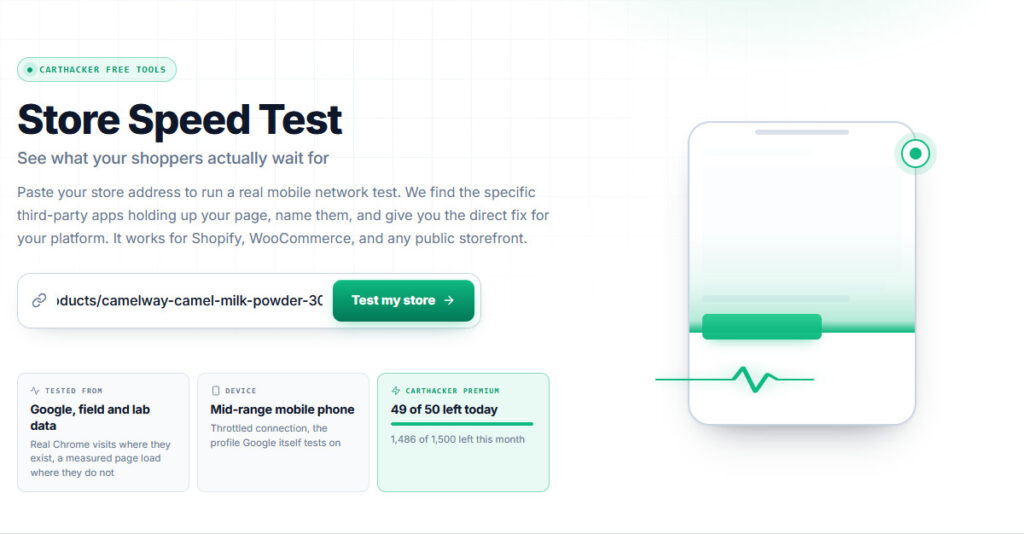
- Paste it into the Store Speed Test: the test loads the page on a simulated mid-range phone over a throttled mobile connection, the profile Google uses, and pulls the real-visitor data Google holds for that page.
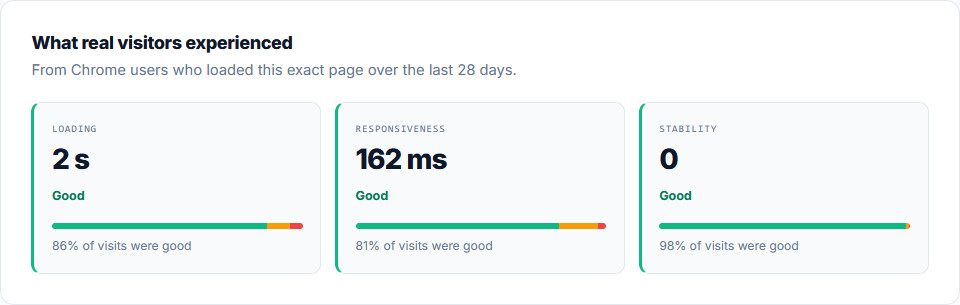
- Read the field scores first: "What real visitors experienced" shows Loading, Responsiveness and Visual stability from 28 days of Chrome visits, when Google has enough of them. These decide whether you pass.
- Then read the fix list, worst first: each finding names the files and apps behind it and estimates what they cost in time.
Shopify also shows a summary of your store's three Core Web Vitals on the Online Store page of the admin, with the full web performance reports under Analytics, then Reports. That summary covers the whole store, while the Store Speed Test covers one page and names the files, which is what you need to fix anything.
Check your store's Core Web Vitals for free
Paste a product page address. You get the three scores right away, and a free account names every slow app and the fix for your platform.
Test my storeStep 2: Find the apps that load on the page
The quickest way to see which apps load on a page is the list of outside services in the test report. Every app that is not built into Shopify downloads its code from its own servers, and the report adds up what each server sent before the page was ready.
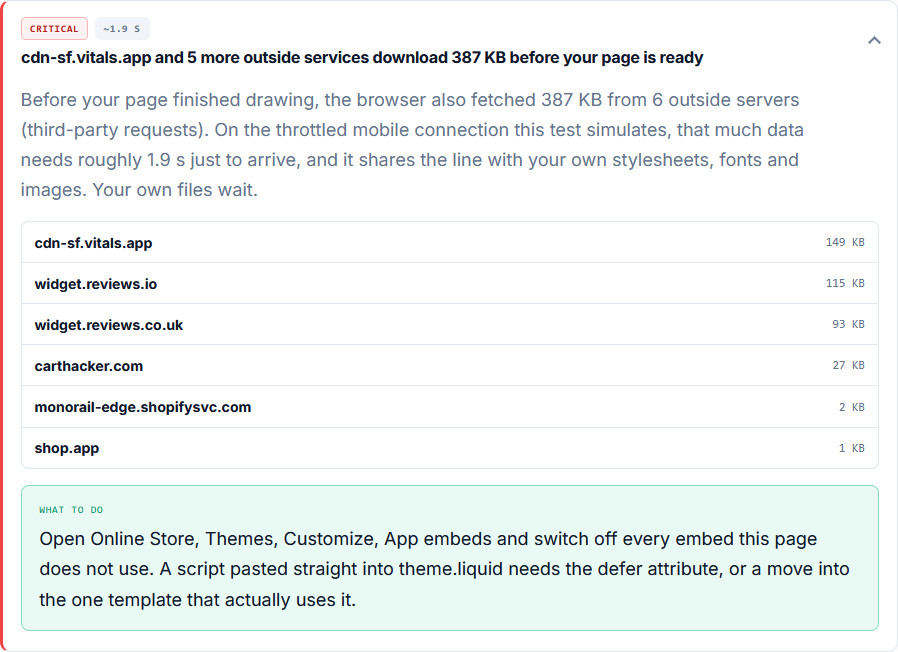
Each address names its app once you know where to look. On camelway.eu, cdn-sf.vitals.app is Vitals at 149 KB, and widget.reviews.io and widget.reviews.co.uk are both REVIEWS.io, 208 KB together. carthacker.com is my own tooling: the Core Web Vitals Monitoring snippet at 4 KB and the Trust Seals & Badges loader at 23 KB. monorail-edge.shopifysvc.com is Shopify's own analytics, and shop.app belongs to Shop Pay.
Download size is half the story. A script also has to run, and on a phone that costs more than the download, so the next two findings in the report matter more.
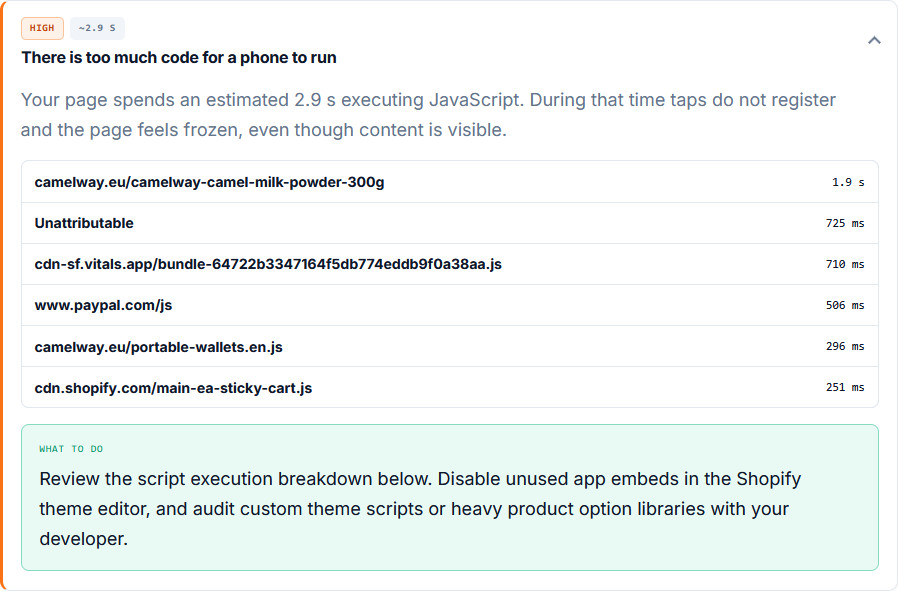
The largest line, the product page itself at 1.9 seconds, is work charged to the HTML document: parsing it, running the theme's inline scripts and running the app code Shopify injects inline into the page head. Next come the named culprits. The Vitals bundle alone kept the processor busy for 710 milliseconds, the PayPal buttons script for 506, Shopify's own wallet buttons for 296 and the EA Sticky Cart app for 251. None of that is the theme's fault, and all of it runs on every visit to the page.
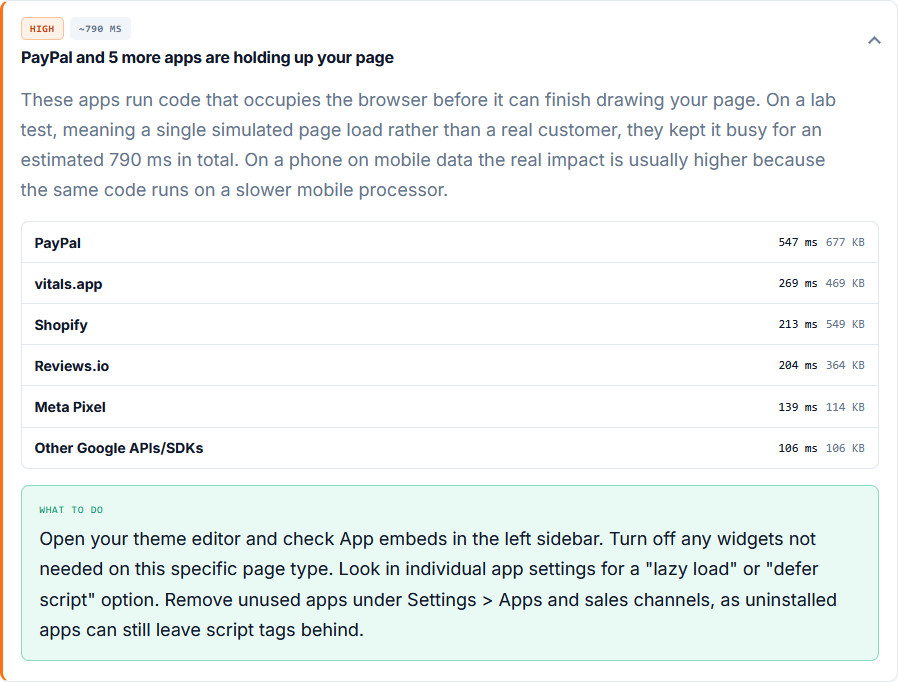
Grouped by app, it gets clearer. PayPal's express checkout button costs 547 milliseconds and 677 KB of uncompressed code on every visit, whether or not the shopper pays with PayPal, Vitals 269 milliseconds, REVIEWS.io 204 and the Meta Pixel 139. Those are the four candidates for the rest of this guide.
Two kinds of address hide their app. Files served from cdn.shopify.com/extensions/ belong to apps that use Shopify's app embeds, and the folder after the long ID carries the app's name: on camelway.eu, ea-sticky-add-to-cart-bar-3917 is EA Sticky Cart and orbe-geolocation-503 is Orbe Geolocation. The test report shows only the file name, md-app-modal.min.css for example, so open the file in Chrome DevTools (step 3) to see the full address. Everything else can be matched against the list of installed apps in step 4.
Step 3: See every file in Chrome DevTools
Chrome DevTools shows every file a page downloads, how big it is and which server sent it, and you already have it, because it is built into Chrome. The Network panel is the part you need.
- Open the product page in an Incognito window: press Ctrl+Shift+N on Windows or Cmd+Shift+N on a Mac. Browser extensions stay out of an Incognito window unless you allowed them in, so their files do not land in your list.
- Open DevTools and the Network tab: press F12, or Ctrl+Shift+I on Windows and Cmd+Option+I on a Mac, then click Network.
- Tick Disable cache and choose Slow 4G: both sit in the bar at the top of the panel. Together they show the page the way a first-time visitor on a phone connection gets it.
- Reload the page and wait: keep the panel open and let the Finish time at the bottom stop growing.
- Sort by Size: click the Size column header, twice if needed, so the largest files rise to the top.
- Add the Domain column: right-click any column header and choose Domain, so every file shows the server it came from.
- Filter by type: the JS, Img and Media buttons narrow the list to scripts, images and video, one problem at a time.
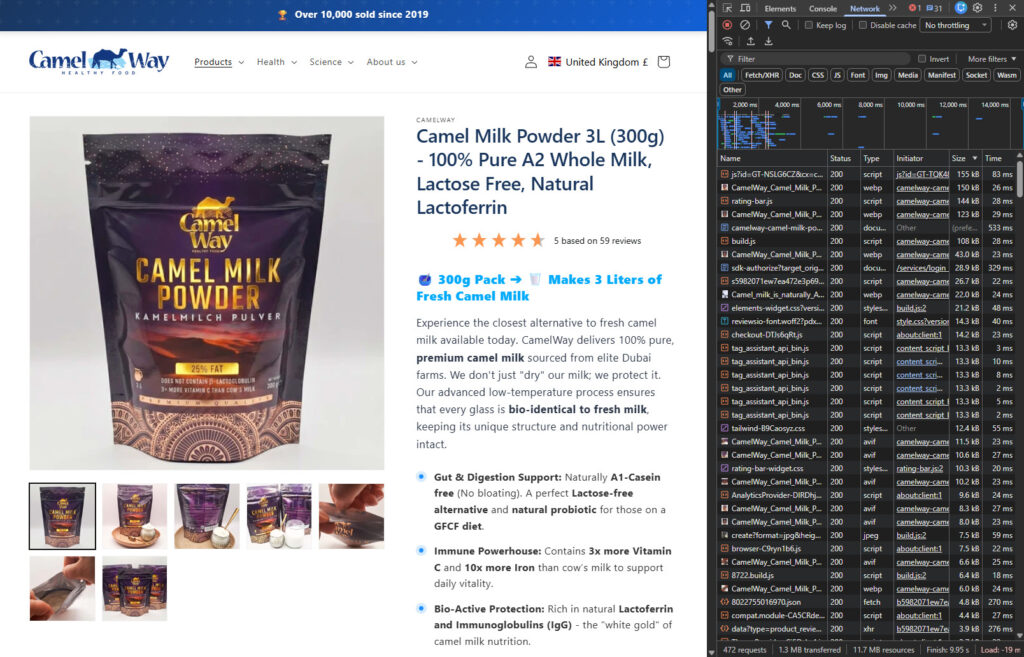
Three numbers in the status bar matter. Requests is how many files the page fetched, 472 on this product page. Transferred is what crossed the network, compressed, and resources is what the browser had to unpack and process afterwards, 11.7 MB here. The gap between those two numbers is mostly JavaScript and CSS, which travel compressed and then cost the phone the full size to parse and run.
The top of the sorted list on camelway.eu reads like a shopping list of fixes: the Google tag script at 155 kB, two product photos at 150 kB and 123 kB, rating-bar.js, the star rating script, at 144 kB. Any image over about 200 kB and any script over about 100 kB deserves a question: does this page need it, and does it need it before the shopper can see the product?
Test the page without one app, without touching the store
DevTools can load the page as if an app were gone. Right-click any file from that app, choose Block request domain, and reload: the page now loads without everything from that server, and the Network request blocking tab in the drawer at the bottom of DevTools lists what is blocked. Untick it to bring it back. Parts of the page will break while an app is blocked, and that is useful too, because you see exactly what the app was doing for the time it cost.
Step 4: Check App embeds and the apps you no longer use
App embeds are the switches in the theme editor that turn an app's storefront code on or off for the whole store, and switching one off stops its code at once without uninstalling anything. In the Shopify admin go to Online Store, then Themes, press Customize on the live theme and open the App embeds icon in the left sidebar.
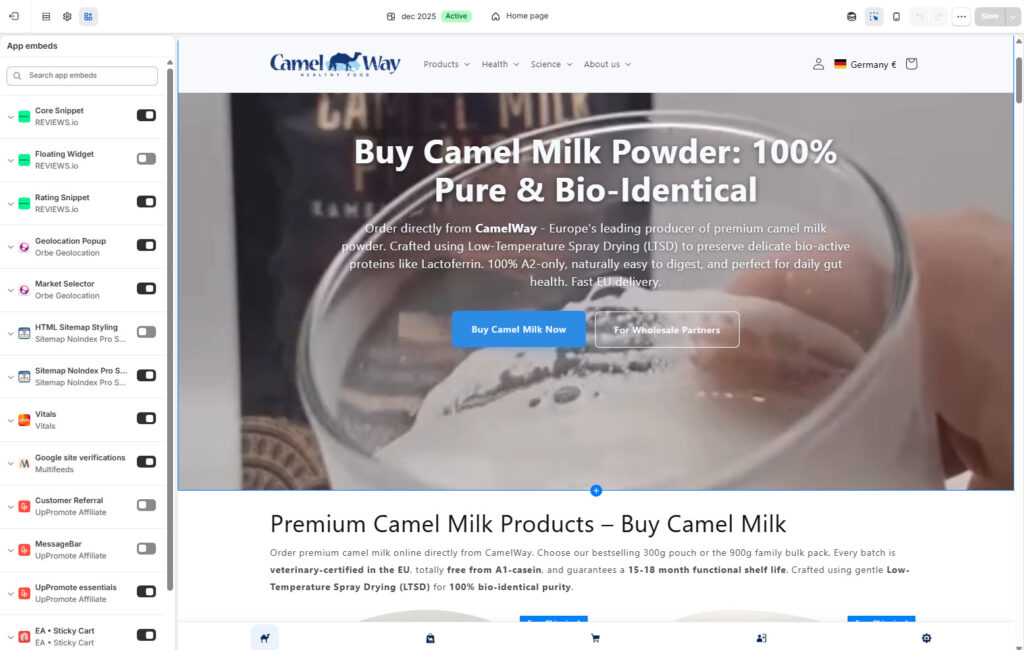
Read the list against what you saw in steps 2 and 3. On camelway.eu, both Orbe Geolocation embeds are on, the geolocation pop-up and the market selector, and they are the source of two of the five stylesheets the page has to download before it can draw anything. The REVIEWS.io Floating Widget is already off. The Core Snippet and Rating Snippet stay on because the product page shows reviews, which is the test every switch has to pass: does this page show something the shopper needs from this app?
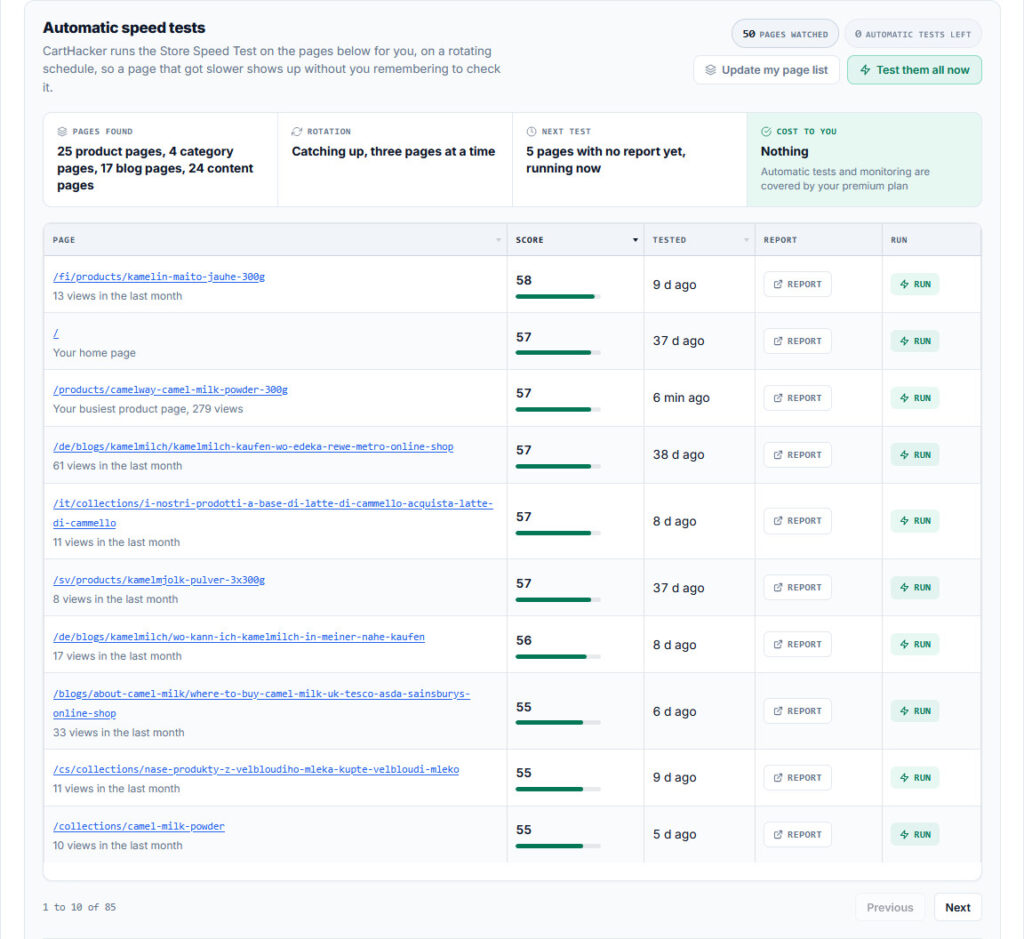
An app embed loads on every page of the store, so its cost shows up everywhere. Automatic speed tests on camelway.eu make the point: the ten best-scoring pages of 85, from a Finnish product page to a German blog post, all sit between 55 and 58 out of 100 in the lab. Pages that different only score that alike when the same code runs on all of them. Shared code, shared cost.
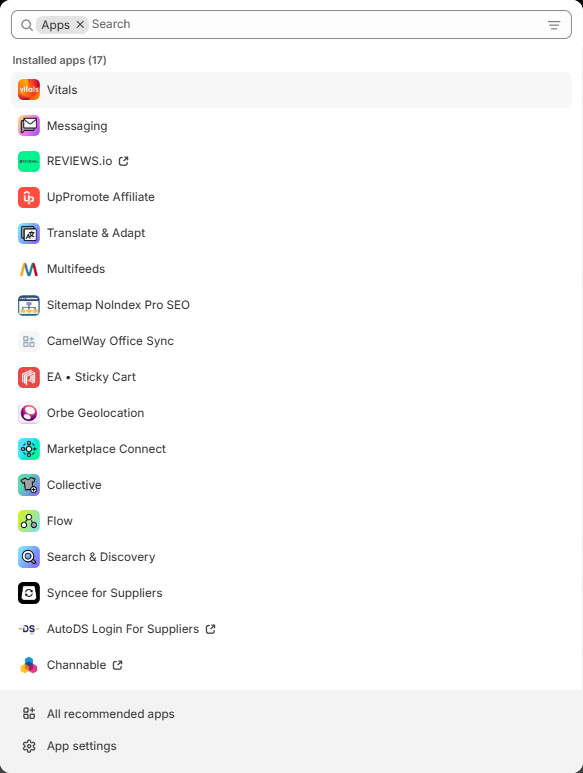
Then open Settings, then Apps, to see everything installed. Not every app touches the storefront: on camelway.eu, Flow, Channable and the supplier and marketplace connectors work in the back office and add nothing to the pages. Uninstall what you no longer use. Apps built on Shopify's theme app extensions take their blocks and embeds with them when they are removed, but older apps that edited the theme's code directly can leave that code behind, and it keeps loading until someone deletes it (step 6).
Step 5: Measure before you delete anything
Change one thing at a time and measure it, or you will never know which change helped. Three ways to measure, from quickest to most reliable:
- Block the app in DevTools: the request blocking in step 3 shows the difference in a minute, on your own computer, with nothing changed in the store.
- Switch it off in a copy of the theme: in Online Store, Themes, open the menu next to the live theme and choose Duplicate. Turn the app embed off in the copy, open the copy's preview and repeat the DevTools test. Publish the copy only when the page still does everything it should.
- Watch real visitors before and after: lab tests run on one simulated phone. Responsiveness in particular only exists in the field, because a lab test never taps anything, so install monitoring first and compare a week before the change with a week after it.
Monitor your store's Core Web Vitals every day, for free
One snippet in your theme measures real shoppers. A free account keeps 7 days of history, Premium keeps 180.
Create a free accountWhich Shopify apps cost the most speed?
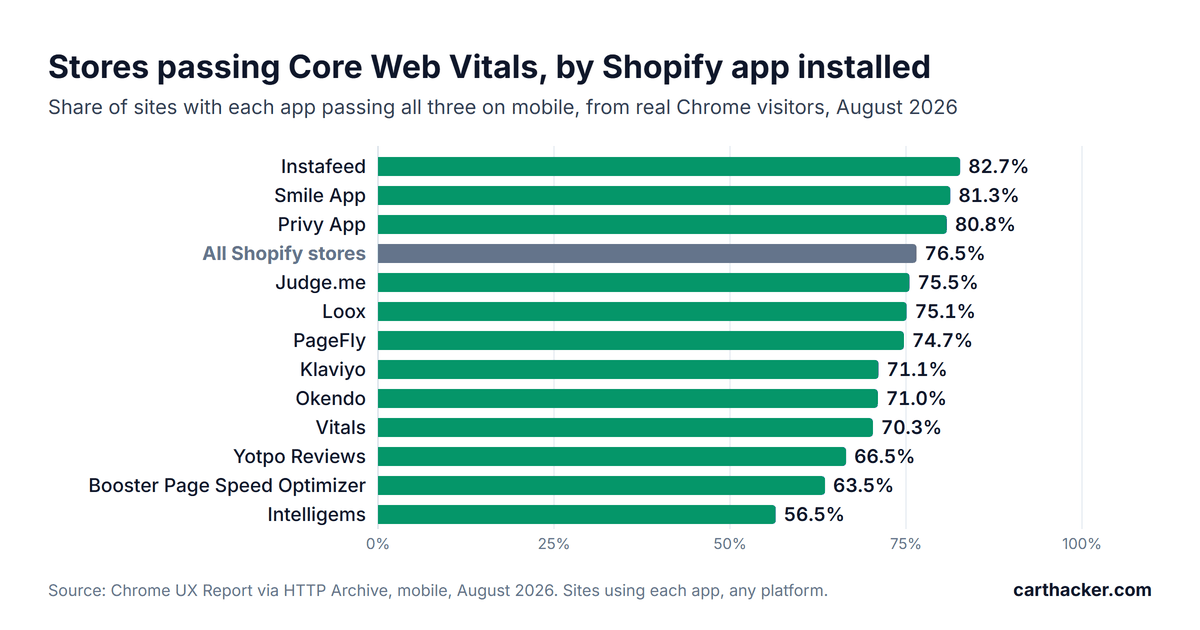
The HTTP Archive detects popular Shopify apps on every site it crawls each month, and the Chrome UX Report says how those same sites perform for real visitors. Put together, they show how often the sites running each app pass all three Core Web Vitals on mobile, against 76.5% for all Shopify stores. The figures are for August 2026.
| App | Sites | Pass all three | Loading | Responsiveness | Visual stability | JavaScript (median) |
|---|---|---|---|---|---|---|
| Instafeed | 4,503 | 82.7% | 92.5% | 94.1% | 91.3% | 2,539 KB |
| Smile App | 14,918 | 81.3% | 92.7% | 90.5% | 92.6% | 2,972 KB |
| Hextom Free Shipping Bar | 7,298 | 81.1% | 93.5% | 92.5% | 89.9% | 2,763 KB |
| Privy App | 6,569 | 80.8% | 91.2% | 92.3% | 91.5% | 3,521 KB |
| Seal Subscriptions | 6,420 | 80.3% | 91.0% | 90.1% | 93.2% | 2,836 KB |
| All Shopify stores | 443,647 | 76.5% | 87.3% | 87.4% | 92.5% | 2,178 KB |
| Pandectes | 9,570 | 76.4% | 90.7% | 85.9% | 92.2% | 2,812 KB |
| Judge.me | 117,497 | 75.5% | 88.3% | 84.4% | 93.1% | 2,590 KB |
| Loox | 20,530 | 75.1% | 87.9% | 86.9% | 91.6% | 2,674 KB |
| PageFly | 4,752 | 74.7% | 86.6% | 87.9% | 90.5% | 2,825 KB |
| Swym Wishlist Plus | 9,360 | 74.5% | 89.5% | 86.4% | 90.6% | 3,252 KB |
| Recharge | 7,581 | 74.0% | 86.8% | 89.3% | 89.1% | 3,506 KB |
| Rebuy | 7,720 | 72.8% | 88.6% | 86.8% | 89.2% | 3,881 KB |
| Klaviyo | 147,947 | 71.1% | 84.1% | 87.5% | 89.3% | 2,644 KB |
| Okendo | 5,853 | 71.0% | 87.0% | 84.8% | 89.3% | 3,472 KB |
| Vitals | 6,567 | 70.3% | 89.8% | 77.3% | 92.5% | 2,810 KB |
| Omnisend | 24,138 | 70.2% | 81.8% | 87.9% | 90.1% | 2,328 KB |
| Stamped | 7,671 | 68.7% | 81.9% | 86.9% | 87.3% | 2,953 KB |
| Gorgias | 10,081 | 68.7% | 86.6% | 83.4% | 88.3% | 3,910 KB |
| Yotpo Reviews | 17,641 | 66.5% | 83.5% | 86.5% | 83.9% | 3,001 KB |
| Booster Page Speed Optimizer | 4,276 | 63.5% | 78.7% | 87.2% | 82.0% | 2,681 KB |
| GemPages | 1,095 | 63.2% | 78.6% | 85.7% | 84.2% | 2,930 KB |
| Reviews.io | 3,758 | 63.1% | 78.1% | 88.1% | 84.6% | 2,389 KB |
| Intelligems | 4,210 | 56.5% | 71.2% | 79.7% | 88.9% | 3,714 KB |
Share of sites where each app was detected that pass on mobile, from real Chrome visitors, August 2026. JavaScript is the median sent to a phone by the home page.
Three readings stand out. Stores running a speed booster app pass less often than stores without one: 63.5% of the sites with Booster Page Speed Optimizer pass, 13 points under the Shopify average, with worse Loading and worse Visual stability. Owners usually install a speed app because the store was already slow, so the app may be a symptom rather than the cause, but it plainly did not lift those stores to the average. Vitals has the lowest Responsiveness in the table, 77.3% against 87.4% for all Shopify stores, which matches the 710 milliseconds its bundle took on my own product page. Review apps spread widely, from Judge.me at 75.5%, near the average, down to REVIEWS.io at 63.1%.
Treat the table as a warning light. Each row counts every site where the app was detected, on any platform, and the apps attract different kinds of stores: a subscription app sits on established brands, a page builder on stores that wanted more design than their theme gave them. Several apps beat the average, and none of them makes a store faster by being installed. The one reliable measure of what an app costs your store is the test from steps 3 and 5 on your own product page.
What theme code slows Shopify down?
Theme code slows a Shopify store in three places: files that block the first paint, pages with too many elements, and Liquid templates that make Shopify's server work hard on every request.
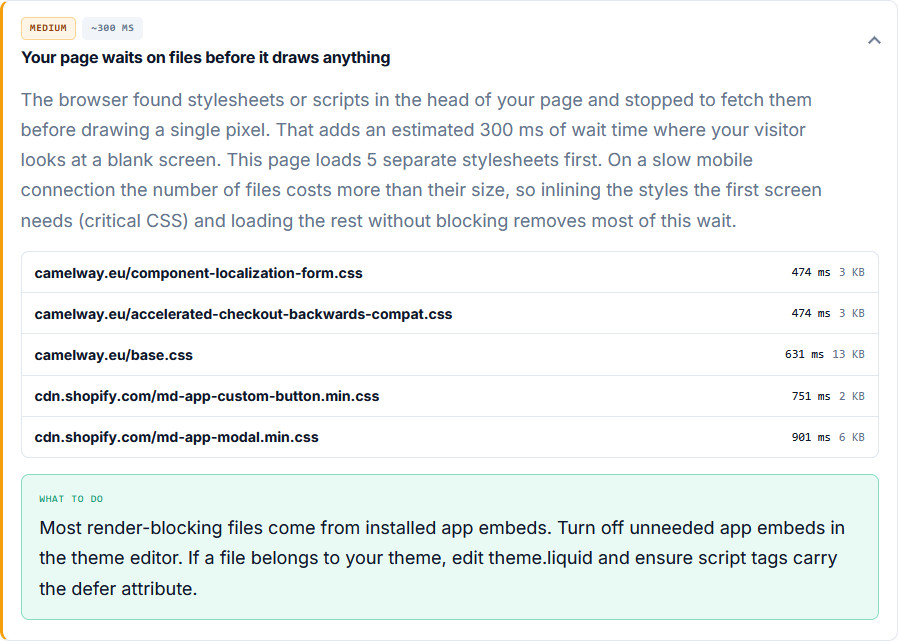
- Render-blocking files. A stylesheet or script in the page head without defer stops the browser from drawing anything until it arrives. On camelway.eu, five small stylesheets cost about 300 milliseconds of blank screen, and the two slowest, at 751 and 901 milliseconds, came from the Orbe Geolocation app rather than the theme. On a slow connection the number of files hurts more than their size.
- Too many elements. The same product page contains about 3,768 HTML elements, and every one costs memory and layout time on a phone. The usual causes are a mega menu that prints the whole catalog into every page, sections duplicated once for desktop and once for mobile with one of them hidden by CSS, and long tab and accordion blocks full of hidden text.
- Slow Liquid. When a theme loops over whole collections to build menus, filters or "related products" on every request, Shopify's server takes longer to send the page, and server response (Time to First Byte) suffers. Shopify Theme Inspector for Chrome, Shopify's own browser extension, draws a chart of how long each part of the template took to render, so the slow section names itself. It works on your own store or on stores where you have collaborator access.
Sliders and carousels deserve a separate warning. A hero slider loads several large images and a script to rotate them, and the first slide is usually the Loading element, so the score waits on the slider's script before it can even start. A single still image in the hero, with a separate, lighter version for phones, is almost always faster.
Step 6: Find the slow code in the theme files
Editing theme code is safe as long as you never edit the live theme. Duplicate it first (Online Store, Themes, the menu next to the live theme, Duplicate), make every change in the copy, preview it, and publish only when it works. If you have never opened the code editor, editing Shopify theme code safely walks through the first visit. Then choose Edit code.
These are the places that matter, in the order worth checking:
layout/theme.liquid: the file wrapped around every page. Look in its head for<scripttags withoutdeferorasync, and for code pasted in by apps you no longer use, which often carries the app's name in a comment or in the script address.snippets/: older apps install their own snippet files here, often named after the app. A snippet for an app you removed, still pulled into a template with{% render %}, keeps loading its code.sections/: the header, the main product section and anything with "slider", "carousel" or "video" in its name are where the theme's heavy work lives.assets/: the theme's own JavaScript and CSS files. A large script loaded on every page but used on one template is a fix worth making.
Use the code editor's file search to open a file by name, then press Ctrl+F, or Cmd+F on a Mac, to search inside the file you opened. Two changes fix most of it. The first lets the browser draw the page before it runs a script:
{%- comment -%} Before: the page stops drawing until this script has downloaded and run {%- endcomment -%}
<script src="{{ 'product-slider.js' | asset_url }}"></script>

{%- comment -%} After: the script downloads in parallel and runs once the HTML is parsed {%- endcomment -%}
<script src="{{ 'product-slider.js' | asset_url }}" defer></script>
The second loads a script only on the template that uses it, instead of on every page of the store:
{%- if template.name == 'product' -%}
  <script src="{{ 'product-slider.js' | asset_url }}" defer></script>
{%- endif -%}
Test both in the theme copy first. A script that another inline script calls straight away, a common pattern with older themes that rely on jQuery, can break when it is deferred, and the preview is where you find out. File names in these examples are placeholders; yours will differ.
Why does a Shopify store jump while it loads or scrolls?
A store jumps when something appears after the page has drawn and pushes the content around it, and Visual stability (Cumulative Layout Shift) scores every such jump. Only a tap, a click or a key press excuses a shift that follows within half a second. Scrolling does not, so a header that changes height as the shopper scrolls, or a section that loads late and pushes the products down mid-scroll, counts against the store in full. Good is 0.1 or lower.
On Shopify the usual sources are:
- Review stars and badges that apps insert under the product title after the page has loaded.
- Announcement, free shipping and promotion bars added to the top of the page by apps.
- Sticky headers that grow or shrink when the shopper scrolls, and sticky add to cart bars that slide in and push the page instead of floating over it.
- Sections loaded on scroll with no space reserved for them, and images without width and height.
- Web fonts that swap in at a different size from the fallback font the browser drew first.
Every fix is the same idea. Reserve the space before the content arrives, or float the late element over the page instead of inserting it into the page, so the content around it never has to move when it appears. Animate with CSS transform, which never counts as a layout shift. The class names in this example are made up; find the real ones by right-clicking the element and choosing Inspect.
/* A sticky add to cart bar that floats over the page instead of pushing it */
.sticky-add-to-cart { position: fixed; left: 0; right: 0; bottom: 0; }

/* Keep the header the same height when it turns sticky on scroll */
.site-header { min-height: 72px; }

/* Reserve the line the review stars will fill under the product title */
.product-rating { min-height: 22px; }

/* Slide things in with transform, which never shifts the layout */
.promo-bar.is-visible { transform: translateY(0); }
Chrome shows which element moved. In DevTools, record a reload in the Performance panel and scroll the page during the recording: the Layout shifts track marks each jump, and selecting one highlights the element that caused it.
How big should Shopify product images and videos be?
Shopify recommends 2048 by 2048 pixels for square product images and accepts up to 5000 by 5000 pixels, 25 megapixels or 20 MB per file. Videos can run up to 10 minutes and 1 GB, at up to 4K resolution, as MP4, MOV or WebM. Those are upload limits. Shoppers download something else: a theme that builds image tags with Shopify's image_url filter and a width gets resized copies in WebP or AVIF from Shopify's CDN, sized for each screen.
The upload size starts to matter the moment something bypasses that filter. An app or a custom section that hardcodes the image address sends the full original to every phone, and a 6 MB photo straight from the camera then becomes a 6 MB download. My working targets, per phone download:
- Product photos: upload 2048 pixels on the long side, in JPEG for photographs. Keep PNG for graphics that need transparency.
- The main image on a phone: under about 200 KB. At the 1.6 megabits per second a throttled mobile test uses, 200 KB takes about one second to arrive on its own.
- All images on a product page, on a phone: under about 759 KB, the median a Shopify home page sends to a phone.
- Hero banners: a separate mobile image, about 800 to 1,100 pixels wide, instead of the desktop banner squeezed down.
- Background and hero video: a loop of 5 to 15 seconds at 720p, with the audio track removed and a poster image, and nothing downloaded until it scrolls into view.
The Store Speed Test checks the photos for you. On camelway.eu it found about 159 KB of image data the product page could drop without a visible difference, and a total page weight of about 4.4 MB.
Load looping videos only when they scroll into view
An autoplaying video in the first screen is often the Loading element on phones, and a video that starts out of view still competes with the product photos for the connection if the browser starts fetching it at once. The fix is to give the video nothing to download until it is about to become visible. This pattern uses the browser's IntersectionObserver, which reports when an element nears the screen. The code is short:
<video class="lazy-video" autoplay muted loop playsinline preload="none"
       width="1280" height="720" poster="{{ 'hero-poster.jpg' | asset_url }}">
  <source data-src="{{ 'hero-loop.mp4' | asset_url }}" type="video/mp4">
</video>

<script>
  document.addEventListener('DOMContentLoaded', function () {
    var videos = document.querySelectorAll('video.lazy-video');
    function start(video) {
      video.querySelectorAll('source[data-src]').forEach(function (s) { s.src = s.dataset.src; });
      video.load();
    }
    if (!('IntersectionObserver' in window)) { videos.forEach(start); return; }
    var observer = new IntersectionObserver(function (entries) {
      entries.forEach(function (entry) {
        if (!entry.isIntersecting) return;
        start(entry.target);
        observer.unobserve(entry.target);
      });
    }, { rootMargin: '200px' });
    videos.forEach(function (v) { observer.observe(v); });
  });
</script>
The video starts fetching about 200 pixels before it reaches the screen and plays muted, which browsers allow without a tap. The poster image holds the space and shows instantly, and the width and height let the browser reserve the box, so nothing jumps when the video starts. Swap in your own file names.
How to choose apps that do not slow your store down
The cheapest speed fix is an app you never installed. Before adding one, and when reviewing the ones you have, these are the questions worth asking:
- Does it carry the Built for Shopify badge? Shopify requires those apps not to lower a store's Lighthouse performance score by more than ten points, which is a real limit rather than a marketing line.
- Does it install through app embeds or app blocks? Then it can be switched off in the theme editor and leaves nothing behind when it is removed.
- Does it load only where it shows? A reviews widget has no business on the cart page, and a size chart none on the blog.
- How big is it in DevTools? Install it on the theme copy, run the step 3 test, and look at the size and the main thread time it adds.
- Does it reserve its space? Reload the page and watch whether the content jumps when the app's widget appears.
- Does it do one job? An app that bundles dozens of features ships one large file to every page, so check in DevTools how much of it your store actually uses.
Add trust badges under your Add to cart button
Build a badge row and install it with one line on Shopify or WooCommerce. A free account gets 8 badges and view counts.
Build my trust badgesWhat to fix first: a checklist
- Test your best-selling product page: field scores first, then the fix list, worst first.
- Switch off app embeds the page does not need: one at a time, on a copy of the theme.
- Uninstall apps you no longer use: then search theme.liquid and the snippets folder for code they left behind.
- Defer theme scripts: add defer to script tags in the head, and load template-specific scripts only on their template.
- Replace the hero slider with one still image: with a separate, lighter version for phones.
- Resize photos at the source: 2048 pixels on the long side, and check that no app or section hardcodes the original file.
- Lazy-load every looping video: poster first, file only when it nears the screen.
- Reserve space for late widgets: review stars, bars and banners, so nothing jumps.
- Measure after every change: in DevTools the same day, and on real visitors over the following week.
Shopify speed questions store owners ask
Do Shopify speed booster apps work?
Not on the evidence available. Of the 4,276 sites running Booster Page Speed Optimizer in August 2026, 63.5% passed Core Web Vitals on mobile, against 76.5% of all Shopify stores. A speed app is one more script on the page, and nothing it does from the outside removes the app code and oversized media that caused the problem. Fix the causes first.
How many apps is too many?
There is no safe number, because one heavy app can cost more than five light ones. Count what loads on your product page instead: every outside server in the speed test and every app line in DevTools. camelway.eu has 17 apps installed, and the ones worth questioning are the four that cost the most main thread time on the product page, not the back-office apps that never touch it.
Does uninstalling an app remove its code?
Apps built on Shopify's theme app extensions, which appear as app embeds and app blocks in the theme editor, are removed from the theme automatically when you uninstall them. Older apps that edited your theme files directly can leave scripts and snippets behind, and Shopify's help center says so. Search theme.liquid and the snippets folder for the app's name after you remove it. Check anyway.
Why is my speed score low when Core Web Vitals pass?
The 0 to 100 score comes from one simulated page load on a throttled phone, and passing Core Web Vitals is decided by real visits. camelway.eu shows both at once: its product page passes in the field while the lab scores it 57. Use the lab report to find causes and judge results by the field, as the guide to Google's speed scores explains.
Will a faster theme fix a slow store?
A lean theme removes the theme's share of the problem and none of the apps' share. Before buying a theme, run the Store Speed Test on the theme's own demo store, which is the best case that theme will ever show, and keep the number in mind when apps start to add to it.
Check your store's Core Web Vitals for free
Paste a product page address. You get the three scores right away, and a free account names every slow app and the fix for your platform.
Test my storeSources
- Shopify Help Center: Product media types and sizes, Web performance reports, Uninstalling apps.
- Shopify developer docs: Built for Shopify requirements, Shopify Theme Inspector for Chrome.
- Chrome for Developers: Network features reference.
- Google, web.dev: Cumulative Layout Shift, Lazy-loading video.
- App data: HTTP Archive Technology Report, August 2026, and the scripts in CartHacker's open dataset for ecommerce speed by platform.