I installed WordPress and WooCommerce on a new Ubuntu 26.04 server with the commands from the 24.04 guides I'd used before, and two steps didn't work the same way. MariaDB now keeps its data in a different folder, and WooCommerce hides a new store from shoppers until you switch it to Live. Because of the second change, my first test measured a placeholder page instead of the product page.
Here's how to install WordPress on Ubuntu 26.04 step by step, with every command I ran on the current release, 26.04.1: nginx, PHP-FPM 8.5, MariaDB and Redis (the stack people call LEMP), then WordPress and WooCommerce, HTTPS with Certbot and a page cache in nginx. Run the blocks in order in your server's terminal.
You'll need this if you're moving a store from shared hosting to a VPS of your own. If your store is on managed WordPress hosting or on Shopify, your host has already done all of this for you.
So what does a new 26.04 server need before you can open a store on it, and which steps changed since 24.04?
Before you start: SSH access and a domain
Ubuntu 26.04 LTS came out in April 2026, and Canonical gives it standard security updates until May 2031. You need a new Ubuntu 26.04 server with nothing else installed, an SSH login as root or as a user with sudo rights, and a domain with A records for both example.com and www.example.com that point at the server's IP address (Let's Encrypt checks both in step 9). Put your own domain wherever this guide says example.com. I ran everything as root. If you log in as a normal user, run sudo -i first, and every command in this guide runs as root.
When you use sudo, you'll notice that the sudo command is now sudo-rs, a rewrite of sudo in Rust that Ubuntu made the default, and the original is still there under the name sudo.ws. You type the same commands. Are you on Debian 13 instead? How to install WordPress on Debian 13 lists the steps that differ.
Step 1: Update the server and check automatic security updates
apt update && apt upgrade -y
cat /etc/apt/apt.conf.d/20auto-upgrades
unattended-upgrade --dry-run --debug 2>&1 | grep 'Allowed origins'
My image was already up to date, so apt upgrade installed nothing. The other two commands check unattended-upgrades, the service that installs security updates every day. Ubuntu's 26.04 cloud image includes it, and my test server printed this:
APT::Periodic::Update-Package-Lists "1";
APT::Periodic::Unattended-Upgrade "1";
Allowed origins are: o=Ubuntu,a=resolute, o=Ubuntu,a=resolute-security, o=UbuntuESMApps,a=resolute-apps-security, o=UbuntuESM,a=resolute-infra-security
Both values should read 1. If the file isn't there, apt install unattended-upgrades creates it with both set to 1 (it did on mine). Note the two UbuntuESM origins: they deliver updates only after you attach Ubuntu Pro, and step 3 shows why a store server might want that.
Step 2: Install nginx and allow SSH, HTTP and HTTPS in the firewall
apt install -y nginx
nginx -v
ufw allow OpenSSH
ufw allow 'Nginx Full'
ufw enable
ufw status verbose
That's nginx 1.28.3 from main, the core part of Ubuntu's archive (step 3 explains why that matters). On a real server apt starts it right away, and systemctl status nginx should say active (running).
Allow OpenSSH before you run ufw enable. The firewall refuses every incoming connection it has no rule for, so without this rule it blocks your SSH connection and you lose access to the server. Nginx Full opens ports 80 and 443 over TCP. Ubuntu's nginx package also adds a profile called Nginx QUIC that adds port 443 over UDP, which you'd only need after switching on HTTP/3 in nginx.
Status: active
Logging: on (low)
Default: deny (incoming), allow (outgoing), deny (routed)
New profiles: skip

To                         Action      From
--                         ------      ----
22/tcp (OpenSSH)           ALLOW IN    Anywhere
80,443/tcp (Nginx Full)    ALLOW IN    Anywhere
22/tcp (OpenSSH (v6))      ALLOW IN    Anywhere (v6)
80,443/tcp (Nginx Full (v6)) ALLOW IN    Anywhere (v6)
A container normally has no firewall of its own, so I gave mine the NET_ADMIN capability and ufw loaded its rules inside the container's own network. From a second container, port 80 answered and a small web server I'd started on port 8080 timed out, which is what Default: deny (incoming) should do. I couldn't test SSH in a container, so for that rule I only know what the profile says: it opens 22/tcp.
Step 3: Install PHP 8.5 with the extensions WooCommerce needs
apt install -y php-fpm php-mysql php-curl php-gd php-intl php-mbstring php-xml php-zip php-bcmath php-imagick php-redis php-soap
php -v
PHP 8.5.4 (cli) (built: Oct 19 2026 14:35:18) (NTS)
Copyright (c) The PHP Group
Built by Ubuntu
Zend Engine v4.5.4, Copyright (c) Zend Technologies
with Zend OPcache v8.5.4, Copyright (c), by Zend TechnologiesPackages named php-something, with no version number, install the PHP version that comes with this Ubuntu release, so that line gave me PHP 8.5.4 with PHP-FPM and no Apache. It installs 93 packages, so it runs longer than the other steps. Two of the extensions are on WooCommerce's own lists: php-mbstring, which its requirements ask for in a store that isn't in English, and php-soap, which WooCommerce > Status flagged as missing on my first run ("some gateway plugins which use SOAP may not work as expected"). php-redis is for step 10.
You won't find OPcache in that list, and it isn't a mistake. Since PHP 8.5, OPcache is built into PHP itself (a PHP RFC that passed without a single vote against), and the Zend OPcache line in php -v shows it's loaded. For PHP-FPM it's also on by default: php-fpm8.5 -i printed opcache.enable => On. If you copy the opcache line from an older guide and change the version to 8.5, apt prints this error:
root@server:~# apt-get -s install php8.5-opcache
E: Unable to locate package php8.5-opcache
E: Couldn't find any package by glob 'php8.5-opcache'
E: Couldn't find any package by regex 'php8.5-opcache'
Then there's the PHP version. WooCommerce's server requirements ask for "PHP version 8.3 or greater (tested up to PHP 8.4)", and the PHP in Ubuntu 26.04 is 8.5. So I turned on WP_DEBUG, loaded eight store pages as a guest and seven admin screens as the administrator, and read the log. WordPress and WooCommerce wrote nothing to debug.log on PHP 8.5.
I didn't test other plugins. How many of yours haven't had an update in a year? Test your own plugin list on a copy of the store before you move the live one.
apt policy shows one more detail that the normal install doesn't print:
root@server:~# apt policy php8.5-fpm nginx mariadb-server redis-server valkey-server 2>/dev/null | grep -E "^[a-z]|resolute-security"
php8.5-fpm:
        500 http://security.ubuntu.com/ubuntu resolute-security/universe amd64 Packages
nginx:
        500 http://security.ubuntu.com/ubuntu resolute-security/main amd64 Packages
mariadb-server:
        500 http://security.ubuntu.com/ubuntu resolute-security/main amd64 Packages
redis-server:
        500 http://security.ubuntu.com/ubuntu resolute-security/universe amd64 Packages
valkey-server:
        500 http://security.ubuntu.com/ubuntu resolute-security/main amd64 Packages
PHP comes from universe on this release, while nginx and MariaDB come from main. Canonical's five years of standard security updates cover main, and Ubuntu Pro adds them for universe, the community part of the archive (Ubuntu Pro is free for personal use on up to five machines).
So far PHP fixes have still come through resolute-security, the same channel as main: a new install got the build that already fixes PHP2Shell (how I checked that fix on eight servers). Canonical doesn't promise that for universe, so I'd still attach Ubuntu Pro to a store server: if a PHP fix ever comes only for Ubuntu Pro users, it arrives through UbuntuESMApps, one of the two ESM origins from step 1.
The last part of step 3 is the PHP limits. After the install, PHP-FPM allowed uploads up to 2 MB and gave each request 128 MB of memory, and WooCommerce asks for a WordPress memory limit of 256 MB. I put my limits in a separate file, so a package update never asks whether to keep a changed php.ini:
; /etc/php/8.5/fpm/conf.d/99-wordpress.ini
memory_limit = 256M
upload_max_filesize = 64M
post_max_size = 64M
max_execution_time = 120
systemctl restart php8.5-fpmnginx has an upload limit of its own (1 MB unless you set one), and the server block in step 7 raises it to 64 MB, the same as PHP. If an upload still fails, the 413 Request Entity Too Large guide shows how to check each limit, one at a time.
Step 4: Install MariaDB 11.8 and give WordPress its own database user
apt install -y mariadb-server
mariadb --version
That's MariaDB 11.8, a long-term release, and it only listens on the server itself (the bind-address line in its server config says 127.0.0.1), so the database can't be reached from the internet even without the firewall.
Many guides tell you to run mariadb-secure-installation next. I checked what it would change first, and on 26.04 the answer was nothing: there were no anonymous users and no test database, and root could only log in on localhost, through the Unix socket, as the Linux root user:
root@server:~# mariadb -e "SHOW CREATE USER root@localhost\G"
*************************** 1. row ***************************
CREATE USER for root@localhost: CREATE USER `root`@`localhost` IDENTIFIED VIA mysql_native_password USING 'invalid' OR unix_socket
I still run the mariadb-secure-installation steps as SQL in my lab script, so a server that's built from a different image also has no anonymous users and no test database. Then I create the database and a user that can reach only that database:
DB_PASS="$(openssl rand -base64 24)"
echo "$DB_PASS" > /root/.shop-db-pass && chmod 600 /root/.shop-db-pass
mariadb <<SQL
DELETE FROM mysql.global_priv WHERE User='';
DELETE FROM mysql.global_priv WHERE User='root' AND Host NOT IN ('localhost', '127.0.0.1', '::1');
DROP DATABASE IF EXISTS test;
DELETE FROM mysql.db WHERE Db='test' OR Db='test\\_%';
FLUSH PRIVILEGES;
CREATE DATABASE shop CHARACTER SET utf8mb4;
CREATE USER 'shop'@'localhost' IDENTIFIED BY '${DB_PASS}';
GRANT ALL PRIVILEGES ON shop.* TO 'shop'@'localhost';
SQL
mariadb -e "SHOW GRANTS FOR 'shop'@'localhost';"
The grants should list ALL PRIVILEGES on shop.* and nothing else (plus the USAGE line every account has). The password file is for step 6, which writes the password into wp-config.php.
The next change can break a backup script written for 24.04. New MariaDB installs on Ubuntu 26.04 keep their data in /var/lib/mariadb, not in /var/lib/mysql. The package changelog says it in one line ("New mariadb-server installs will now use /var/lib/mariadb as the default data directory"), and the disk check in my own lab script found nothing at the old path:
root@server:~# du -sh /var/lib/mysql
du: cannot access '/var/lib/mysql': No such file or directory
root@server:~# mariadb -N -e "SELECT @@datadir"
/var/lib/mariadb/
The change came with the mariadb 1:11.8.6-5 package in March 2026, a month before 26.04 was released. The installer looks for existing data first, so a server that already had MariaDB keeps /var/lib/mysql.
Does your backup script copy that folder? On a new 26.04 server, anything that copies or measures the old path (a backup job, a disk alert) finds nothing there. A mariadb-dump backup works the same wherever the data files are, which is why I'd back up with it anyway.
Step 5: Install WP-CLI and check its signature
curl -O https://raw.githubusercontent.com/wp-cli/builds/gh-pages/phar/wp-cli.phar
curl -O https://raw.githubusercontent.com/wp-cli/builds/gh-pages/phar/wp-cli.phar.asc
curl -L https://raw.githubusercontent.com/wp-cli/builds/gh-pages/wp-cli.pgp | gpg --import
gpg --verify wp-cli.phar.asc wp-cli.phar
php wp-cli.phar --info
chmod +x wp-cli.phar
mv wp-cli.phar /usr/local/bin/wp
gpg: Good signature from "WP-CLI Releases <[email protected]>" [unknown]
gpg: WARNING: The key's User ID is not certified with a trusted signature!
gpg: There is no indication that the signature belongs to the owner.
Primary key fingerprint: 63AF 7AA1 5067 C056 16FD DD88 A3A2 E8F2 26F0 BC06Good signature is the line you want. The WARNING only says you haven't signed WP-CLI's key with a key of your own, which nobody does on a new server. What the check proves is that the phar was signed by the holder of the key you just downloaded over HTTPS from WP-CLI's own repository, so a file that was changed during the download fails it.
That's WP-CLI 2.12.0, still the newest release, and it runs on the new PHP without trouble. With WP_DEBUG on, it prints a Deprecated line from its own code ("Using null as an array offset is deprecated", in a file called Colors.php), and you can ignore it: it isn't an error in your site.
Step 6: Install WordPress on Ubuntu 26.04 with WP-CLI
mkdir -p /var/www/example.com /var/www/.wp-cli
chown www-data:www-data /var/www/example.com /var/www/.wp-cli
cd /var/www/example.com
sudo -u www-data wp core download
sudo -u www-data wp config create --dbname=shop --dbuser=shop --dbpass="$(cat /root/.shop-db-pass)" --dbhost=localhost
ADMIN_PASS="$(openssl rand -base64 18)"; echo "$ADMIN_PASS" > /root/.wp-admin-pass; chmod 600 /root/.wp-admin-pass
sudo -u www-data wp core install --url=http://example.com --title="Example Shop" --admin_user=shopadmin --admin_password="$ADMIN_PASS" [email protected] --skip-email
Downloading WordPress 7.1.3 (en_US)...
md5 hash verified: cf558ee9e6768434cd574aedb15ee335
Success: WordPress downloaded.
Success: Generated 'wp-config.php' file.
Success: WordPress installed successfully.Every WordPress command runs as www-data, the user that nginx and PHP-FPM run as, so the files WordPress creates belong to the right user from the start. The extra /var/www/.wp-cli folder is WP-CLI's cache. The home folder of www-data is /var/www, which only root can write to, and on my first run, without that folder, WP-CLI started with "Warning: Failed to create directory '/var/www/.wp-cli/cache/': mkdir(): Permission denied."
The address stays on http for now and moves to https in step 9, once there's a certificate. Then set the permissions:
chown -R www-data:www-data /var/www/example.com
find /var/www/example.com -type d -exec chmod 755 {} +
find /var/www/example.com -type f -exec chmod 644 {} +
chmod 640 /var/www/example.com/wp-config.php
wp config create had written wp-config.php as 644, readable by every account on the server, and that file holds the database password. WordPress's hardening guide asks for 400 or 440. I use 640, because WP-CLI runs as www-data and has to write the file whenever you run wp config set.
There are two ways to set file ownership. I make www-data the owner, and the hardening guide recommends the other way: your own account owns the files, and the web server can write only to the folders WordPress needs to write to. That's safer, and it means you run every update yourself, with WP-CLI or SFTP, logged in as your own user.
On a server that runs one store, I choose www-data, so WordPress and WooCommerce can update themselves from wp-admin. The cost is that a hacked plugin can rewrite any file of the site, so backups and fast updates are more important on a server set up my way.
Step 7: Create a basic nginx server block for WordPress
# /etc/nginx/sites-available/example.com
server {
    listen 80;
    listen [::]:80;
    server_name example.com www.example.com;

    root /var/www/example.com;
    index index.php;

    client_max_body_size 64m;

    location / {
        try_files $uri $uri/ /index.php?$args;
    }

    location ~ \.php$ {
        include snippets/fastcgi-php.conf;
        fastcgi_pass unix:/run/php/php8.5-fpm.sock;
    }

    location ~ /\.(?!well-known) {
        deny all;
    }
}
ln -s /etc/nginx/sites-available/example.com /etc/nginx/sites-enabled/example.com
rm /etc/nginx/sites-enabled/default
nginx -t && systemctl reload nginxThis is the smallest server block that runs WordPress correctly. try_files passes every address that isn't a real file to index.php, which is what pretty permalinks need. snippets/fastcgi-php.conf comes with Ubuntu's nginx and answers 404 for PHP files that don't exist. The last location block denies access to hidden files such as .htaccess or a .git folder, while .well-known stays open for Certbot.
How to set up nginx for WooCommerce has the complete file, with caching for static files, security rules and the WooCommerce exceptions, and explains each line.
The PHP-FPM socket path contains the PHP version. On 26.04 it's /run/php/php8.5-fpm.sock. A server block copied from a 24.04 server points at php8.3-fpm.sock, a file that doesn't exist here, and nginx answers 502 Bad Gateway.
I got a 502 myself on my first run, for another reason. My test server had no init process to remove the old PHP-FPM process after a restart (a problem of Docker containers that a server running systemd doesn't have), so the new one never started, and nginx wrote this line into /var/log/nginx/error.log:
2026/10/27 23:50:17 [crit] 17629#17629: *1 connect() to unix:/run/php/php8.5-fpm.sock failed (2: No such file or directory) while connecting to upstream, client: 127.0.0.1, server: example.com, request: "GET / HTTP/1.1", upstream: "fastcgi://unix:/run/php/php8.5-fpm.sock:", host: "example.com"No such file or directory means nothing listens at that path: PHP-FPM is stopped, or the path is wrong. systemctl status php8.5-fpm and ls -l /run/php/ tell you which one. nginx writes a different line into that log for every other cause of a 502, and my guide to the 502 error lists the fix for each line.
Step 8: Add WooCommerce and switch the store from Coming soon to Live
cd /var/www/example.com
sudo -u www-data wp plugin install woocommerce --activate
sudo -u www-data wp rewrite structure '/%postname%/'
sudo -u www-data wp wc product create --name="Classic Cotton T-Shirt" --type=simple --regular_price=28.00 --user=shopadmin
WP-CLI installed WooCommerce, which created the four pages it needs (Shop, Cart, Checkout and My account), and the wp rewrite structure line turns on the pretty permalinks WooCommerce's product addresses need. The T-shirt is there so I had a real product page to measure.
WooCommerce puts every new store in Coming soon mode the first time anyone opens wp-admin after the install (WooCommerce's installer does it on that first admin page load). If you did every step so far in the terminal, your store isn't hidden yet, so switch it to Live now, before you open wp-admin. If you've already opened wp-admin, look at the store in a private window, logged out.
Once Coming soon mode is on, visitors who aren't logged in get a page that says "Great things are on the horizon" in place of your shop, product, cart and checkout pages. You're logged in, so you see the real store and nothing looks wrong.
I made this mistake on my first test. I'd opened a few admin screens to check for PHP notices, then timed the product page with curl, which counts as a logged-out visitor, and got 124 milliseconds for a page that wasn't the product at all. The page had a Cache-Control: max-age=60 header, which the real product page never sends: WooCommerce's Coming soon mode adds it.
To switch the store to Live from the terminal, run this one line. On my test store, a store set to Live this way stayed Live after the first wp-admin visit. In wp-admin, the same setting is under WooCommerce > Settings > Site visibility: choose Live and press Save changes.
sudo -u www-data wp option update woocommerce_coming_soon noWooCommerce made this the default for new installs in version 9.6, when its developer advisory said "the store pages will be hidden from visitors by default". While you set a store up, that's handy. When you rebuild a live store on a new server from a new install and forget this setting, every shopper gets a placeholder page.
Then open wp-admin and go to WooCommerce > Status. On my first run it flagged SoapClient as missing (that's why php-soap is in step 3) and said "Your store is not using HTTPS", which is the next step.
Step 9: Turn on HTTPS with Certbot
apt install -y certbot python3-certbot-nginx
certbot --nginx -d example.com -d www.example.com
WooCommerce and WordPress both list HTTPS in their requirements. The first line installs Certbot 4.0.0 with its nginx plugin, and on my test server I stopped after that line: Let's Encrypt checks that the domain points at the server, and no public domain pointed at my test server. How to set up Certbot on nginx shows the full Certbot run on a real domain, the renewal timer and the extra step for a site behind Cloudflare.
Once the certificate works, move the WordPress address to https. I ran these two lines on the test store, and the shop and cart links on the product page changed to https:
sudo -u www-data wp option update home https://example.com
sudo -u www-data wp option update siteurl https://example.com
Step 10: Add Redis or Valkey as the object cache
apt install -y redis-server
cd /var/www/example.com
sudo -u www-data wp plugin install redis-cache --activate
sudo -u www-data wp redis enable
sudo -u www-data wp redis status
Status: Connected
Client: PhpRedis (v6.2.0)
...
Plugin Version: 3.0.0
Redis Version: 8.0.5(I shortened the status output to the four lines this step needs.) The Redis Object Cache plugin stores what database queries return in Redis and reuses it on the next request, so a page that PHP has to build skips part of the database work. That helps the pages that a page cache can't serve, such as the cart and checkout, the account area and anything a customer sees while logged in.
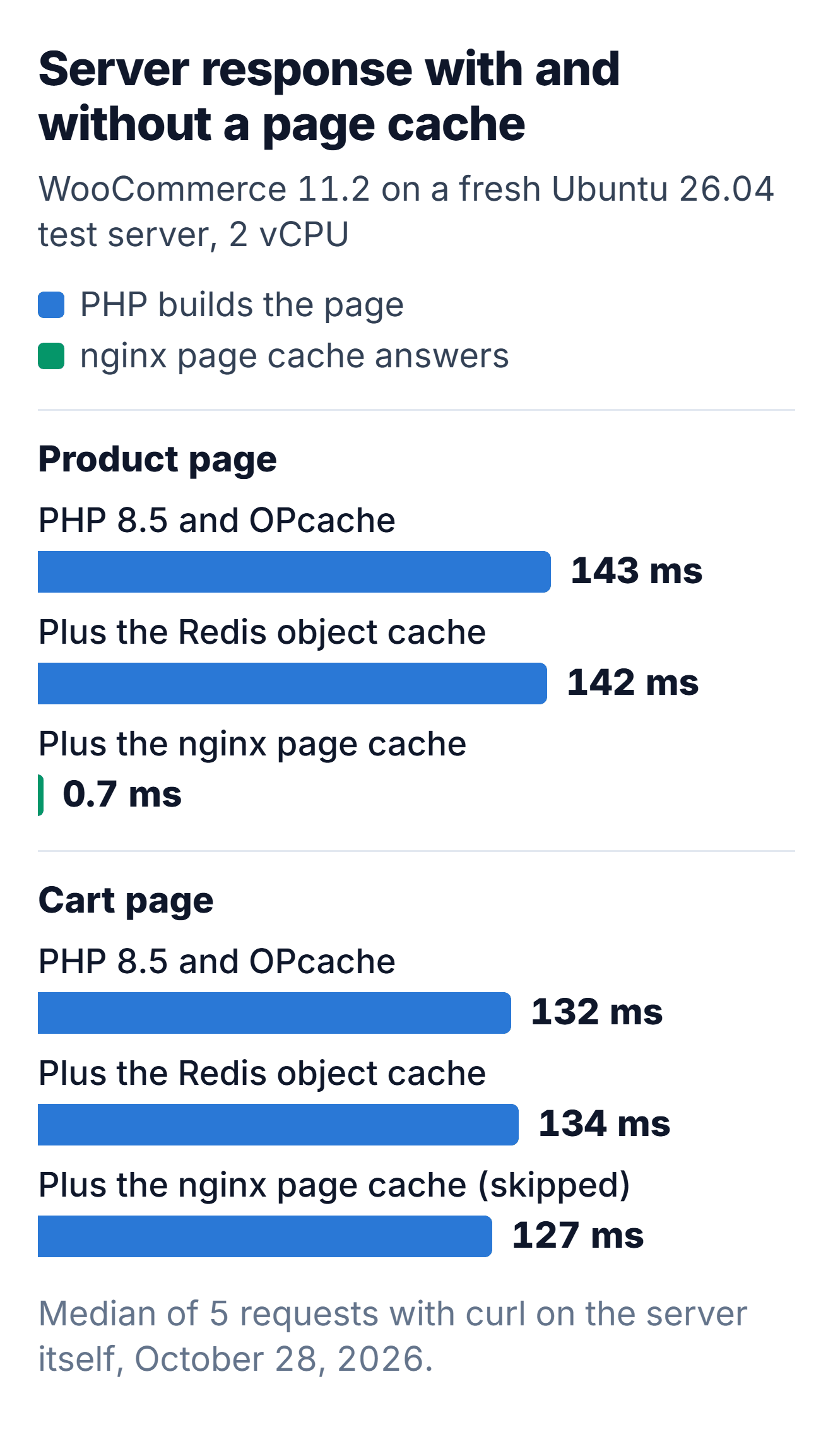
So does a small store need it? On my test store, Redis made no difference I could measure. The product page and the cart each changed by a millisecond or two, and five requests of the same page already differ by more than that. With one product and the database on the same machine, the database does very little work, so Redis can't save much time.
My Redis object cache test for WooCommerce shows where Redis does help, and the case where it made a page slower.
Ubuntu 26.04 has a second choice here. Valkey, the open-source fork of Redis, is in main, while redis-server is in universe (step 3 explains what that means for security updates). I stopped Redis, installed valkey-server, and the same plugin connected without any change. It reports Redis Version: 7.2.4, the version number Valkey reports so that Redis clients keep working. On a server that runs systemd, the change takes two commands:
systemctl disable --now redis-server
apt install -y valkey-server
Keep only one of the two servers running, Redis or Valkey, never both. On my test server the second one to start couldn't get port 6379 ("bind: Address already in use") and quit. On a new 26.04 server I'd pick Valkey, because main gets Canonical's five years of standard security updates without Ubuntu Pro.
Step 11: Turn on the nginx page cache
The page cache lets nginx keep the HTML that PHP produced and send that copy to every guest who requests the same address, so PHP doesn't run for that request. It's called fastcgi_cache, it's built into nginx, and you don't need a cache plugin for it (the one plugin I add, Nginx Helper, only clears the cache). First, define the cache in a file in /etc/nginx/conf.d, which nginx reads inside its http block:
# /etc/nginx/conf.d/fastcgi-cache.conf
fastcgi_cache_path /var/cache/nginx/wordpress levels=1:2 keys_zone=wordpress:64m max_size=1g inactive=10h use_temp_path=off;
fastcgi_cache_key "$scheme$request_method$host$request_uri";
Then replace everything in /etc/nginx/sites-available/example.com with this block, including the lines Certbot added in step 9, and run the commands that follow it. The certbot line adds Certbot's HTTPS lines back (choose Attempt to reinstall this existing certificate). Run it after the mkdir: Certbot tests the nginx configuration first, and that test fails while the cache folder is missing. The new block adds the rules that keep WooCommerce's private pages out of the cache, and it adds the cache lines to the PHP location:
# /etc/nginx/sites-available/example.com
server {
    listen 80;
    listen [::]:80;
    server_name example.com www.example.com;

    root /var/www/example.com;
    index index.php;

    client_max_body_size 64m;

    # Page cache: only guests, only GET and HEAD, never the WooCommerce pages that hold a cart.
    set $skip_cache 0;
    if ($request_method !~ ^(GET|HEAD)$) { set $skip_cache 1; }
    if ($query_string != "") { set $skip_cache 1; }
    if ($request_uri ~* "^/(wp-admin|wp-login\.php|wp-json|xmlrpc\.php|cart|checkout|my-account)") { set $skip_cache 1; }
    if ($http_cookie ~* "wordpress_logged_in|wp-postpass|comment_author|woocommerce_items_in_cart|woocommerce_cart_hash|wp_woocommerce_session") { set $skip_cache 1; }

    location / {
        try_files $uri $uri/ /index.php?$args;
    }

    location ~ \.php$ {
        include snippets/fastcgi-php.conf;
        fastcgi_pass unix:/run/php/php8.5-fpm.sock;

        fastcgi_cache wordpress;
        fastcgi_cache_valid 200 301 302 10h;
        fastcgi_cache_bypass $skip_cache;
        fastcgi_no_cache $skip_cache;
        add_header X-Cache $upstream_cache_status always;
    }

    location ~ /\.(?!well-known) {
        deny all;
    }
}
mkdir -p /var/cache/nginx/wordpress
chown www-data:www-data /var/cache/nginx/wordpress
certbot --nginx -d example.com -d www.example.com
nginx -t && systemctl reload nginx
curl -sI https://example.com/product/classic-cotton-t-shirt/ | grep -i x-cacheThe X-Cache header says what happened to each request. My test server has no certificate, so I asked over http (with curl's --resolve, because example.com doesn't point at it), twice for the product page and once for the cart:
X-Cache: MISS
X-Cache: HIT
X-Cache: BYPASS
MISS is PHP building the page while nginx stores it, HIT is nginx answering from the copy, and BYPASS is the cart, which the rules send to PHP every time.
Then I timed both pages: one warm-up request, then five requests with curl on the server itself, and I took the median. The product page took 143 milliseconds with PHP 8.5 and OPcache, and 0.7 milliseconds from the page cache, about 200 times faster. The cart stayed at about 130 milliseconds, because WooCommerce never lets the cart, the checkout or the account pages be cached, and the skip rules follow that.
With the page cache on, most shoppers don't notice a PHP-FPM restart. The first request after a restart took 1,241 milliseconds on my test server, because OPcache starts empty and PHP compiles every file again. Requests for cached pages never reach PHP, so only the first shopper who opens a page that isn't in the cache, such as the cart, waits that long.
Two settings decide how long a page stays in the cache, inactive and fastcgi_cache_valid, and I set both to 10 hours because WordPress pages carry security tokens (nonces) that WordPress stops accepting after 12 to 24 hours, and a cached page older than that breaks things like payment buttons. I found such a page on a real store: a 36-hour-old cached page whose payment request got 403.
Clear the cache when a product changes
A page cache that's never cleared keeps showing old prices. I changed the T-shirt from $28.00 to $29.00 with WP-CLI, and nginx kept sending the cached page with $28.00 (X-Cache: HIT), and it would keep sending that page for up to 10 hours.
The free Nginx Helper plugin fixes that by deleting the cached copy when a post or product is saved. Install it and tell it where the cache folder is:
sudo -u www-data wp plugin install nginx-helper --activate
sudo -u www-data wp config set RT_WP_NGINX_HELPER_CACHE_PATH /var/cache/nginx/wordpress/
Then open Settings > Nginx Helper and select Enable Purge. Under Caching Method choose nginx Fastcgi cache, under Purge Method choose Delete local server cache files, and under WooCommerce Options select Purge product cache on updates (on the test server I set the same options with WP-CLI).
With the plugin set up, I changed the price to $30.00, and the very next request was a MISS that showed $30.00, then a HIT again. It works without the extra nginx purge module for two reasons: the cache key in fastcgi-cache.conf is the one Nginx Helper rebuilds to find a page's file (scheme, GET, host and address), and the cache folder belongs to www-data, so PHP can delete files in it.
My server block skips the cache for every address with a query string. That includes ad clicks, which arrive with a gclid or a utm_source in the address, so PHP builds the page again for every visitor who clicks an ad. My WooCommerce speed tests timed those ad clicks on two real stores, and they show the WP Rocket and LiteSpeed Cache settings that keep those pages cached.
I measured all of these numbers on the server itself, so they don't include the distance to your shoppers or the encryption handshake. Once the domain points at the new server, test the product page from outside. We make a free Store Speed Test for that check, and it marks a slow server response next to the scores Google uses.
Test the product page on your new server from outside
Paste a product page address and see its three Core Web Vitals scores and the total delay. A free account names the 5 apps that cost the most time, with the fix for your platform.
Test my storeHow I tested this guide
Everything ran in Docker on my workstation, in containers from the official ubuntu:26.04 image, which reported Ubuntu 26.04.1 LTS. I limited each container to 2 CPUs and 4 GB of memory, then installed what Ubuntu's cloud image already has (openssh-server, sudo-rs, curl, ufw and unattended-upgrades, checked against the image's published package list).
A container has no systemd, so I started the services with the service command, and the systemctl commands in this guide are the ones a real server uses. I ran the whole install three times. The first two runs found the 502, the Coming soon page and the Redis port conflict, and the third run, on a new container, produced the medians in this guide. The 124 ms of the Coming soon page is from the first run.
I sent the requests with curl on the server itself, one warm-up and then five, with WP_DEBUG off. What I couldn't test in a container: a reboot, unattended-upgrades on its daily timer, Certbot against a real domain, and SSH through ufw.
| Package | Version on October 28, 2026 |
|---|---|
| Ubuntu | 26.04.1 LTS (Resolute Raccoon) |
| nginx | 1.28.3-2ubuntu1.12 |
| php8.5-fpm | 8.5.4-0ubuntu1.5 |
| mariadb-server | 1:11.8.6-5ubuntu0.1 |
| redis-server | 5:8.0.5-1ubuntu0.1 |
| valkey-server | 9.0.4-0ubuntu0.2 |
| certbot | 4.0.0-4 |
| WP-CLI | 2.12.0 |
| WordPress | 7.1.3, theme Twenty Twenty-Five 1.5 |
| WooCommerce | 11.2.1 |
| Redis Object Cache | 3.0.0, PhpRedis 6.2.0 |
| Nginx Helper | 2.4.1 |
Updates to this guide
- October 28, 2026: first version, tested on Ubuntu 26.04.1 with WooCommerce 11.2.1 on WordPress 7.1.3.
Sources
Ubuntu, Ubuntu cloud images, MariaDB and 5 more8
- Ubuntu: Ubuntu 26.04 LTS release notes, summary for LTS users (PHP 8.5, Linux 7.0, sudo-rs, Valkey 9.0), the 26.04 release schedule (April 23, 2026), the Ubuntu release cycle (standard security maintenance to May 2031) and Ubuntu Pro (main and universe, free for personal use on up to five machines).
- Ubuntu cloud images: Ubuntu 26.04 server cloud image and its package manifest.
- MariaDB: the mariadb 1:11.8.6-5 changelog on Launchpad (the new /var/lib/mariadb data directory) and the MariaDB maintenance policy (11.8 as a long-term release).
- PHP: RFC: Make OPcache a non-optional part of PHP (PHP 8.5, 30 votes to 0) and Supported versions.
- WordPress: Requirements, Hardening WordPress (file permissions and ownership) and the WP-CLI installation guide.
- WooCommerce: Server requirements (PHP 8.3 or greater, tested up to 8.4, 256 MB memory limit), Coming soon mode and the developer advisory on Coming soon mode by default.
- nginx: ngx_http_fastcgi_module (fastcgi_cache, fastcgi_cache_bypass and fastcgi_no_cache).
- Plugins: Redis Object Cache and Nginx Helper on WordPress.org.

Discussion 0
Ask a question or share what you saw on your own store.
No comments yet.