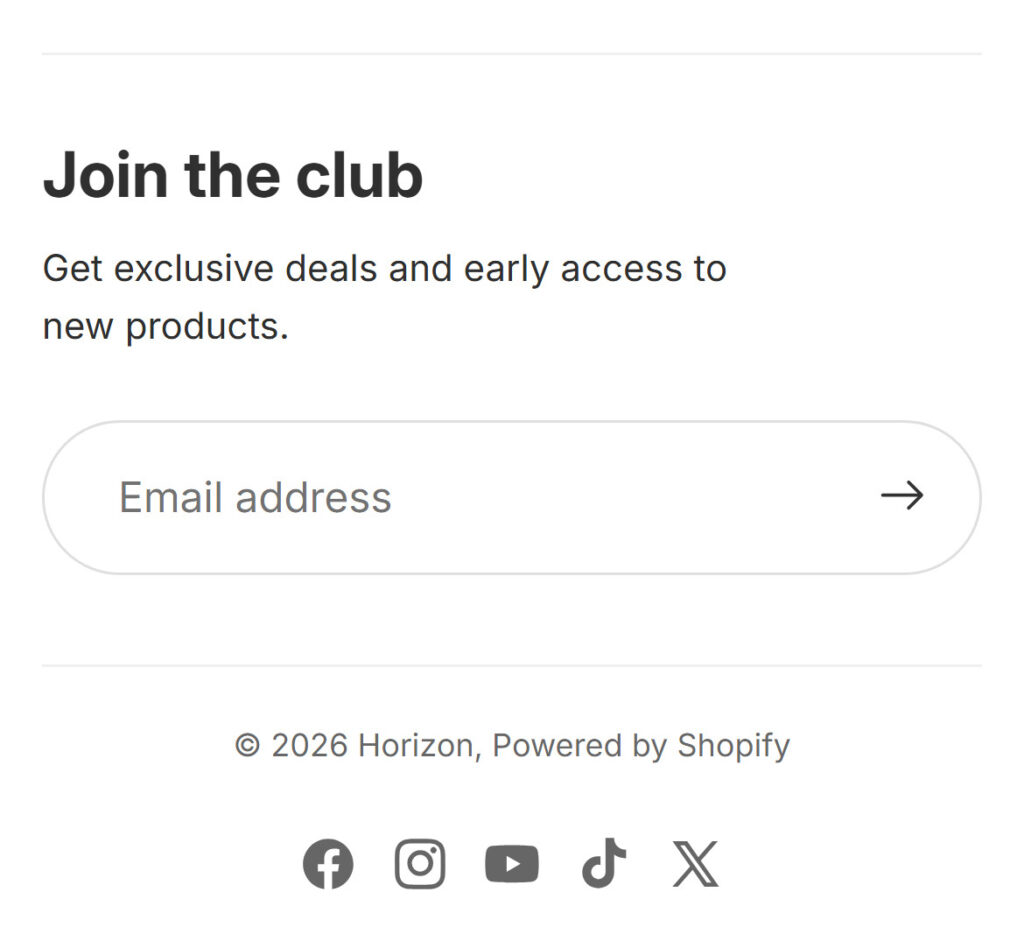
Scroll to the bottom of Shopify's demo store for Horizon, one of its newest free themes, and the footer holds an email box, a copyright line that ends in "Powered by Shopify" and five social icons. There's nothing else. There's no shipping or returns policy, no contact page and no payment icons, and those are exactly the things a first-time shopper scrolls down to check before they buy from a store they don't know yet.
Your Shopify footer can show all of them, and you can do it without any code. If your store runs on Horizon, Dawn or another free Shopify theme, this is where the footer sits in the theme editor, how to edit each part of it, how to remove Powered by Shopify in about a minute, and what I'd put in a store footer.
The short version: in your Shopify admin, click Online Store, then Edit theme, and select Footer at the bottom of the left sidebar. The links come from Content > Menus, and Powered by Shopify disappears when you put a single space in its box under Edit default theme content.
Where the footer is in the theme editor and how to remove Powered by Shopify, in a 45-second video.
Play the videoWhere the footer is in the Shopify theme editor
- In your Shopify admin, click Online Store. The Themes page opens with your current theme at the top. Click Edit theme (older guides and videos call this button Customize, and it opens the same editor).
- Scroll to the bottom of the left sidebar. It has three areas, Header, Template and Footer, and everything under Footer is your footer.
- Click a section under Footer to see its settings, or click one of its blocks (a menu, a text, the email signup) to edit only that part.
- Click Save in the top right corner.
The footer is the same on every page of your store. Shopify's Help Center says: the header and footer are shared across all of your online store's pages. So a change you make while the editor shows your home page also shows on product pages, collections and the cart, and the eye icon next to the footer hides it from all pages.
What a Shopify footer holds in Dawn and Horizon
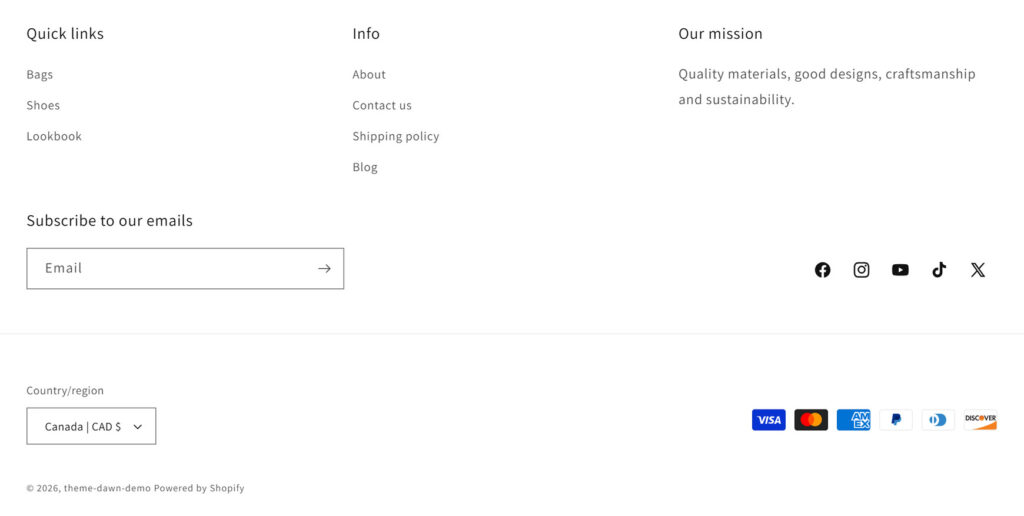
Dawn is the free theme many older stores still run, and it keeps the whole footer in one section called Footer. On Shopify's Dawn demo store that section shows two menus (Quick links and Info), a short text about the store's mission, the email signup, five social icons, a country selector and six payment icons, with the copyright line and Powered by Shopify at the very bottom.
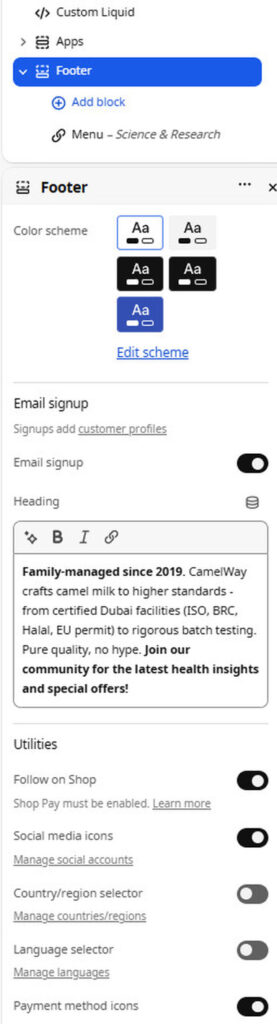
Open that section in the theme editor and you'll see that the settings are switches. This is the Footer section of a Dawn-based theme on a store I built: the color scheme, Email signup with its heading, and a group called Utilities with Follow on Shop, Social media icons, Country/region selector, Language selector, Payment method icons and Policy links. The small links under some of the switches (Manage social accounts, Manage countries/regions, Manage languages) open the setting that fills them.
Horizon splits the footer into two sections. Footer holds the menus, texts and the email signup, and Policies and links holds three blocks: Copyright, Policy links and Social media links. Horizon's demo store shows only some of these blocks, as the phone screenshot shows.
The same part of the footer sits in a different place in each theme, so check the name of your theme on the Online Store page before you look for a setting:
| Footer part | Dawn | Horizon |
|---|---|---|
| Columns of links | Menu block | Menu block |
| Text about your store | Text block or Brand information block | Text block |
| Email signup | Email signup setting of the Footer section | Email signup block |
| Social media icons | Social media icons setting; the links go in Theme settings > Social media | Social media links block; the links go in the block |
| Payment icons | Payment method icons setting | Payment icons block, not in the footer until you add it |
| Policy links | Policy links setting | Policy links block, a Terms and Policies button that opens a list |
| Country and language | Country/region selector and Language selector settings | In the Header section, under Localization |
| Copyright line | Built from the year and your store name | Copyright block, with the box Show "Powered by Shopify" |
How to edit the footer menu in Shopify
The links in the footer come from a menu. Every new store starts with two menus, the main menu and the footer menu, and the footer shows whichever menu its Menu block points to.
- In your Shopify admin, click Content > Menus. (Older guides say Online Store > Navigation, which is where menus used to be.)
- Click Footer menu.
- Click Add menu item, type a name such as Shipping and returns, choose the page in Search or paste a link, and click Add.
- Drag the items into the order you want, then click Save menu.
If the footer still shows the old links, go back to the theme editor, click the Menu block under Footer and look at its Menu setting. For a second column of links, add another Menu block and give it a menu of its own, the way Dawn's demo has Quick links next to Info.
One thing in Horizon surprised me. Its default footer, as the theme's own footer file sets it up, has two Menu blocks: the footer menu and your main menu again. I'd swap the second one for a small menu of help pages (shipping, returns, contact, FAQ), because a shopper who scrolled to the bottom has already seen the main menu at the top.
How to remove Powered by Shopify from the footer
Are you allowed to remove it? Shopify publishes the steps in its own Help Center, and nothing in its terms of service asks you to keep the link. It sends visitors to shopify.com, so on a store that's trying to look like a brand, I'd take it out.
- In your Shopify admin, click Online Store.
- Next to your current theme, click the ... button and choose Edit default theme content.
- Type powered into the Filter items box.
- In the Powered by Shopify box, delete the text and type a single space. Leave the Powered by Shopify HTML box as it is, because that's the line on your password page.
- Click Save, then open your store and scroll to the bottom.
On Horizon there's a second way that needs no typing at all. In the theme editor's left sidebar, Horizon's footer has a section called Policies and links, and inside it a block called Copyright: that block is the line with the year and your store name. Click it and untick Show "Powered by Shopify". Dawn doesn't have that box, so on Dawn use Edit default theme content.
The edit is saved with the theme. If you install a new theme and publish it, Powered by Shopify comes back, so it's one more thing to repeat after a theme change.
If you'd rather delete it in the code, click ... next to the theme, then Edit code, and remove {{ powered_by_link }} from sections/footer.liquid in Dawn or from blocks/footer-copyright.liquid in Horizon. I wouldn't do that for this change, because Edit default theme content and the Copyright block do the same without changing a file, and editing Shopify theme code safely starts with a duplicate of the theme. In the Dawn-based theme of a store I built, the copyright line and the link sit next to each other, at lines 302 to 305 of the footer file:
<small class="copyright__content"
>© {{ 'now' | date: '%Y' }}, {{ shop.name | link_to: routes.root_url -}}
</small>
<small class="copyright__content">{{ powered_by_link }}</small>Deleting {{ powered_by_link }} on the last line removes the link and keeps the copyright line.
How to change the copyright line
Neither Dawn nor Horizon has a text box for the copyright line. Both build it from the current year and your store name, so the year changes by itself every January and the name comes from your settings.
- To change the name in it, click Settings > General and edit the store name. Every place that uses it changes too, including emails to your customers, so pick the name you want shoppers to see.
- To write your own line on Horizon, hide the Copyright block with its eye icon and add a Text block to Policies and links with the words you want, for example your company's legal name.
- To write your own line on Dawn, you need the code editor: the line is in
sections/footer.liquid, next to the one you'd edit for Powered by Shopify.
Payment icons and policy links in the footer
These two are the reason I'd open the footer settings at all. A shopper who doesn't know your store looks for the returns policy and the ways to pay before they type a card number, and in the Baymard Institute's survey of US online shoppers, 19% of the people who abandoned a checkout gave one reason: they weren't sure the site was safe for their card.
Shopify takes the payment icons from the payment methods your store has switched on, for the shopper's country and currency, so you can't pick them by hand. On Dawn, tick Payment method icons in the Footer section. On Horizon, hover over Footer in the sidebar, click Add block and choose Payment icons.
The number of icons isn't the same in every store. On the store I built, which sells across Europe, the same switch shows 19 payment icons, from American Express, Apple Pay and Bancontact to BLIK, Klarna, Shop Pay, TWINT and Visa, because each one is a payment method switched on in that store's checkout.

Policy links need the policies first. Click Settings > Policies, open each of the written policies (Return, Privacy, Terms of service, Shipping, Contact information) and fill it in, or start from Insert template and change it to match what you really do. Then tick Policy links on Dawn. Horizon's Policy links block is already in Policies and links, and it shows a Terms and Policies button that opens the list, so on Horizon I'd also put Shipping and Returns into the footer menu, where shoppers reach them with one tap less.
No free Shopify theme has a block for trust badges, the small icons that state a promise such as free shipping or easy returns. We make a trust badge tool ourselves, and its placement above the footer works on Horizon and Dawn. Before you add any badges, read how to pick trust badges that answer a real doubt.
Add a row of trust badges above your Shopify footer
Pick the promises shoppers look for, from free shipping to a money-back guarantee, and show them on Shopify, WooCommerce or any other store. A free account gets 8 trust badges and their view counts.
Build my trust badgesEmail signup and social media icons
The email signup in the footer creates a customer and marks them as subscribed to email marketing. You'll find them under Customers, in the segment Email subscribers, and they get nothing from you until you set up an email to send, such as a welcome email (the email flows a small store needs). If you want people to confirm their address first, turn on Marketing double opt-in in Settings > Notifications, under Customer notifications.
Change the heading while you're there. "Subscribe to our emails", Dawn's default, gives nobody a reason to type an address, and Horizon's demo store does better with "Get exclusive deals and early access to new products". Say what a subscriber gets from your store (a code for the first order, new products a week early), and only promise what you'll send.
Social icons work differently in the two themes:
- In Dawn, the addresses go in Theme settings > Social media, and an icon shows only for a network that has an address.
- In Horizon, the addresses go in the Social media links block itself. Check that block even if you never touched it: in Horizon's default footer it comes filled with the plain home pages of Facebook, Instagram, YouTube, TikTok and Twitter, so the icons look finished and send your shoppers to the front page of each network.
Add your own content to the footer
For an image or a logo, Horizon has a Logo block and an Image block, and Dawn has an Image block plus Brand information, which shows the headline, description and image you set in Theme settings > Brand information.
Anything else, such as a snippet from a review app or a few lines of your own HTML, goes into a Custom Liquid section: hover over Footer, click Add section, search for Custom Liquid and paste the code into its Liquid code box. The section then shows in the footer of every page, like the other footer sections.
What I'd put in a store footer
A footer is where shoppers go when they have a question the product page didn't answer. So I'd fill it with answers, in this order of importance:
- Shipping and returns, as two links in the footer menu, with the delivery time and the return window in the page title if they're short.
- Contact: an email address you read every day, and a phone number only if somebody answers it.
- The policy links and the payment icons, set up as in Payment icons and policy links in the footer.
- One or two sentences about who runs the store and where you ship from.
- The email signup with a real reason to subscribe.
- Social icons only for the accounts you post on. An icon that leads to an account with three posts from 2023 does more harm than no icon.
What I'd leave out: a copy of the main menu, long lists of every collection, and Powered by Shopify. A footer with 40 links helps shoppers no more than one with eight, and on a phone it takes longer to scroll past.
Common Shopify footer problems
The footer should look different on one page
There's no setting for it, because the footer is shared by all pages. The only way is code: a second layout file without the footer, assigned to that one template, or a Custom Liquid section with a few lines of CSS on that template. Both need someone who knows how to use the code editor.
Changes don't show in the store
Check which theme you edited. Shoppers see only the theme at the top of the Online Store page (the published one), and edits in a copy below it stay in that copy until you publish it.
The country selector or payment icons are missing
Dawn shows the country selector only when your store sells in several countries, and the language selector only when the store has two languages or more. Payment icons follow the payment methods that are switched on for the shopper's country, so a method you haven't set up has no icon.
Powered by Shopify came back
You most likely published another theme, and the space you typed is saved in the old one. Repeat the five steps in the new theme.
Have you scrolled to the very bottom of your own store on a phone lately, the way a careful shopper does before the first order? Do it now. If the last things on the screen are your returns policy, a way to reach you and the cards you accept, the footer works as it should.
Sources
Shopify Help Center, Shopify Liquid reference, Horizon demo store and Dawn demo store and 8 more11
- Shopify Help Center: header and footer sections
- Shopify Help Center: theme editor overview
- Shopify Help Center: editing menus
- Shopify Help Center: remove the Powered by Shopify message
- Shopify Help Center: store policies
- Shopify Help Center: email subscribers
- Shopify Liquid reference: shop.enabled_payment_types
- Shopify's Horizon theme source and Dawn theme source (the footer sections, read November 3, 2026)
- Horizon demo store and Dawn demo store
- Shopify Terms of Service
- Baymard Institute: reasons for abandonment during checkout

Discussion 0
Ask a question or share what you saw on your own store.
No comments yet.