---
title: "502 Bad Gateway nginx: I Broke a Test Store Six Ways, and the Error Log Showed Each Cause"
description: "502 Bad Gateway nginx error? I broke a WooCommerce test server six ways, from a stopped PHP-FPM to oversized cookies, and show the log line and fix for each."
url: "https://carthacker.com/hosting/502-bad-gateway-nginx/"
author: "Adrian Wadowski"
published: "2026-10-29"
section: "Hosting & Security"
image: "https://carthacker.com/wp-content/uploads/502-bad-gateway-how-to-fix-nginx.jpg"
publisher: "CartHacker (carthacker.com)"
language: "en"
---
# 502 Bad Gateway nginx: I Broke a Test Store Six Ways, and the Error Log Showed Each Cause
By [Adrian Wadowski](https://carthacker.com/author/adrian/), building online stores since 1998. Published October 29, 2026. 32 min read.
I caused six different errors on a WooCommerce test store, and each time the browser showed the same page of 157 bytes: the title **502 Bad Gateway**, a horizontal line and the nginx version number. nginx shows this 502 Bad Gateway page for every one of the six causes, so the page itself doesn't tell you which cause you have.
The error log does tell you. nginx writes one line to its error log for every request it can't complete, and on my test server that line showed a different cause each time: PHP-FPM wasn't running, nginx used the socket path of an old PHP version, nginx had no permission to open the socket, all PHP workers were busy, PHP's response headers were too big for nginx's buffer, or a PHP worker stopped in the middle of a request. **Each cause has its own fix, and the log line shows you which fix you'll need.**
This article is for you if your store uses nginx and PHP-FPM on a VPS or a dedicated server, and you can open a terminal on that server. If your host doesn't give you terminal access, you can't read these logs yourself. In that case, send your host's support the exact time of the 502 error and ask them for the line in nginx's error log from that minute. With that line, it's usually clear what the cause is.
My test server was a Docker container on my own computer, with Ubuntu 24.04, nginx from nginx.org, Ubuntu's own PHP 8.3 package and the WooCommerce store. I limited it to two CPU cores and 1 GB of memory (that's about the size of a small VPS). You'll find the exact versions in How I tested.
## Two commands show the cause
The first command shows the end of nginx's error log. The path is the same for Ubuntu's nginx package and for the nginx package from nginx.org:
```bash
tail -n 20 /var/log/nginx/error.log
```
If the line you need isn't there, run `tail -f /var/log/nginx/error.log` and reload the page with the error in your browser. You'll see the new line at the moment the error happens. Some servers have a separate error log for each site, and `grep -rn error_log /etc/nginx/` shows the path of yours.
The second command shows PHP-FPM's own log and its record in systemd. If your server runs another PHP version, change 8.3 to that version:
```bash
tail -n 20 /var/log/php8.3-fpm.log
journalctl -u php8.3-fpm --since "1 hour ago"
```
On Ubuntu and Debian, PHP-FPM writes to that file when a worker dies, when there's no free worker left and when a request runs too long. The journal is systemd's record of when the service started, stopped or failed to start. This table shows what each nginx line meant on my test server:
| The nginx error log says | What broke | The fix |
| --- | --- | --- |
| `connect() to unix:/run/php/php8.3-fpm.sock failed (2: No such file or directory)` | PHP-FPM is stopped, or nginx uses the socket path of an old PHP version | Start PHP-FPM, or correct the fastcgi_pass line |
| `connect() ... failed (111: Connection refused)` | PHP-FPM was killed and its socket file still exists, or no program listens on the TCP port | Start PHP-FPM and check why it stopped |
| `(13: Permission denied) while connecting to upstream` | nginx runs as a user that has no permission to open the PHP socket | Set listen.owner and listen.group in the PHP pool file |
| `(11: Resource temporarily unavailable)` | The queue of requests that wait for PHP-FPM is full | More workers or CPU, a page cache, blocking bad bots |
| `upstream timed out (110: Connection timed out) while reading response header` | PHP needed more time than nginx waits (this gives a 504, not a 502) | Find the slow request with the PHP-FPM slow log |
| `upstream sent too big header while reading response header from upstream` | PHP's response headers are bigger than nginx's first buffer | Raise fastcgi_buffer_size and fastcgi_buffers, then fix the plugin |
| `recv() failed (104: Connection reset by peer) while reading response header` | A PHP worker stopped in the middle of a request: a crash, the kernel's out-of-memory killer or a PHP-FPM time limit | The PHP-FPM log shows which signal stopped the worker |
| `FastCGI sent in stderr: "PHP message: PHP Fatal error: ...` | nginx is fine: PHP answered with an error (a 500) | Fix the plugin or theme named in the message |
So which line is in your log?
## The 502 Bad Gateway page from nginx shows your server's operating system
This is the full page that curl received from my test store while PHP-FPM was stopped:
```bash
user@laptop:~$ curl -si http://shop.example.com/product/classic-cotton-t-shirt/
HTTP/1.1 502 Bad Gateway
Server: nginx/1.30.6
Date: Tue, 27 Oct 2026 23:55:49 GMT
Content-Type: text/html
Content-Length: 157
Connection: keep-alive
502 Bad Gateway
502 Bad Gateway
nginx/1.30.6
```
First, the status code. The HTTP standard, RFC 9110, says a 502 means the server, "while acting as a gateway or proxy, received an invalid response from an inbound server it accessed while attempting to fulfill the request". On a WordPress store, nginx is the gateway and PHP-FPM is the server that nginx sends each request to. So **a 502 from nginx means that nginx works and PHP doesn't answer correctly**. Restarting nginx doesn't fix PHP.
The last line on the page is the version of nginx that created the page. Ubuntu's own nginx package also adds the word Ubuntu in brackets after the version. When people search for "502 bad gateway nginx 1.18 0 ubuntu", they've copied this line from the page. The version shows which operating system the server runs:
| Last line of the page | The server runs |
| --- | --- |
| nginx/1.10.3 (Ubuntu) | Ubuntu 16.04 |
| nginx/1.14.0 (Ubuntu) | Ubuntu 18.04 |
| nginx/1.18.0 (Ubuntu) | Ubuntu 20.04 or 22.04 |
| nginx/1.24.0 (Ubuntu) | Ubuntu 24.04 |
| nginx/1.28.3 (Ubuntu) | Ubuntu 26.04 |
| nginx/1.18.0, 1.22.1 or 1.26.3 | Debian 11, 12 or 13 |
| nginx/1.20.1 | Red Hat Enterprise Linux 9, AlmaLinux 9 or Rocky Linux 9 |
| Only a recent version number, such as nginx/1.30.6 | nginx's own packages from nginx.org, or nginx built by the host |
| Only "nginx" | Someone set server_tokens off |
I took the versions from Ubuntu's package archive on Launchpad, from packages.debian.org and from Red Hat's documentation in October 2026. Debian's nginx package doesn't add "(Debian)" to the page.
If your page says 1.18.0 (Ubuntu), there's a second problem besides the 502. Canonical's release cycle page says standard support for Ubuntu 20.04 ended in May 2025, and standard support for 22.04 ends two years later. Fix the 502 first, and then plan a move to a supported Ubuntu release.
I'd also hide the version number. You need one line in /etc/nginx/nginx.conf, inside the http block (Ubuntu's file already has this line, but commented out). After a reload, the page on my test server showed only "nginx":
```nginx
server_tokens off;
```
## PHP-FPM stopped: No such file or directory, or Connection refused
I started with the simplest cause and stopped PHP-FPM. My test server doesn't run systemd, so I used `service php8.3-fpm stop`. It sends PHP-FPM the same signal as `systemctl stop` on a normal server:
```bash
root@server:~# service php8.3-fpm stop
root@server:~# ls -l /run/php/
total 0
root@server:~# tail -n 1 /var/log/nginx/error.log
2026/10/27 23:55:49 [crit] 223#223: *3 connect() to unix:/run/php/php8.3-fpm.sock failed (2: No such file or directory) while connecting to upstream, client: 172.24.0.3, server: localhost, request: "GET /product/classic-cotton-t-shirt/ HTTP/1.1", upstream: "fastcgi://unix:/run/php/php8.3-fpm.sock:", host: "shop.example.com"
root@server:~# tail -n 2 /var/log/php8.3-fpm.log
[27-Oct-2026 23:55:48] NOTICE: Finishing ...
[27-Oct-2026 23:55:48] NOTICE: exiting, bye-bye!
```
When PHP-FPM stops normally, it deletes its socket file. nginx looks for the file and doesn't find it, so it logs error 2. The line has the level [crit], which makes it easy to find in a long log.
A crash gives a different line. I killed PHP-FPM with `kill -9`, which ends a process without giving it time to delete its files (a crash or the kernel's out-of-memory killer does the same). The socket file stayed in /run/php, nginx found it, but no process answered: **(111: Connection refused)**. PHP-FPM's log had no line about it, because a process killed this way can't write anything. If PHP-FPM listens on a TCP port instead of a socket file, a stopped PHP-FPM also gives Connection refused.
In both cases, start PHP-FPM, check that it's still running, and make sure it starts again after a reboot:
```bash
systemctl start php8.3-fpm
systemctl status php8.3-fpm --no-pager
systemctl enable php8.3-fpm
```
Then read the journal to see why PHP-FPM stopped. The same cause can stop it again.
The most dangerous form of this cause is a typo in a config file. I wrote `pm.max_children 10` in the pool file, without the = sign, and restarted PHP-FPM. The restart stopped the old processes, and the new ones didn't start:
```bash
root@server:~# service php8.3-fpm restart
* Restarting PHP 8.3 FastCGI Process Manager php-fpm8.3
...fail!
root@server:~# php-fpm8.3 -t
[28-Oct-2026 00:25:39] ERROR: [/etc/php/8.3/fpm/pool.d/www.conf:127] value is NULL for a ZEND_INI_PARSER_ENTRY
[28-Oct-2026 00:25:39] ERROR: Unable to include /etc/php/8.3/fpm/pool.d/www.conf from /etc/php/8.3/fpm/php-fpm.conf at line 127
[28-Oct-2026 00:25:39] ERROR: failed to load configuration file '/etc/php/8.3/fpm/php-fpm.conf'
[28-Oct-2026 00:25:39] ERROR: FPM initialization failed
```
From that second, every page of the store answered 502, with the same "No such file or directory" line as a normal stop. **Run php-fpm8.3 -t before every restart.** It checks the config files and shows the line with the error, and it doesn't affect the PHP-FPM that's still running.
## Old socket path after a PHP upgrade
Did the 502 start right after a PHP upgrade? On Ubuntu and Debian, every PHP version is a separate service with its own socket, and the socket's name contains the version. If you move a store to a newer PHP version and remove the old packages, the nginx config still points to the old socket. To show this, I put the PHP 8.2 path back into my server block:
```bash
root@server:~# tail -n 1 /var/log/nginx/error.log
2026/10/27 23:56:57 [crit] 454#454: *15 connect() to unix:/run/php/php8.2-fpm.sock failed (2: No such file or directory) while connecting to upstream, client: 172.24.0.3, server: localhost, request: "GET /product/classic-cotton-t-shirt/ HTTP/1.1", upstream: "fastcgi://unix:/run/php/php8.2-fpm.sock:", host: "shop.example.com"
root@server:~# ls -l /run/php/
total 4
-rw-r--r-- 1 root root 3 Oct 27 23:56 php8.3-fpm.pid
srw-rw---- 1 www-data www-data 0 Oct 27 23:56 php8.3-fpm.sock
root@server:~# grep -rn fastcgi_pass /etc/nginx/
/etc/nginx/conf.d/shop.conf:23: fastcgi_pass unix:/run/php/php8.2-fpm.sock;
```
The error is the same "No such file or directory" as with a stopped PHP-FPM. The difference is the path: **compare the socket in the log line with the list from ls /run/php/**. Here the log shows the old version, only the new socket exists, and grep shows the file and the line to change. With Ubuntu's own nginx package, this line is usually in /etc/nginx/sites-available/default or in another file in the same folder. Change the version, test the config and reload nginx:
```bash
sed -i 's#php8.2-fpm.sock#php8.3-fpm.sock#' /etc/nginx/conf.d/shop.conf
nginx -t && systemctl reload nginx
```
Ubuntu and Debian also have a socket name without a version number. Right after the PHP-FPM service starts, it runs a small script (an ExecStartPost line in the service file, the same on Ubuntu and Debian). The script makes `/run/php/php-fpm.sock` a link to the real socket, through the alternatives system. I ran that script by hand on the test server, changed nginx to the name without a version and got a 200:
```bash
root@server:~# ls -l /run/php/ /etc/alternatives/php-fpm.sock
lrwxrwxrwx 1 root root 24 Oct 27 23:56 /etc/alternatives/php-fpm.sock -> /run/php/php8.3-fpm.sock
/run/php/:
total 4
lrwxrwxrwx 1 root root 30 Oct 27 23:56 php-fpm.sock -> /etc/alternatives/php-fpm.sock
-rw-r--r-- 1 root root 3 Oct 27 23:56 php8.3-fpm.pid
srw-rw---- 1 www-data www-data 0 Oct 27 23:56 php8.3-fpm.sock
```
Each PHP version registers this link with its version number as the priority (83 for PHP 8.3, the last number on that ExecStartPost line), and the alternatives system uses the highest priority. So with two PHP versions installed, the store starts to use the newer PHP as soon as the newer service starts, even if you didn't plan that. I use the name without a version only on servers with one PHP version.
## Permission denied on the PHP socket
For this cause I didn't need to break anything. I used the nginx.conf file from nginx's own packages from nginx.org, which starts with `user nginx;`, and didn't change Ubuntu's PHP pool:
```bash
root@server:~# tail -n 1 /var/log/nginx/error.log
2026/10/27 23:57:11 [crit] 596#596: *21 connect() to unix:/run/php/php8.3-fpm.sock failed (13: Permission denied) while connecting to upstream, client: 172.24.0.3, server: localhost, request: "GET /product/classic-cotton-t-shirt/ HTTP/1.1", upstream: "fastcgi://unix:/run/php/php8.3-fpm.sock:", host: "shop.example.com"
root@server:~# ls -l /run/php/php8.3-fpm.sock
srw-rw---- 1 www-data www-data 0 Oct 27 23:57 /run/php/php8.3-fpm.sock
root@server:~# ps -o user=,cmd= -C nginx
root nginx: master process nginx
nginx nginx: worker process
nginx nginx: worker process
```
The socket belongs to the user www-data and has mode 0660, so only www-data and its group can connect. nginx's workers run as a different user, called nginx. PHP's documentation says that on Linux the web server needs read and write permission on the socket. **nginx from nginx.org together with PHP from Ubuntu gives this 502 with the default settings of both packages.** Ubuntu's own nginx package runs as www-data, so servers with that package don't get this error.
You can change nginx or PHP: put `user www-data;` at the top of nginx.conf, or make nginx's user the owner of the socket in the PHP pool file. I tested the second way:
```ini
; /etc/php/8.3/fpm/pool.d/www.conf
listen.owner = nginx
listen.group = nginx
```
```bash
root@server:~# php-fpm8.3 -t
[27-Oct-2026 23:57:13] NOTICE: configuration file /etc/php/8.3/fpm/php-fpm.conf test is successful
root@server:~# service php8.3-fpm restart
* Restarting PHP 8.3 FastCGI Process Manager php-fpm8.3
...done.
root@server:~# ls -l /run/php/php8.3-fpm.sock
srw-rw---- 1 nginx nginx 0 Oct 27 23:57 /run/php/php8.3-fpm.sock
```
After that, the store answered 200 again. `listen.mode = 0666` also works (the socket became srw-rw-rw- and the page loaded), and old forum posts often suggest it. **Don't use it.** With this mode, every user and every process on the server can send requests to PHP-FPM and run PHP code as www-data, and on many servers www-data owns your store's files.
## Every PHP worker busy: slow pages first, then 504 and 502
PHP-FPM runs a group of worker processes, and each worker handles one request at a time until it's done. Ubuntu's pool file allows five workers (`pm.max_children = 5`), so the sixth shopper waits in a queue at the socket. On my test server, this cause was the hardest of the six to produce a 502 at all, and before the 502 came, shoppers waited longer than with any other cause.
### Fifty shoppers on five workers
With oha, a load testing tool, I sent 50 requests at a time to the Classic Cotton T-Shirt product page for 30 seconds, with Ubuntu's default pool. Every request got its page. The fastest took 0.12 seconds (that's the time the page needs on an idle server), and the average was almost three seconds:
```bash
user@laptop:~$ oha --no-tui -c 50 -z 30s -t 180s http://shop.example.com/product/classic-cotton-t-shirt/
Summary:
Success rate: 100.00%
Slowest: 3.7614 sec
Fastest: 0.1243 sec
Average: 2.8185 sec
Requests/sec: 18.5643
...
Status code distribution:
[200] 507 responses
root@server:~# tail -n 1 /var/log/php8.3-fpm.log
[27-Oct-2026 23:58:37] WARNING: [pool www] server reached pm.max_children setting (5), consider raising it
```
(I removed the histogram from the oha output.) **The first sign of too few workers is a store that needs three seconds for each page, and there's no error anywhere.** The only hint is the warning in PHP-FPM's log, and PHP-FPM doesn't write it for every shopper who waits. It writes the line when the pool reaches the limit, and in one of my runs it didn't write it again at all. So the warning you find can be hours older than the slow pages you're investigating.
Then I did what the warning says and raised the limit to 25 workers. **The same test got slower.** I ran each setting three times:
| Pool | Pages a second | The median shopper waited |
| --- | --- | --- |
| 5 workers (Ubuntu's default) | about 18 | about 2.9 seconds |
| 25 workers | about 15 | about 3.6 seconds |
My product page needs CPU time, and the test server has two cores. Five workers already kept both cores busy, so the extra workers had to share the same two cores. At the new limit, PHP-FPM wrote the same advice again. On a store like this, the fix for the queue is more CPU cores or a page cache that answers without PHP (I measured a page cache in [the WooCommerce speed tests](https://carthacker.com/hosting/woocommerce-slow/)).
### With a slow outside API, the queue ends in 504 errors
Workers that wait for another server behave differently from workers that use the CPU. A shipping rate lookup, a payment gateway or a license check calls another server, and the worker stays busy until that server answers, without using any CPU. To simulate this, I added a must-use plugin of a few lines to the test store. It waits 25 seconds before WordPress builds the page. Then I sent 20 requests at once.
The five workers served the first five requests after 25 seconds and the next five after 50 seconds. The other ten got **504 Gateway Timeout after exactly 60 seconds**, because nginx waits 60 seconds for PHP by default (fastcgi_read_timeout):
```bash
root@server:~# awk '{print $2}' /var/log/nginx/access.log | sort | uniq -c
10 200
10 504
root@server:~# tail -n 1 /var/log/nginx/error.log
2026/10/28 00:00:17 [error] 726#726: *676 upstream timed out (110: Connection timed out) while reading response header from upstream, client: 172.24.0.3, server: localhost, request: "GET /?lab_slow=25 HTTP/1.1", upstream: "fastcgi://unix:/run/php/php8.3-fpm.sock", host: "shop.example.com"
```
The next result surprised me. I ran the test again with PHP-FPM's access log switched on, and **PHP built all 20 pages anyway**, including the ten that nginx had already answered with a 504. The last five pages started 25 seconds after nginx had stopped waiting for them:
```bash
root@server:~# cat /var/log/php8.3-fpm-access.log
00:04:47 start, 25.148 s, /index.php?lab_slow=25
...
00:05:15 start, 25.115 s, /index.php?lab_slow=25
...
00:05:44 start, 25.097 s, /index.php?lab_slow=25
...
00:06:12 start, 25.111 s, /index.php?lab_slow=25
...
```
(I set PHP-FPM's access.format to print the start time and duration of each request. Each group of five started within two seconds, and I kept the first line of each group.) **A 504 doesn't free the worker**: PHP spent 250 seconds of worker time on the ten pages that had already failed with a 504, and new shoppers waited in the queue during that time.
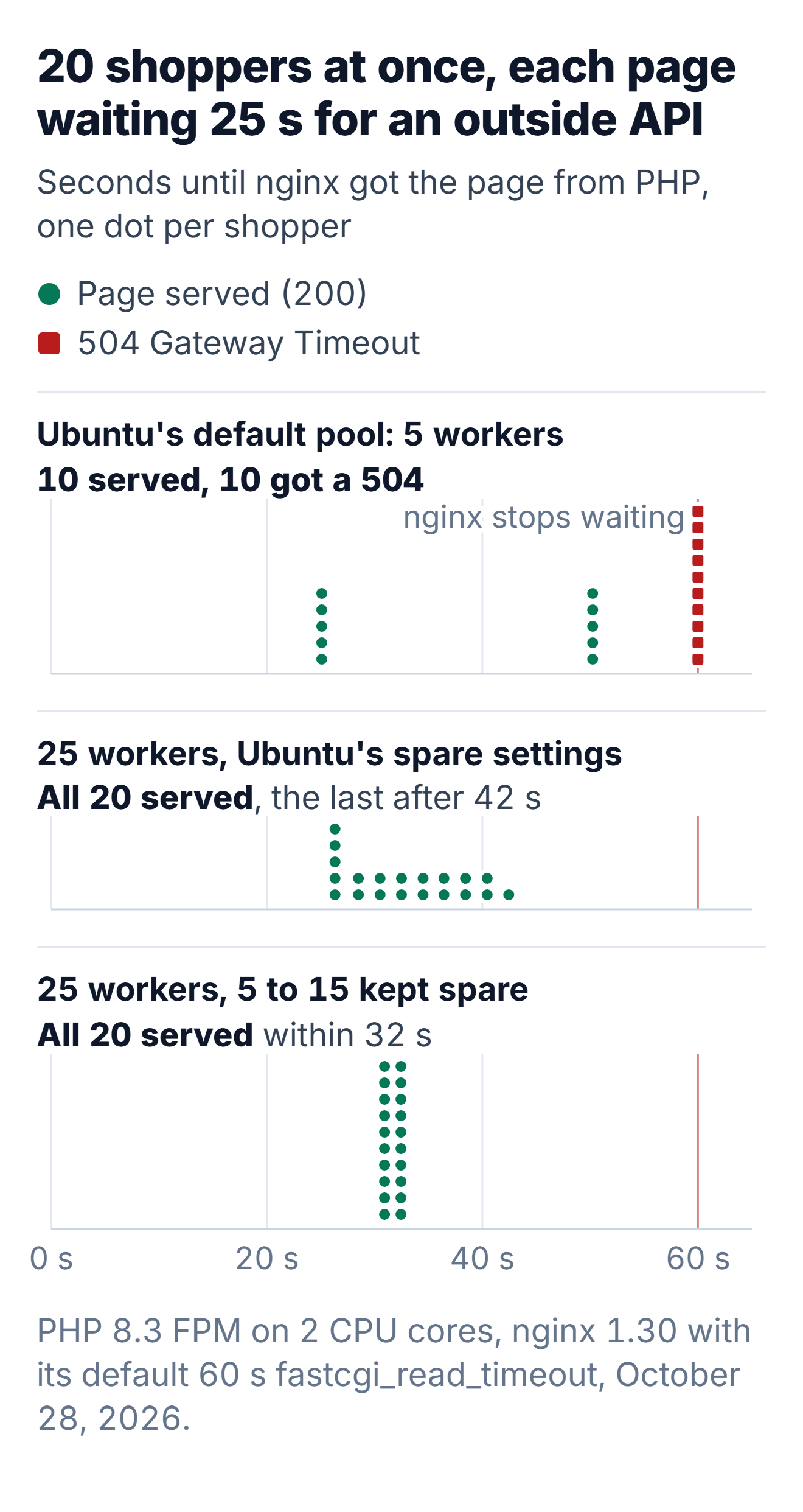
*20 slow requests at once with three pool settings: Ubuntu's default, more workers, and more workers started in advance*
In this test the extra workers did help, because they wait and don't use the CPU: with pm.max_children at 25, there were no more 504 errors. The test also showed me a default setting I didn't know about. Ubuntu's pool sets pm.min_spare_servers to one, and then PHP-FPM's dynamic mode starts **at most one new worker per second**. Once a second, it starts as many new workers as the smaller of two numbers: its spawn rate, or min_spare_servers minus the idle workers. With one spare and no idle workers, that number is one. So my shoppers got their pages one per second, from 26 to 42 seconds. When I started more workers at the beginning and kept five spare, all 20 pages were done within 32 seconds.
The real fix for this cause is to fix the slow request, and PHP-FPM can show you where it's waiting. With the slow log switched on, PHP-FPM records where a request is waiting after the number of seconds you set:
```ini
; /etc/php/8.3/fpm/pool.d/zz-tuning.conf
[www]
slowlog = /var/log/php8.3-fpm-slow.log
request_slowlog_timeout = 5s
```
```bash
root@server:~# head -n 5 /var/log/php8.3-fpm-slow.log
[28-Oct-2026 00:17:13] [pool www] pid 330
script_filename = /var/www/shop/index.php
[0x00007f2b970144d0] sleep() /var/www/shop/wp-content/mu-plugins/lab-tools.php:22
[0x00007f2b97014420] [INCLUDE_OR_EVAL]() /var/www/shop/wp-settings.php:508
```
The first line shows the function and the file where the request waited, here my test plugin on line 22. On a real store, the path usually contains a plugin's folder. Ask that plugin's developer about the slow call, cache the outside server's answer, or replace the plugin. (The slow log reads the worker's memory with ptrace. root on a VPS is allowed to do that, but a default Docker container needs the SYS_PTRACE capability for it, and without it PHP-FPM logs "failed to ptrace(ATTACH)".)
### The queue of requests that wait for PHP, and what happens when it's full
This is the 502 line that nginx writes when the queue of requests that wait for PHP is full:
```bash
2026/10/28 00:09:46 [error] 1387#1387: *6704 connect() to unix:/run/php/php8.3-fpm.sock failed (11: Resource temporarily unavailable) while connecting to upstream, client: 172.24.0.3, server: localhost, request: "GET /product/classic-cotton-t-shirt/ HTTP/1.1", upstream: "fastcgi://unix:/run/php/php8.3-fpm.sock:", host: "shop.example.com"
```
Error 11 means that the queue of connections that wait at the socket is full, so the kernel refuses the next connection immediately. How long is that queue? A comment in Ubuntu's www.conf says 511, and PHP's manual still gives the same number as the Linux default. **Since PHP 8.2, the default on Linux is -1**, and the kernel changes -1 into its own maximum (net.core.somaxconn, 4096 on my test server). PHP-FPM's -tt option prints the value it really uses:
```bash
root@server:~# php-fpm8.3 -tt 2>&1 | grep listen.backlog
[28-Oct-2026 00:09:41] NOTICE: listen.backlog = -1
root@server:~# cat /proc/sys/net/core/somaxconn
4096
```
So I sent 1,000 connections at once for 20 seconds, and didn't get a single 502. nginx reached its own limit first. Its log said that it didn't have enough worker_connections and was reusing connections, the test client lost some of its connections completely, and the store served 295 pages while the other requests were still waiting when the test ended. When I allowed nginx four times as many connections, there was still no 502, only a long wait (the median shopper waited 10 seconds).
Then I made PHP's queue shorter with `listen.backlog = 64`, similar to the short queue of an older kernel (the old kernel default was 128). The same test got **126,288 responses with a 502 and 173 pages**. Each 502 response arrived in less than a millisecond, and the test client sent the next request immediately, so the count of 502s is very large.
If you see error 11 on a current Ubuntu server, it means that someone set listen.backlog to a low number, that the kernel's somaxconn is low, or that the server gets far more requests than its workers can handle. More workers won't help beyond what your memory allows. That traffic often comes from a crawler or a bot that you can block, and a page cache answers the other requests without PHP.
### How many workers your server has memory for
Each worker is a full PHP process. After the load test, **each worker on my test store used 80 to 83 MB of memory**:
```bash
root@server:~# ps -o pid,rss,cmd --ppid $(cat /run/php/php8.3-fpm.pid)
PID RSS CMD
1279 83084 php-fpm: pool www
1280 82108 php-fpm: pool www
1281 82124 php-fpm: pool www
1282 80832 php-fpm: pool www
1283 80824 php-fpm: pool www
```
Divide the memory that PHP can use by that number. For example, if your server has 4 GB and MariaDB, the system and everything else use 1.5 GB, then 2.5 GB divided by 80 MB is about 31 workers, so I'd set 25 and watch the server. RSS counts the shared OPcache memory in every worker, so the total is higher than the real use, and the result is a little lower than the number your server could run. Run the ps command on your own store while it has real traffic, because plugins change the number a lot.
If you set more workers than your memory allows, you get the sixth cause instead: the kernel starts to kill workers.
I put my pool changes in a separate file and didn't edit www.conf. PHP-FPM reads every file in pool.d, and the [www] header in the first line of my file lets it change the existing pool (all my tests used this file). Also, when you update the PHP package, it won't stop and ask what to do with your changed www.conf:
```ini
; /etc/php/8.3/fpm/pool.d/zz-tuning.conf
[www]
pm.max_children = 25
pm.start_servers = 10
pm.min_spare_servers = 5
pm.max_spare_servers = 15
```
Did your 502 errors start during a sale, an email campaign or a visit from a crawler? Then your pages were slow before the errors started. The fix is more workers or CPU and a page cache, because a longer timeout only makes shoppers wait longer. We make a free tool that shows slow pages early: Core Web Vitals Monitoring records the server response time that real shoppers get on every visit, and sends a free email in the week your store gets slower.
> **Core Web Vitals Monitoring:** See your server get slower before all workers are busy. One snippet, or our WordPress plugin, shows the speed and traffic of every real visit, with an email the week your store gets slower. Free accounts keep 7 days of history, Premium keeps 180. [Start free monitoring](https://carthacker.com/dashboard/)
## Upstream sent too big header: too many cookies for a 4 KB buffer
nginx reads the first part of PHP's response, the headers, into one buffer. The size of that buffer is `fastcgi_buffer_size`. The default is one memory page, and that's 4 KB on most servers. If the headers are bigger than the buffer, nginx stops and answers with a 502.
WooCommerce alone doesn't reach that size. The Add to cart response for the T-shirt had three Link headers, the cache headers and WooCommerce's three cart cookies, and all the headers the browser got were 879 bytes, with nginx's own headers included:
```bash
Set-Cookie: woocommerce_items_in_cart=1; path=/
Set-Cookie: woocommerce_cart_hash=45fad2d610b6e2aa980a8c027065dac8; path=/
Set-Cookie: wp_woocommerce_session_b88a16fef3483691d37919fbe47c794d=t_0ed5e3b701f8eea606aa6ea94cc70c%7C1793319054%7C1793232654%7Cffbb14dfbeed34df3cae885f48f20cb3; expires=Fri, 30 Oct 2026 00:10:54 GMT; Max-Age=172800; path=/; HttpOnly
```
The buffer usually becomes full because of a plugin that stores data in cookies (A/B tests, tracking, wishlists) or sends long headers of its own, such as a big Content-Security-Policy. My test plugin set four cookies of 1,000 bytes each:
```bash
user@laptop:~$ curl -si 'http://shop.example.com/product/classic-cotton-t-shirt/?lab_cookies=4&lab_cookie_bytes=1000' | head -1
HTTP/1.1 502 Bad Gateway
root@server:~# tail -n 1 /var/log/nginx/error.log
2026/10/28 00:10:59 [error] 1504#1504: *134128 upstream sent too big header while reading response header from upstream, client: 172.24.0.3, server: localhost, request: "GET /product/classic-cotton-t-shirt/?lab_cookies=4&lab_cookie_bytes=1000 HTTP/1.1", upstream: "fastcgi://unix:/run/php/php8.3-fpm.sock:", host: "shop.example.com"
```
With a single cookie, the product page failed when the cookie had **between 3,750 and 3,800 bytes**. RFC 6265 asks browsers to accept cookies of at least 4,096 bytes each, so one large cookie from one plugin is enough to cause this 502.
Put the fix into the PHP location block of your server block. First I raised only fastcgi_buffer_size, and nginx refused the config:
```bash
root@server:~# nginx -t
nginx: [emerg] "fastcgi_busy_buffers_size" must be less than the size of all "fastcgi_buffers" minus one buffer in /etc/nginx/nginx.conf:32
nginx: configuration file /etc/nginx/nginx.conf test failed
```
The default fastcgi_buffers (8 buffers of 4 KB) are too small for a 32 KB first buffer, so you need to add both lines:
```nginx
location ~ \.php$ {
try_files $uri =404;
include fastcgi_params;
fastcgi_param SCRIPT_FILENAME $document_root$fastcgi_script_name;
fastcgi_pass unix:/run/php/php8.3-fpm.sock;
fastcgi_buffer_size 32k;
fastcgi_buffers 16 16k;
}
```
After `nginx -t && systemctl reload nginx`, the same page loaded again, with 4,542 bytes of headers. It worked with 28 cookies of 1,000 bytes and failed again with 40. So **a bigger buffer gives the headers more space, but the plugin that writes all those cookies is still the problem**.
The same cookies can cause a second error. On the next request, the browser sends all of them back to the server in one Cookie header, and by default nginx reads request headers into buffers of 8 KB. When I sent a Cookie header of 9,000 bytes, nginx answered 400 Request Header Or Cookie Too Large, and the request never reached PHP.
## A PHP worker stopped in the middle of a request: Connection reset by peer
When a worker dies while it builds a page, nginx waits for headers that never arrive. I stopped workers in four different ways on the test server, and nginx wrote the same line every time:
```bash
2026/10/28 00:15:11 [error] 88#88: *7 recv() failed (104: Connection reset by peer) while reading response header from upstream, client: 172.24.0.3, server: localhost, request: "GET /?lab_slow=20 HTTP/1.1", upstream: "fastcgi://unix:/run/php/php8.3-fpm.sock:", host: "shop.example.com"
```
You'll see the difference between the four cases only in PHP-FPM's log, which shows what stopped the worker:
| What I did | PHP-FPM's log said |
| --- | --- |
| kill -9 on a worker, 3 seconds after the request started | `child 84 exited on signal 9 (SIGKILL) after 9.218228 seconds from start` |
| A crash: the worker sent itself signal 11, which is what a broken PHP extension does when it crashes a worker | `child 155 exited on signal 11 (SIGSEGV) after 5.352123 seconds from start` |
| A request that used all of the server's memory | `child 183 exited on signal 9 (SIGKILL) after 3.519472 seconds from start` |
| request_terminate_timeout = 20s and a 30-second request | `execution timed out (23.978514 sec), terminating`, then `exited on signal 15 (SIGTERM)` |
The seconds "from start" count from the start of the worker, not from the start of the request. In every row, the shopper got a 502.
Is your store on a small VPS? Then I'd check the memory case first. I let one request allocate 1,500 MB on a test server with 1 GB, and the kernel's out-of-memory killer stopped that worker in less than a second. PHP-FPM saw only a SIGKILL, so the proof is in the kernel log (on a normal server, run `journalctl -k | grep -i "killed process"`):
```bash
Memory cgroup out of memory: Killed process 315212 (php-fpm8.3) total-vm:1208080kB, anon-rss:984692kB, file-rss:7416kB, shmem-rss:16388kB, UID:33 pgtables:2128kB oom_score_adj:0
```
My test server had its own memory limit from Docker, and that's why the line starts with "Memory cgroup". A server that has no free memory left logs the same line, but starting with "Out of memory". The fix is to run fewer workers than your memory allows (the calculation is in the workers section) and to find the request that used so much memory.
The request_terminate_timeout row can mislead you. This setting is off by default. If someone set it on your server to less than nginx's 60 seconds, a slow page ends with a 502 instead of a 504, and the log line looks like a crash.
You may have read that a dead worker gives the line "upstream prematurely closed connection while reading response header from upstream". nginx writes that text when PHP closes the connection normally before the headers arrive, and it writes "Connection reset" when the connection is reset. In every case I tested, PHP 8.3's workers reset the connection: over the unix socket and over TCP, with GET and with POST. If you see "prematurely closed", check the PHP-FPM log in the same way.
## 500, 502 and 504 mean different failures
RFC 9110 gives each status code its own meaning. A 500 means the server "encountered an unexpected condition that prevented it from fulfilling the request". A 504 means a gateway "did not receive a timely response from an upstream server". On a WordPress store, each code means you look in a different place:
| Status | What happened on my test store | Where the cause is written |
| --- | --- | --- |
| 500 Internal Server Error | PHP ran and failed: a fatal error, or a request reached the 128 MB memory_limit. WordPress showed "There has been a critical error on this website." | nginx's error log, as `FastCGI sent in stderr: "PHP message: PHP Fatal error: ...` with the file and line |
| 502 Bad Gateway | PHP didn't send an answer that nginx could use: PHP-FPM not running, no access to the socket, headers too big, or a dead worker | nginx's error log, then PHP-FPM's log |
| 504 Gateway Timeout | PHP was still working when nginx stopped waiting; nginx's access log shows it waited 60.054 seconds | nginx's error log ("upstream timed out"), then PHP-FPM's slow log |
A 500 is better news than the other two: PHP is running, and the message shows the plugin or theme file. The memory error said `Allowed memory size of 134217728 bytes exhausted`. That's PHP's own limit, which stops one request, and WordPress still shows its error page. The kernel's out-of-memory killer from the dead worker section stops the whole worker, and then the shopper gets a 502.
Don't fix a 504 by raising fastcgi_read_timeout to ten minutes. No shopper waits that long, and the worker stays busy the whole time, so you get the full queue from the workers section again.
## With Cloudflare, a 502 page with the Cloudflare logo still comes from your server
If your site uses Cloudflare's proxy, your shoppers don't see nginx's page. Cloudflare's documentation says it shows its own error page with the Cloudflare logo when your server answers with a 502 or a 504, and that errors caused by Cloudflare itself come as a blank page without the logo. I'd expected the opposite. So **a Cloudflare 502 page with the logo is your server's 502**, and you'll find the cause in the same two logs.
Cloudflare's own error codes describe problems with the connection between Cloudflare and your server:
| Code | Cloudflare's description | Where I'd look first |
| --- | --- | --- |
| 520 | The server returned an empty, unknown or unexpected response (headers over 128 KB are one cause) | nginx's error log, for a response that stopped before its headers |
| 521 | The server refuses connections from Cloudflare | Is nginx running? Does the firewall allow Cloudflare's addresses? |
| 522 | Cloudflare timed out contacting the server | The firewall, or a server with too much load to accept connections |
| 523 | Cloudflare can't reach the server at all | The address in your DNS record |
| 524 | Connected, but no response within the default 125 seconds | A request that runs too long: PHP-FPM's slow log |
| 525 | The SSL handshake with the server failed | nginx's certificate and SSL settings |
| 526 | Cloudflare can't verify the server's certificate | An expired or self-signed certificate on the server |
nginx's timeout of 60 seconds is shorter than Cloudflare's 125 seconds, so shoppers normally see a slow PHP request as nginx's 504, inside Cloudflare's error page. If you raise fastcgi_read_timeout above Cloudflare's limit, you'll see the same slow request as a 524.
## The changes I'd make on a new Ubuntu 24.04 server
I tested every item in this list on my test server, and each item is for one of the six causes:
1. Run `php-fpm8.3 -t` before every PHP-FPM restart and `nginx -t` before every nginx reload. A typo is the only cause in this article that a test command finds before a shopper sees the error.
2. Change fastcgi_pass at the same time as you upgrade PHP, or use /run/php/php-fpm.sock in nginx on a server with one PHP version.
3. Set listen.owner and listen.group in the PHP pool to the user from the user line of nginx.conf (www-data with Ubuntu's nginx, nginx with nginx.org's).
4. Calculate pm.max_children with the ps command and the division from the workers section, raise pm.start_servers, pm.min_spare_servers and pm.max_spare_servers too, and put all four settings in a separate zz-tuning.conf file.
5. Switch on the slow log. request_slowlog_timeout = 5s does nothing until a request is slow, and then it shows the file.
6. Raise the header buffers only after you've seen "too big header" in the log: fastcgi_buffer_size 32k with fastcgi_buffers 16 16k, and then find the plugin.
The page cache isn't on this list because it doesn't fix a 502. But with a page cache, most page views don't reach PHP-FPM at all: on the [WooCommerce test store](https://carthacker.com/hosting/woocommerce-slow/), an nginx page cache answered a product page in about one millisecond, and PHP needed 100 milliseconds. If your store has more shoppers than workers, the nginx configuration for WordPress and WooCommerce, line by line has the cache rules. And if uploads fail with a different nginx page, Request Entity Too Large, read about [the 413 error and its upload limits](https://carthacker.com/hosting/413-request-entity-too-large/).
## How I tested
- Server: one Docker container running Ubuntu 24.04.5 with nginx 1.30.6 from the nginx.org repository and PHP 8.3.6 FPM from Ubuntu's own packages, so the paths are the ones an Ubuntu 24.04 server has (/run/php/php8.3-fpm.sock, /etc/php/8.3/fpm/pool.d/www.conf, /var/log/php8.3-fpm.log). Limited to 2 CPU cores and 1 GB of memory.
- Store: 25 products in WooCommerce 11.2.1, with WordPress 7.1.3 and the Storefront 4.6.2 theme; MariaDB 11.4.13 ran in a second container.
- Load: oha 1.16.0 and curl from a third container on the same Docker network. The slow API, the cookies, the crash and the memory test come from one must-use plugin that reacts only to its own query arguments.
- I tested each cause separately, from a clean start: nginx and PHP-FPM with their working settings and empty logs.
- Ubuntu 24.04's nginx package (1.24.0), Debian 12's nginx (1.22.1) and Debian 12's PHP-FPM service file ran in separate containers, only to check the version line on the error page and the socket script.
My test server had its database next to it and ran nothing else, so a real server will give you different times and counts. The log lines won't change: nginx and PHP-FPM write the same words for the same failure on every Ubuntu or Debian server.
## Sources
- From nginx.org: [ngx_http_fastcgi_module](https://nginx.org/en/docs/http/ngx_http_fastcgi_module.html), with the defaults of fastcgi_buffer_size (4k or 8k), fastcgi_buffers (8 buffers of 4k or 8k), fastcgi_busy_buffers_size and fastcgi_read_timeout (60s); the core module for [server_tokens](https://nginx.org/en/docs/http/ngx_http_core_module.html#server_tokens) and [large_client_header_buffers](https://nginx.org/en/docs/http/ngx_http_core_module.html#large_client_header_buffers); and the wording of "upstream prematurely closed connection" in [ngx_http_upstream.c](https://github.com/nginx/nginx/blob/master/src/http/ngx_http_upstream.c).
- PHP: [FPM configuration](https://www.php.net/manual/en/install.fpm.configuration.php) (listen.owner, listen.mode, pm.max_children, request_terminate_timeout, request_slowlog_timeout); the commit [fpm: listen backlog should default to -1 also on Linux](https://github.com/php/php-src/commit/1e562683cb995b9903f4d24ba9eb5bb89ae3fbfb), released in PHP 8.2.0; the spawn code in [fpm_process_ctl.c](https://github.com/php/php-src/blob/PHP-8.3/sapi/fpm/fpm/fpm_process_ctl.c).
- IETF: [RFC 9110, HTTP Semantics, sections 15.6.1, 15.6.3 and 15.6.5](https://www.rfc-editor.org/rfc/rfc9110.html#name-500-internal-server-error), and [RFC 6265, section 6.1](https://www.rfc-editor.org/rfc/rfc6265.html#section-6.1) (cookie size limits).
- Cloudflare: [Error 502 or 504](https://developers.cloudflare.com/support/troubleshooting/http-status-codes/cloudflare-5xx-errors/error-502-504/) and [Cloudflare 5xx errors](https://developers.cloudflare.com/support/troubleshooting/http-status-codes/cloudflare-5xx-errors/) (520 to 526, the 125-second 524 timeout).
- WooCommerce: [WooCommerce cookies](https://woocommerce.com/document/woocommerce-cookies/).
- nginx versions per system: [Ubuntu's nginx package on Launchpad](https://launchpad.net/ubuntu/+source/nginx), [packages.debian.org](https://packages.debian.org/search?keywords=nginx&searchon=names&exact=1&suite=all§ion=all), [Red Hat Enterprise Linux 9, Setting up and configuring NGINX](https://docs.redhat.com/en/documentation/red_hat_enterprise_linux/9/html/deploying_web_servers_and_reverse_proxies/setting-up-and-configuring-nginx_deploying-web-servers-and-reverse-proxies), and [Ubuntu's release cycle](https://ubuntu.com/about/release-cycle).
- Kernel: the out-of-memory messages in [mm/oom_kill.c](https://github.com/torvalds/linux/blob/master/mm/oom_kill.c).
- Cover: the nginx logo by Igor Sysoev (public domain, [Wikimedia Commons](https://commons.wikimedia.org/wiki/File:Nginx_logo.svg)) and the PHP logo by Colin Viebrock ([CC BY-SA 4.0](https://creativecommons.org/licenses/by-sa/4.0/), from [php.net](https://www.php.net/download-logos.php)), both unmodified.
---
## Cite this guide
Wadowski, A. (2026, October 29). *502 Bad Gateway nginx: I Broke a Test Store Six Ways, and the Error Log Showed Each Cause*. CartHacker. https://carthacker.com/hosting/502-bad-gateway-nginx/
## Free tools from CartHacker
- [Store Speed Test](https://carthacker.com/store-speed-test/): Find the apps that slow your product page down.
- [Core Web Vitals Monitoring](https://carthacker.com/plugins/core-web-vitals-monitoring/): Monitor your store's Core Web Vitals every day, for free.
- [Trust Seals & Badges](https://carthacker.com/trust-badges/): Show shoppers it's safe to buy, right under Add to cart.
- [QR Code Generator](https://carthacker.com/qr-code-generator/): Make a QR code you can still change after printing.
- [PDF Tools](https://carthacker.com/pdf-tools/): Free online PDF tools that run in your browser: merge, split, convert, sign and protect PDFs. 39 tools, no upload, no watermark, no sign-up.
- [CartHacker Premium](https://carthacker.com/premium/): one subscription, monthly or yearly, that upgrades every tool at once:
- 50 trust badges in 30 languages, switched automatically
- 180 days of Core Web Vitals, per page
- All 39 PDF tools, unlimited and never uploaded
- 200 QR codes, tracked and editable after printing
- No ads on any guide or tool
- Every new guide 2 weeks before the public
- Product Feed Manager and new tools included
- Every quota and price, tool by tool: https://carthacker.com/llms.txt