---
title: "413 Request Entity Too Large: WordPress Said 2 MB, nginx Said 1 MB"
description: "413 Request Entity Too Large is nginx's limit, and WordPress can't see it. I triggered every upload limit on a test store: the message, the log, the fix."
url: "https://carthacker.com/hosting/413-request-entity-too-large/"
author: "Adrian Wadowski"
published: "2026-10-29"
section: "Hosting & Security"
image: "https://carthacker.com/wp-content/uploads/how-to-fix-413-request-entity-too-large.jpg"
publisher: "CartHacker (carthacker.com)"
language: "en"
---
# 413 Request Entity Too Large: WordPress Said 2 MB, nginx Said 1 MB
By [Adrian Wadowski](https://carthacker.com/author/adrian/), building online stores since 1998. Published October 29, 2026. 20 min read.
A 1.5 MB product photo failed to upload on my test store, on a screen that said **Maximum upload file size: 2 MB**. The progress bar in Media > Add New reached 100%, and then a red box appeared: "Unexpected response from the server. The file may have been uploaded successfully. Check in the Media Library or reload the page." I checked the Media Library. The photo wasn't there.
The refusal came from nginx, the web server that receives every request before WordPress does, and its answer was **413 Request Entity Too Large**. nginx has its own size limit for every request (client_max_body_size, 1 MB unless someone changes it), and WordPress never asks nginx what that limit is. The 2 MB on the screen is PHP's limit.
PHP has two more limits after nginx, and Cloudflare adds one more before nginx when you use its proxy. Each limit stops an upload with a different message. I collected seven messages, and only nginx's plain error page contains the number 413. So which limit stopped your upload?
I wrote this for owners of WooCommerce and WordPress stores on their own server with nginx and PHP-FPM, for example a VPS that you or a developer installed. For each limit, you'll see the message on your screen, the log line that shows the limit and the setting that raises it. On Shopify, or with a host that doesn't let you edit server files, you can't change these settings yourself, but your host's support will ask for the log lines I show here.
The short answer, which I tested: put `client_max_body_size 72m;` in your store's nginx server block, set `upload_max_filesize = 64M` and `post_max_size = 72M` in PHP-FPM's settings, and reload nginx and PHP-FPM. After that, Media > Add New should show 64 MB.
I triggered each limit separately on a test server that I configured like most of these stores: Ubuntu 24.04 with nginx 1.24 and PHP 8.3 from Ubuntu's own packages, every config file unchanged from the package, WordPress 7.1.3 and WooCommerce 11.2.1, with the whole server inside Docker on my desktop PC. I used real files: a product photo, the Storefront theme zip, the WooCommerce plugin zip itself and two product CSVs that I made from WooCommerce's own sample file.
## Four upload limits, in the order a file reaches them
On its way from your computer to WordPress, a file goes through as many as four limits. The first limit that refuses the file decides which message you'll see. These are the four limits with their defaults (for nginx and PHP, on a new Ubuntu server):
1. **Cloudflare**, when your domain uses its proxy: 100 MB on the Free and Pro plans.
2. **nginx, client_max_body_size**: 1 MB for the whole request.
3. **PHP, post_max_size**: 8 MB, again for the whole request, the file and the form fields together.
4. **PHP, upload_max_filesize**: 2 MB for each file.
The Media Library and the block editor also have their own check, before all four limits. In the browser, they compare the file with WordPress's limit and don't send the file at all when it's bigger. WordPress gets that limit from the function wp_max_upload_size(), which returns the smaller of the two PHP numbers, and that's the whole problem: **WordPress only knows the two PHP limits**. It can't see the limits of nginx or Cloudflare, so its screen can show 2 MB while nginx refuses every request over 1 MB.
## 413 Request Entity Too Large comes from nginx
nginx checks the size of a request before it passes anything to PHP, and it writes every refusal to its error log. Here's the line on my test server for the same photo, sent to the address the Media Library uploads to:
```bash
root@server:~# tail -n 1 /var/log/nginx/error.log
2026/10/28 00:07:27 [error] 651#651: *1008 client intended to send too large body: 1537623 bytes, client: 172.23.0.1, server: example.com, request: "POST /wp-admin/async-upload.php HTTP/1.1", host: "example.com"
```
The request was 1,537,623 bytes for a photo of 1,537,292, because **nginx counts the whole request**: the file and the form fields that the uploader sends with it. On Ubuntu, that log is /var/log/nginx/error.log, unless your site's server block sets its own error_log.
If you can read this log, a line with "client intended to send too large body" shows the cause, and Step 1 is your fix. (A 502 during an upload has other causes and other log lines: [the six 502 Bad Gateway causes I reproduced on a test store](https://carthacker.com/hosting/502-bad-gateway-nginx/).)
What you see on screen depends on where you uploaded. Upload Theme, Upload Plugin and WooCommerce's Products > Import send the file as an ordinary form, so the browser leaves the WordPress admin and shows nginx's own page, black text on white. The nginx documentation warns that "browsers cannot correctly display this error", but Chrome showed it for every form I tried.
With curl, you get the same page with its headers (I removed the Date line). probe.php is a short script on my test server that prints what PHP received, and I'll use it again for the PHP limits:
```bash
$ curl -s -i -F "file=@photo-1.5mb.jpg" http://example.com/probe.php
HTTP/1.1 413 Request Entity Too Large
Server: nginx/1.24.0 (Ubuntu)
Content-Type: text/html
Content-Length: 192
Connection: close
413 Request Entity Too Large
413 Request Entity Too Large
nginx/1.24.0 (Ubuntu)
```
The Media Library and the block editor upload in the background, so you won't see that page there. They show their own guess instead: the "Unexpected response from the server" box with the bar at 100%, and in the block editor a black notice, "The response is not a valid JSON response." Both mean that the server answered with nginx's HTML page, and WordPress expected its own data.

*Media > Add New: the 1.5 MB photo at 100%, refused by nginx, on a screen that says 2 MB*

*The same photo in an Image block: nginx's 413 appears as an invalid JSON response*
The status has had three names. The HTTP standard called it Request Entity Too Large in 1999 and Payload Too Large in 2014, and the current one, [RFC 9110](https://www.rfc-editor.org/rfc/rfc9110#section-15.5.14), calls it **413 Content Too Large**. nginx still prints the oldest name. It's one status code, so a search for "payload too large", "content too large" or "http 413" leads to the same fix.
"Request failed with status code 413" is axios's message for this status. axios is a JavaScript library that many plugin screens and web apps use to send requests to the server, and that sentence is in [its source code](https://github.com/axios/axios/blob/v1.x/lib/core/settle.js). When a plugin shows it during an upload, the cause is usually the same nginx limit.
## Step 1: Raise client_max_body_size in nginx
Put `client_max_body_size` into the server block of your store, in the file in /etc/nginx/sites-available/ that contains your domain name. It also works in the http block of /etc/nginx/nginx.conf, where it applies to every site on the server. The sample nginx.conf in the [WordPress Advanced Administration Handbook](https://developer.wordpress.org/advanced-administration/server/web-server/nginx/) puts it there, with a comment that PHP's upload limit can't be larger.
A value in the server block replaces the value from the http block, and a value in a location block replaces both. This is the server block from my test server, with the new line:
```nginx
server {
listen 80 default_server;
server_name example.com;
root /var/www/shop;
index index.php;
client_max_body_size 72m;
location / {
try_files $uri $uri/ /index.php?$args;
}
location ~ \.php$ {
include snippets/fastcgi-php.conf;
fastcgi_pass unix:/run/php/php8.3-fpm.sock;
}
}
```
Test the file, reload, and send the photo again. The same curl got 413 before the reload and 200 after it:
```bash
root@server:~# nginx -t
nginx: the configuration file /etc/nginx/nginx.conf syntax is ok
nginx: configuration file /etc/nginx/nginx.conf test is successful
root@server:~# systemctl reload nginx
$ curl -s -o /dev/null -w '%{http_code}\n' -F 'file=@photo-1.5mb.jpg' http://example.com/probe.php
200
```
My test server is a container without systemd, so I used `nginx -s reload` there, which does the same reload. During a reload, nginx keeps answering requests while it reads the new settings, so a reload is safe on a live store.
Why 72m? It's the post_max_size I set in the next step, so nginx never refuses a request that PHP would accept. I wouldn't use 0, which switches the check off (the [nginx documentation](https://nginx.org/en/docs/http/ngx_http_core_module.html#client_max_body_size) says so): nginx would then accept a request of any size and write it to disk before PHP checks it. My nginx configuration for WordPress and WooCommerce explains every other line of that server block.
## The uploaded file exceeds the upload_max_filesize directive in php.ini
This sentence comes from PHP's limit for each file, **upload_max_filesize**, which is 2 MB on Ubuntu. WordPress shows the sentence exactly like this in only one of the places I tried. After I raised the nginx limit, I uploaded the Storefront theme (WooCommerce's own free theme, a 2.9 MB zip) through Upload Theme and got a white page with only that sentence. The HTTP status was 500, the code for a server error, although nothing on the server was broken.
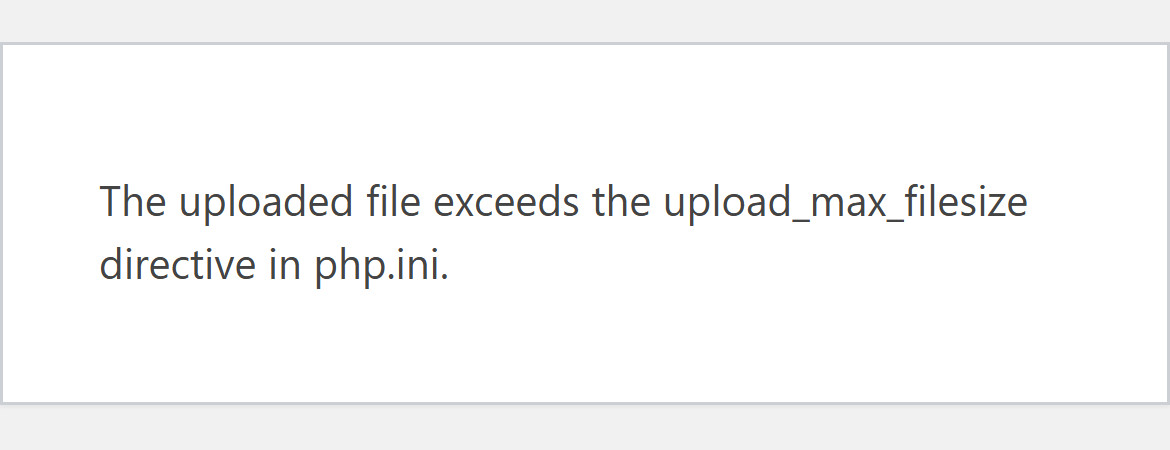
*Upload Theme with the 2.9 MB Storefront zip and PHP's default upload_max_filesize of 2M*
Other screens show other messages. WooCommerce's product import took the 2.8 MB CSV and answered "File is empty. Please upload something more substantial", followed by a sentence that blames disabled uploads or a post_max_size smaller than upload_max_filesize. The file wasn't empty, and neither guess was right. The Media Library and the block editor don't send a file over the limit at all: they stop it in the browser with "photo-4.7mb.jpg exceeds the maximum upload size for this site."
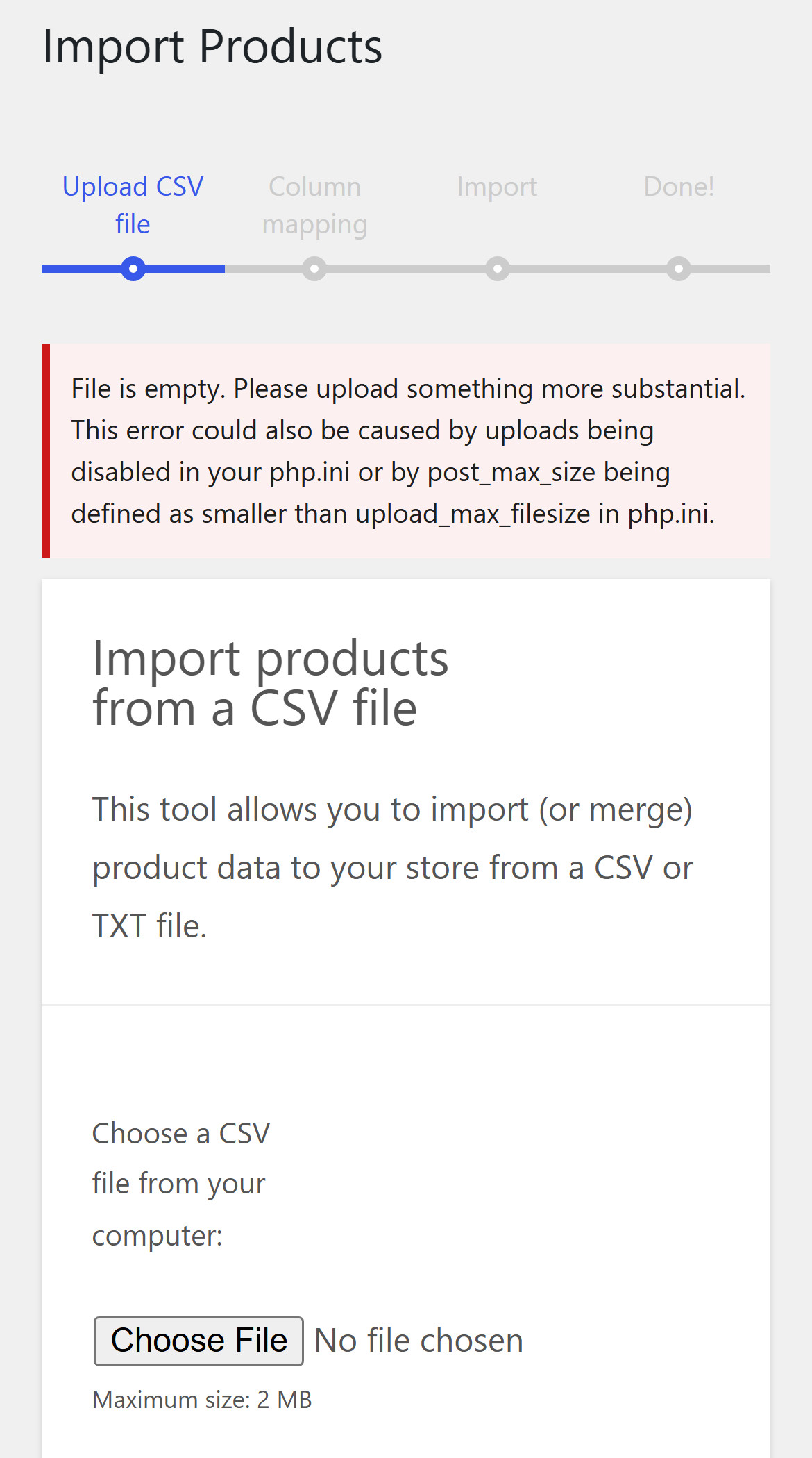
*Products > Import with a 2.8 MB CSV: upload_max_filesize, reported as an empty file*
What surprised me is that **upload_max_filesize writes no line to any error log**, neither to nginx's log nor to PHP-FPM's. PHP keeps the request, removes the file and marks it with error code 1 (UPLOAD_ERR_INI_SIZE in [the PHP manual](https://www.php.net/manual/en/filesystem.constants.php)), and then WordPress or the plugin has to show a message. This is what probe.php saw with the 4.7 MB photo:
```bash
$ curl -s -F "file=@photo-4.7mb.jpg" -F "note=hello" http://example.com/probe.php
upload_max_filesize=2M post_max_size=8M memory_limit=128M
CONTENT_LENGTH=4740614
_POST fields: 1, _FILES entries: 1
_FILES[file]: name=photo-4.7mb.jpg size=0 error=1
```
The form field arrived, and the file arrived with 0 bytes and an error code. When a screen says that your file is empty and you know it isn't, this is usually the reason.
## post_max_size empties the whole form, and WordPress says the link has expired
post_max_size is the limit for the whole request, 8 MB on Ubuntu. When a request is bigger, PHP deletes everything in it, and [the PHP manual](https://www.php.net/manual/en/ini.core.php#ini.post-max-size) says $_POST and $_FILES are then empty. The largest photo shows this:
```bash
$ curl -s -F "file=@photo-9.5mb.jpg" -F "note=hello" http://example.com/probe.php
upload_max_filesize=2M post_max_size=8M memory_limit=128M
CONTENT_LENGTH=9478822
_POST fields: 0, _FILES entries: 0
```
Unlike upload_max_filesize, this limit writes a line to a log. PHP-FPM sends a warning to nginx, and nginx writes it into its own error log, so on Ubuntu you'll find nginx's refusals and this warning in the same file:
```bash
root@server:~# tail -n 1 /var/log/nginx/error.log
2026/10/27 23:53:12 [error] 211#211: *289 FastCGI sent in stderr: "PHP message: PHP Warning: POST Content-Length of 9478822 bytes exceeds the limit of 8388608 bytes in Unknown on line 0" while reading response header from upstream, client: 172.23.0.1, server: example.com, request: "POST /probe.php HTTP/1.1", upstream: "fastcgi://unix:/run/php/php8.3-fpm.sock:", host: "example.com"
```
WordPress loses more than the file. Every admin form contains a security token (a nonce), the empty request arrives without it, and WordPress treats the form as expired. I uploaded the WooCommerce plugin zip through Upload Plugin and got **"The link you followed has expired."** with HTTP 403. The link hadn't expired. The zip was 18.1 MB, more than twice the limit.

*Upload Plugin with the 18.1 MB WooCommerce zip and PHP's default post_max_size of 8M*
WooCommerce's import showed no message at all. With the bigger CSV, Continue showed the same empty upload form again, because the importer only works when the request contains its form fields. If you press Continue and see the same screen again, compare the file size with post_max_size before you try again.
## Seven messages for one problem, and only one of them says 413
Here's every failed upload from the test: where I uploaded, what stopped it and what the screen said. If you remember only one row, remember the first one: a progress bar at 100% and a box that says the file may have been uploaded.
| Where I uploaded | File | Stopped by | What the screen said | HTTP status |
| --- | --- | --- | --- | --- |
| Media > Add New | Photo, 1.5 MB | nginx, 1m | Unexpected response from the server. The file may have been uploaded successfully. (bar at 100%) | 413 |
| Block editor, Image block | Photo, 1.5 MB | nginx, 1m | The response is not a valid JSON response. | 413 |
| Upload Theme, Upload Plugin | Storefront zip, 2.9 MB; WooCommerce zip, 18.1 MB | nginx, 1m | nginx's own page: 413 Request Entity Too Large | 413 |
| Products > Import | CSV, 2.8 MB | nginx, 1m | nginx's own page: 413 Request Entity Too Large | 413 |
| Upload Theme | Storefront zip, 2.9 MB | upload_max_filesize, 2M | The uploaded file exceeds the upload_max_filesize directive in php.ini. | 500 |
| Products > Import | CSV, 2.8 MB | upload_max_filesize, 2M | File is empty. Please upload something more substantial. | 200 |
| Media > Add New, block editor | Photo, 4.7 MB | WordPress, in the browser | photo-4.7mb.jpg exceeds the maximum upload size for this site. | nothing sent |
| Upload Plugin | WooCommerce zip, 18.1 MB | post_max_size, 8M | The link you followed has expired. | 403 |
| Products > Import | CSV, 9.1 MB | post_max_size, 8M | No message: the same empty form appeared again | 200 |
I ran all of them on the same test server and took every screenshot in Chrome at phone width.
Compare the "Stopped by" column with the message on your screen. The uploads in the nginx rows and in the post_max_size rows wrote a line to nginx's error log, but the uploads in the upload_max_filesize rows wrote nothing to any log. So when a screen says that your file is empty or that a link has expired, don't trust it until you've checked the file size.
## Step 2: Set upload_max_filesize and post_max_size for PHP-FPM
First, find the right folder. On Ubuntu, PHP has a separate settings folder for each way it runs: PHP-FPM, which runs your store, reads /etc/php/8.3/fpm/, and the php command you type in a terminal reads /etc/php/8.3/cli/. That's why `php -i` shows the limits of the PHP that the terminal uses, and a change in the cli folder doesn't change anything for your store:
```bash
root@server:~# php --ini | head -2
Configuration File (php.ini) Path: /etc/php/8.3/cli
Loaded Configuration File: /etc/php/8.3/cli/php.ini
```
I put the two settings in a small file of their own in PHP-FPM's conf.d folder, which PHP reads after php.ini. Changing the same two lines in /etc/php/8.3/fpm/php.ini works too; a separate file is easier to find a year later.
```bash
root@server:~# printf 'upload_max_filesize = 64M\npost_max_size = 72M\n' > /etc/php/8.3/fpm/conf.d/99-uploads.ini
root@server:~# php-fpm8.3 -t
[28-Oct-2026 00:17:44] NOTICE: configuration file /etc/php/8.3/fpm/php-fpm.conf test is successful
root@server:~# systemctl reload php8.3-fpm
# what probe.php reported before the reload, then after it
upload_max_filesize=2M post_max_size=8M memory_limit=128M
upload_max_filesize=64M post_max_size=72M memory_limit=128M
```
post_max_size is a little higher than upload_max_filesize for the same reason that nginx counted 1,537,623 bytes for a smaller photo: the request contains the file and the form fields with it, and the PHP manual says post_max_size must be larger. The rule I use is **client_max_body_size is at least post_max_size, and post_max_size is above upload_max_filesize**. WordPress then shows the smaller of the two PHP numbers, 64 MB.
Don't skip the reload. Until I reloaded PHP-FPM, the site still used 2M and 8M, although the new file was already there. And `php-fpm8.3 -i` won't tell you whether you've reloaded, because it reads the files on disk: when I changed the file to 65M, it printed 65M while the running PHP workers still used 64M. **Only a page that PHP-FPM serves shows the limits your store really uses**: the line under the uploader in Media > Add New, or Tools > Site Health > Info > Media Handling, where Max effective file size said 64 MB.
If each site on the server has its own PHP-FPM pool, you can put the two limits at the end of that pool's file in /etc/php/8.3/fpm/pool.d/ instead, and then they apply to one site only:
```ini
php_admin_value[upload_max_filesize] = 64M
php_admin_value[post_max_size] = 72M
```
That worked after the reload too, but `php-fpm8.3 -i` still printed the old defaults, because it doesn't read pool files at all. The WordPress screens showed the new limit.
memory_limit and max_execution_time often appear next to these two in upload guides, so I checked both. With memory_limit at the default 128M, WordPress added the 9.5 MB photo to the Media Library and made its scaled copy. The time limits never stopped an upload either.
I sent the same photo at 150 KB a second. The upload took 61.7 seconds and worked, with max_execution_time at 30 seconds and max_input_time at 60. nginx receives the whole request before it passes anything to PHP-FPM, so the slow upload happens in nginx, before PHP starts to count its time.
Is a PHP-FPM reload safe in the middle of the day? In my test, it caused one slow page. The first shop page after the reload took about a second in both runs, compared with 0.09 seconds with a warm cache, because the new workers start with an empty OPcache and compile WooCommerce's files again (I measured what OPcache saves a WooCommerce store in [the 600-product speed test](https://carthacker.com/hosting/woocommerce-slow/)). The next page was almost as fast as before the reload.
> **Core Web Vitals Monitoring:** Watch your server response from real visits after every change. One snippet, or our WordPress plugin, shows the speed and traffic of every real visit, with an email the week your store gets slower. Free accounts keep 7 days of history, Premium keeps 180. [Start free monitoring](https://carthacker.com/dashboard/)
## Why .htaccess, ini_set and wp-config.php don't change these limits
Many of the fixes you'll find in a search were written for Apache, and they do nothing on nginx with PHP-FPM. I tested the three you'll see most often.
nginx never reads **.htaccess**, Apache's settings file for one folder. The php_value lines that guides put there work only when PHP runs inside Apache as a module, as [the PHP manual](https://www.php.net/manual/en/configuration.file.per-user.php) says. With both lines in the web root of my test store, the site stayed at 2M.
The ini_set() line that many guides tell you to add to wp-config.php **can't change these two settings**. They're PHP_INI_PERDIR settings: [the PHP manual](https://www.php.net/manual/en/configuration.changes.modes.php) lists php.ini, .htaccess, httpd.conf and .user.ini as the places to set them, PHP-FPM adds its pool files, and code can't change them. When wp-config.php runs, PHP has already read the upload. probe.php tried anyway:
```bash
ini_set('upload_max_filesize', '64M') returned false; now 2M
```
ini_set() gave no warning and no error, only false. So with or without an @ before ini_set() (many copied lines have one), nothing tells you that the line failed.
A **.user.ini file does work** with PHP-FPM (the manual says PHP reads these files when it runs as CGI or FastCGI, and PHP-FPM is FastCGI), but with a delay. Each PHP worker keeps the values it read for 300 seconds (the user_ini.cache_ttl setting). I saved a .user.ini with 64M in the web root and checked the site every 30 seconds, starting seven seconds later:
```bash
23:56:30 upload_max_filesize=2M post_max_size=8M memory_limit=128M
23:57:01 upload_max_filesize=64M post_max_size=64M memory_limit=128M
23:57:31 upload_max_filesize=2M post_max_size=8M memory_limit=128M
...
00:00:32 upload_max_filesize=2M post_max_size=8M memory_limit=128M
00:01:02 upload_max_filesize=64M post_max_size=64M memory_limit=128M
```
For about four minutes, the answer depended on which PHP worker handled the request, and the last old value appeared a little more than four minutes after I saved the file (I removed five lines from the middle of that output). A .user.ini also can't change a php_admin_value from the pool: a file with 16M didn't change the pool's 64M. On a server that you manage yourself, the PHP-FPM file from Step 2 is faster and more reliable.
## Cloudflare's 100 MB upload limit comes before your server
If your domain uses Cloudflare's proxy, there's one more limit before nginx. Cloudflare's [Error 413 page](https://developers.cloudflare.com/support/troubleshooting/http-status-codes/4xx-client-error/error-413/) (last updated September 28, 2026) lists the maximum upload size for each plan:
| Cloudflare plan | Maximum upload size |
| --- | --- |
| Free | 100 MB |
| Pro | 100 MB |
| Business | 200 MB |
| Enterprise | Up to 5 GB |
Cloudflare answers a bigger request with its own 413 and doesn't send the request to your server. Your server never sees it, so **your nginx log stays empty** and none of the PHP messages appear. I didn't test this limit (my test server doesn't use Cloudflare), so these numbers are Cloudflare's.
Cloudflare's page gives three solutions: split the upload into smaller parts, set the DNS record to DNS-only so that traffic doesn't go through the proxy, or move to a bigger plan. It also says that the Maximum Upload Size can be changed on the zone's Network page, so if someone lowered it there, that's the limit you'll reach. For a store, 100 MB is far above a product photo or the theme and plugin zips I tested. A backup restore, a product video or a very large catalog CSV can reach that size.
## The same files after both fixes
After both fixes, I ran every failed upload again. Media > Add New said **Maximum upload file size: 64 MB**, and the largest photo uploaded on the first try. The WooCommerce zip that had "expired" reached the screen that compares the installed plugin with the uploaded one, the Storefront zip did the same, and the bigger CSV reached Column mapping with the new maximum under the file field.
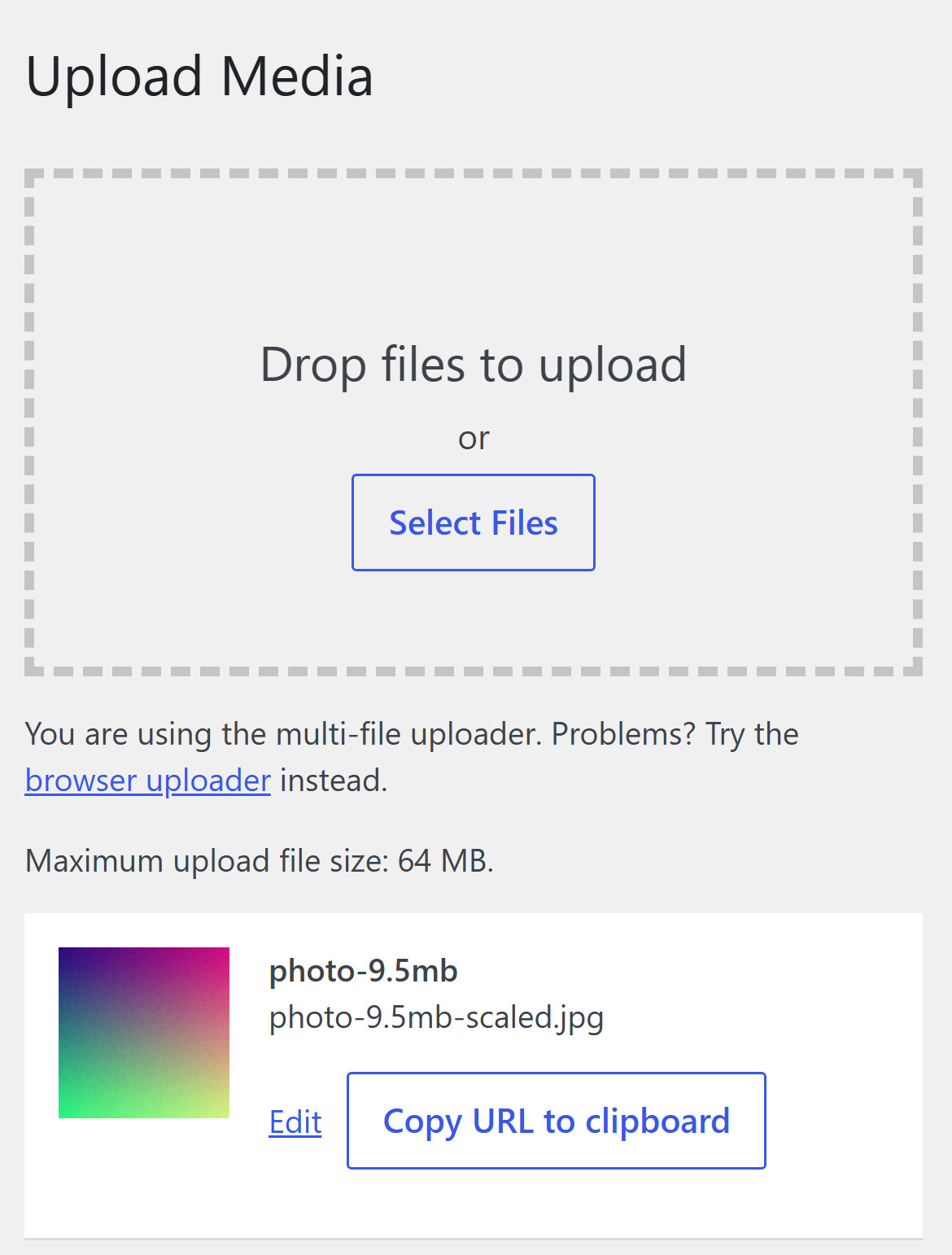
*After the nginx and PHP-FPM reloads: 64 MB, and the 9.5 MB photo in the Media Library*
Remember one more thing for later. These limits are in a folder named after the PHP version, so when you upgrade the server to the next PHP version, PHP-FPM reads a new folder (/etc/php/8.4/fpm/ for PHP 8.4), and both limits are back at the defaults until you copy your 99-uploads.ini there. After that upgrade, the line under the uploader is the first thing I'd check.
## Sources
- nginx: [client_max_body_size](https://nginx.org/en/docs/http/ngx_http_core_module.html#client_max_body_size) (default 1m, contexts http, server and location, 0 switches the check off).
- PHP manual: [core php.ini directives](https://www.php.net/manual/en/ini.core.php) (upload_max_filesize 2M, post_max_size 8M, both INI_PERDIR), [where a setting may be set](https://www.php.net/manual/en/configuration.changes.modes.php), [.user.ini files](https://www.php.net/manual/en/configuration.file.per-user.php), [PHP-FPM configuration](https://www.php.net/manual/en/install.fpm.configuration.php) (php_admin_value) and [UPLOAD_ERR_INI_SIZE](https://www.php.net/manual/en/filesystem.constants.php).
- HTTP: [RFC 9110, 413 Content Too Large](https://www.rfc-editor.org/rfc/rfc9110#section-15.5.14) (2022), [RFC 7231, 413 Payload Too Large](https://www.rfc-editor.org/rfc/rfc7231#section-6.5.11) (2014) and [RFC 2616, 413 Request Entity Too Large](https://www.rfc-editor.org/rfc/rfc2616#section-10.4.14) (1999).
- WordPress: [wp_max_upload_size()](https://developer.wordpress.org/reference/functions/wp_max_upload_size/) and the nginx page of the [Advanced Administration Handbook](https://developer.wordpress.org/advanced-administration/server/web-server/nginx/).
- Cloudflare: [Error 413](https://developers.cloudflare.com/support/troubleshooting/http-status-codes/4xx-client-error/error-413/) and the request body sizes per plan in [Workers limits](https://developers.cloudflare.com/workers/platform/limits/).
- axios: [lib/core/settle.js](https://github.com/axios/axios/blob/v1.x/lib/core/settle.js), the source of "Request failed with status code".
---
## Cite this guide
Wadowski, A. (2026, October 29). *413 Request Entity Too Large: WordPress Said 2 MB, nginx Said 1 MB*. CartHacker. https://carthacker.com/hosting/413-request-entity-too-large/
## Free tools from CartHacker
- [Store Speed Test](https://carthacker.com/store-speed-test/): Find the apps that slow your product page down.
- [Core Web Vitals Monitoring](https://carthacker.com/plugins/core-web-vitals-monitoring/): Monitor your store's Core Web Vitals every day, for free.
- [Trust Seals & Badges](https://carthacker.com/trust-badges/): Show shoppers it's safe to buy, right under Add to cart.
- [QR Code Generator](https://carthacker.com/qr-code-generator/): Make a QR code you can still change after printing.
- [PDF Tools](https://carthacker.com/pdf-tools/): Free online PDF tools that run in your browser: merge, split, convert, sign and protect PDFs. 39 tools, no upload, no watermark, no sign-up.
- [CartHacker Premium](https://carthacker.com/premium/): one subscription, monthly or yearly, that upgrades every tool at once:
- 50 trust badges in 30 languages, switched automatically
- 180 days of Core Web Vitals, per page
- All 39 PDF tools, unlimited and never uploaded
- 200 QR codes, tracked and editable after printing
- No ads on any guide or tool
- Every new guide 2 weeks before the public
- Product Feed Manager and new tools included
- Every quota and price, tool by tool: https://carthacker.com/llms.txt